Hi Automate Community!
If you have a scenario where you need to upload the data from your Excel file to multiple SAP systems, I'll walk through a couple options. For example, you could be loading the same data into ECC and S/4HANA or into QA and Prod. With Studio you can point to any SAP system you have access to.
The first option is to manually log in and out. This option is good if you don't need to do this on a regular basis. Within Studio you'll see the SAP system you're logged into in the lower left corner of the Run screen:

From there, click on the SAP dropdown, and select Log Off.
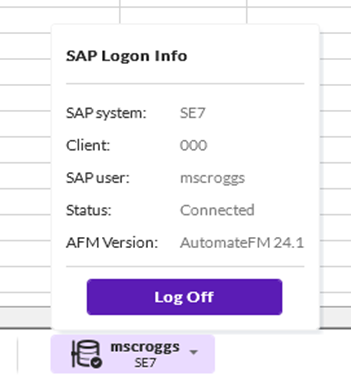
After you're logged off, log on to the other SAP system you need to load the data to. Continue loading the data as usual.
From within the Excel add-in, you can log in and log off in the upper left corner of the Studio tab:
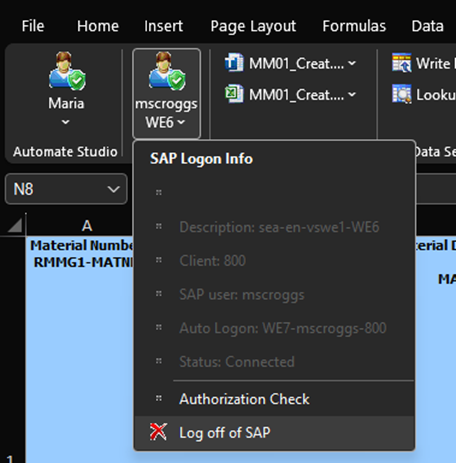
You can do this as many times as needed to load the data into multiple SAP systems.
The second option is to create copies of the script with auto logon credentials saved for each different SAP system and chain them together. This is a good option if you need to upload the data into multiple SAP systems on a regular basis and don't want the hassle of logging in and out of each SAP system every time. I recommend keeping one copy of the script that doesn't have saved auto logon credentials and isn't chained because once a script is in a chain it will always run the chain.
Let's walk through how this works with an example. I created a script to create materials and I want to load those materials into two SAP systems, WE7 and SE7. Here are the steps I took:
- Create the script and save it. For example, MM01_CreateMaterials.
- Copy the script and add the name of the SAP system. For example, MM01_CreateMaterialsWE7. On the run tab choose the Auto logon credentials for that SAP system. In this case I chose WE7. Save the script.
- Copy the script and add the name of a different SAP system. For example, MM01_CreateMaterialsSE7. On the run tab choose the Auto logon credentials for that SAP system. In this case I chose SE7. Save the script.
- This step is optional, but I recommend it because you will most likely want to see separate log columns for each SAP system. For the first or second script (either one) go to the Map tab and change the validate and log columns to new columns in the spreadsheet. Save the script and data file. Your data file should now have two validate logs (if validation is enabled) and two run logs. Repeat if you have more than two scripts.
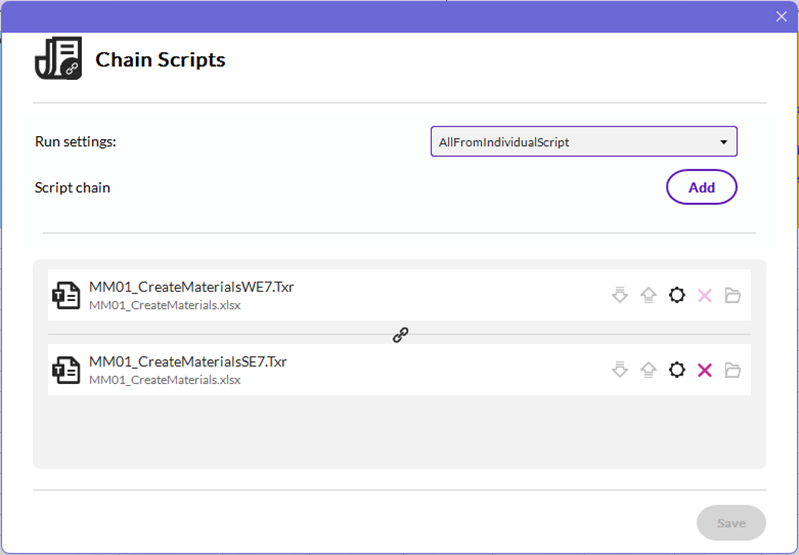
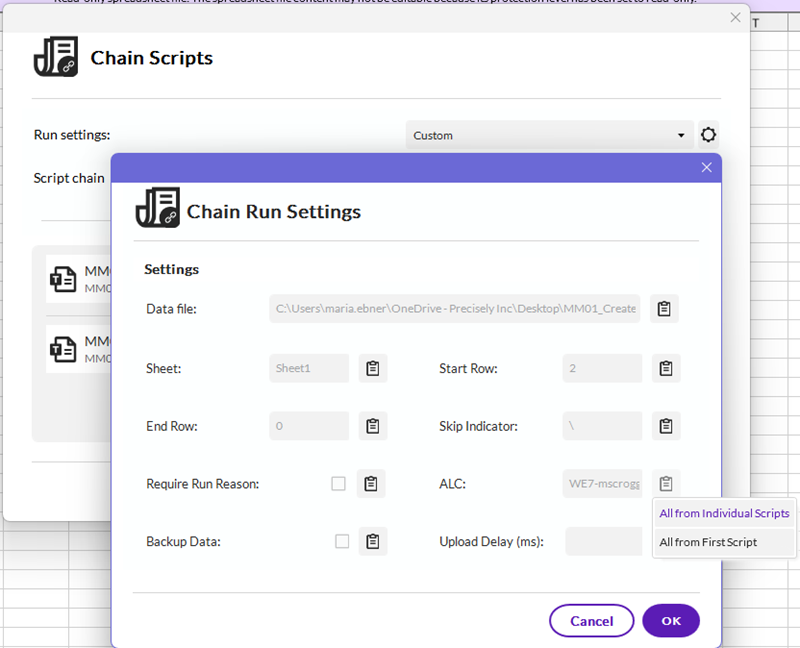
- Chain the scripts together. For this example, we're only chaining two scripts (the same script but different names and SAP systems) to upload into two SAP systems, but you can do as many as you need. To chain the scripts, open the script you want to run first, go to the Run tab, and click "Chain Scripts" in the ribbon. Select the second script you want to run and for the Run settings choose either "All from Individual Scripts" or "Custom". If you choose "Custom", make sure you leave the ALC to "All from individual scripts". "All from First Script" will not work in this scenario because it will use the SAP system from the first script to run subsequent scripts.
- Run a test to make sure it works properly.
Thanks!
------------------------------
Maria Ebner
*Precisely Software Inc.
------------------------------