Hi Automate Community!
Are you familiar with the out of the box workflows included in Studio Manager and Evolve? These workflows apply to scripts and data files, making it easy to enforce data quality and data validation checks before anything reaches SAP. Scripts go through an approval process, and data can be reviewed and approved prior to being posted - giving you a structured, governed path to cleaner SAP data. These workflows are perfect for any use case that requires data approval, whether it's a journal entry in Finance or a purchase order in Procurement.
There is one workflow for the script to get approved and there are two workflows to choose from for the data to get reviewed and approved. When a script is created and submitted is when it goes through the script approval process and at that time the script developer can specify whether the data for that script needs to go through an approval process before getting posted to SAP.
Here is a visual of the script approval process:
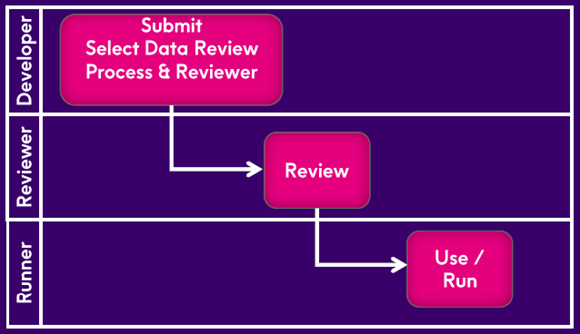
Here are the steps for the script developer:
- Create the Studio script
- Submit the script(s) and data file
- Select the data review process (the data review process cannot be changed after it has been submitted)
- No data review (users can run the script and post the data to SAP production without a data approval)
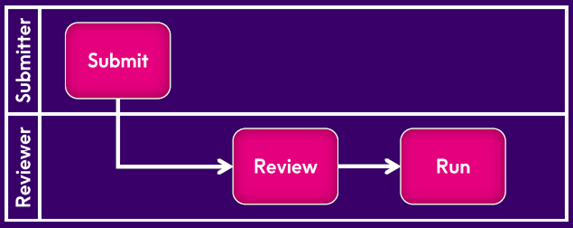
- Review and Post – One Step (the reviewer approves and posts)
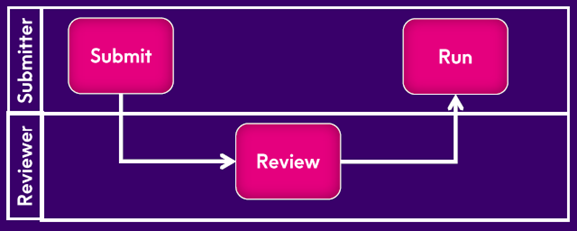
- Review and Post – Separately (the submitter posts after approval)
- Select the script reviewer (can be self if enabled)
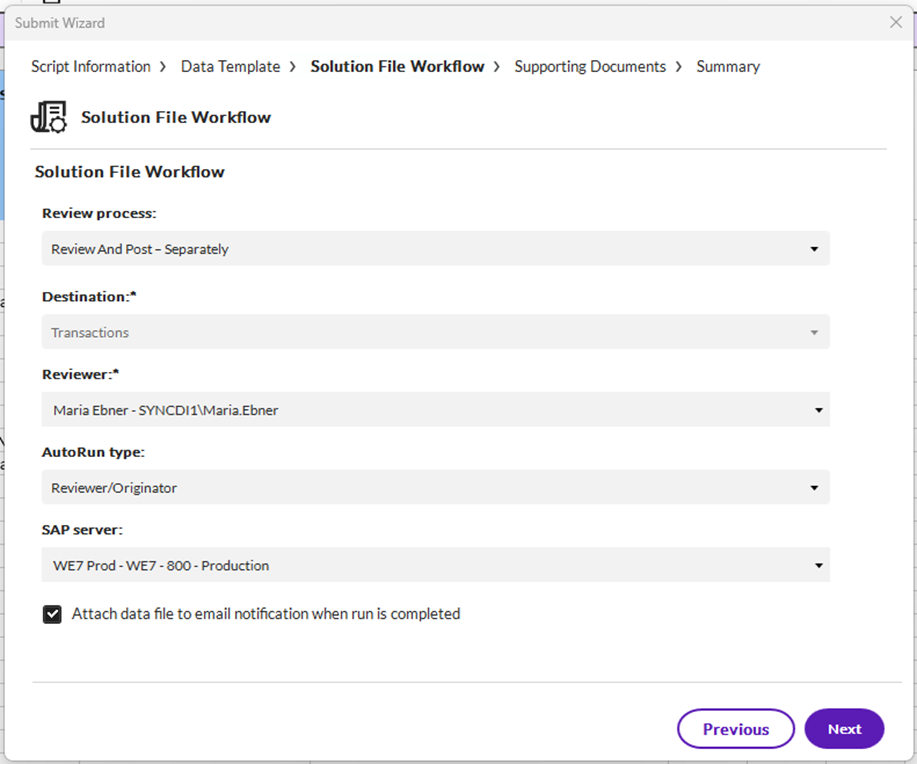
- Select the AutoRun type
- None (run is done manually meaning the user will click Run in Excel after it's approved)
- Reviewer/Originator (run is done automatically using the credentials of the reviewer or originator based on the data review process selected)
- Select the SAP server
- Optionally check "Attach data file to email notification when run is completed"
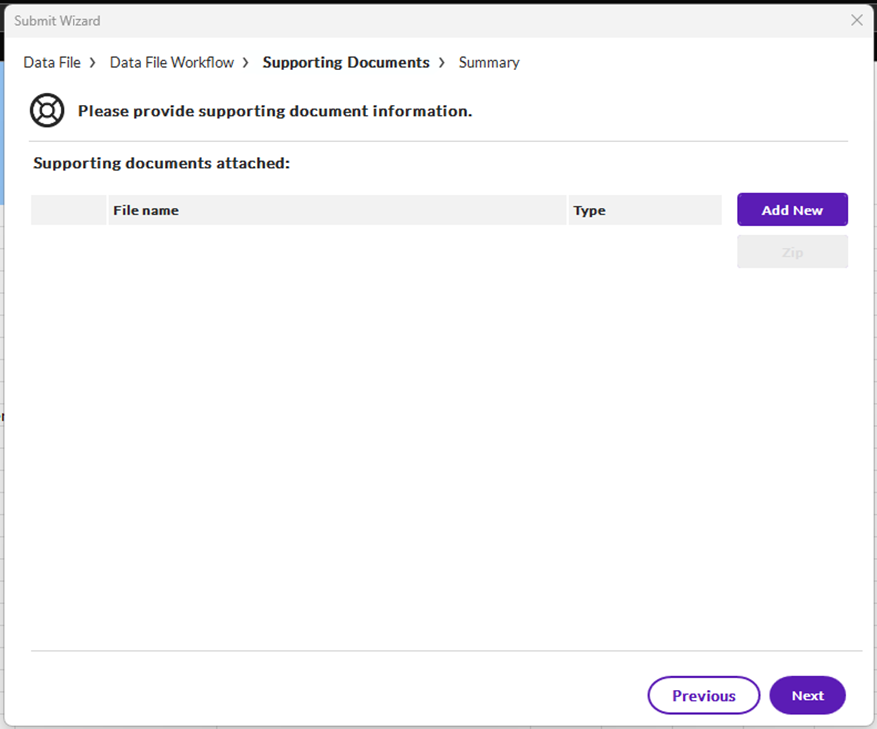
- Attach supporting documents, like instructions
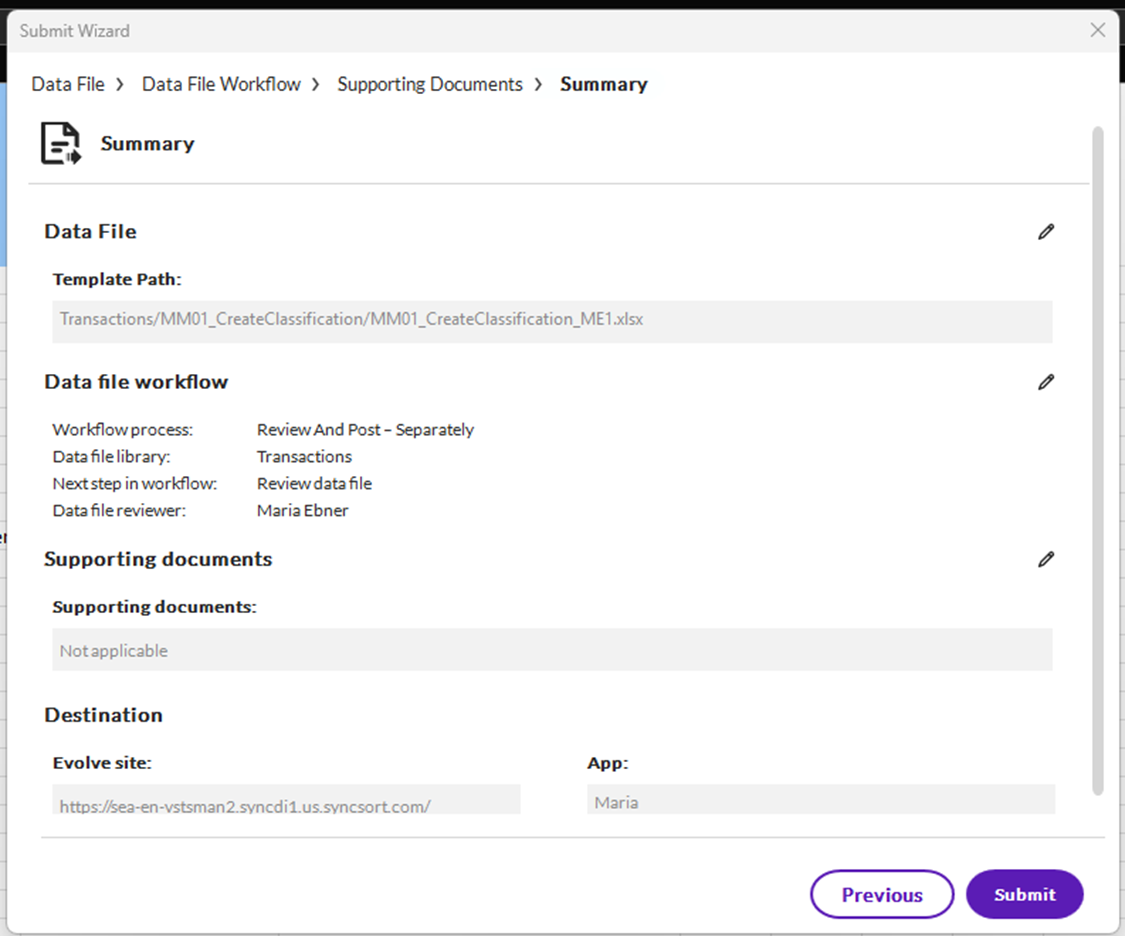
- Submit to Studio Manager or Evolve
Here is a visual of Review and Post - One Step:
Here is a visual of Review and Post - Separately:
Here are screenshots of the steps as you walk through the script approval process using Review and Post – Separately for the data review process:
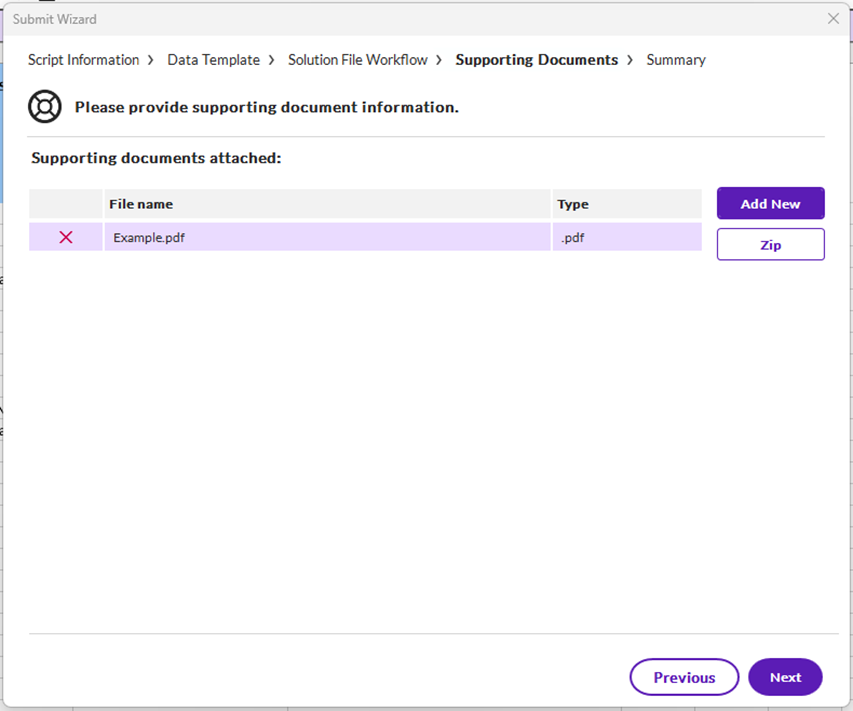
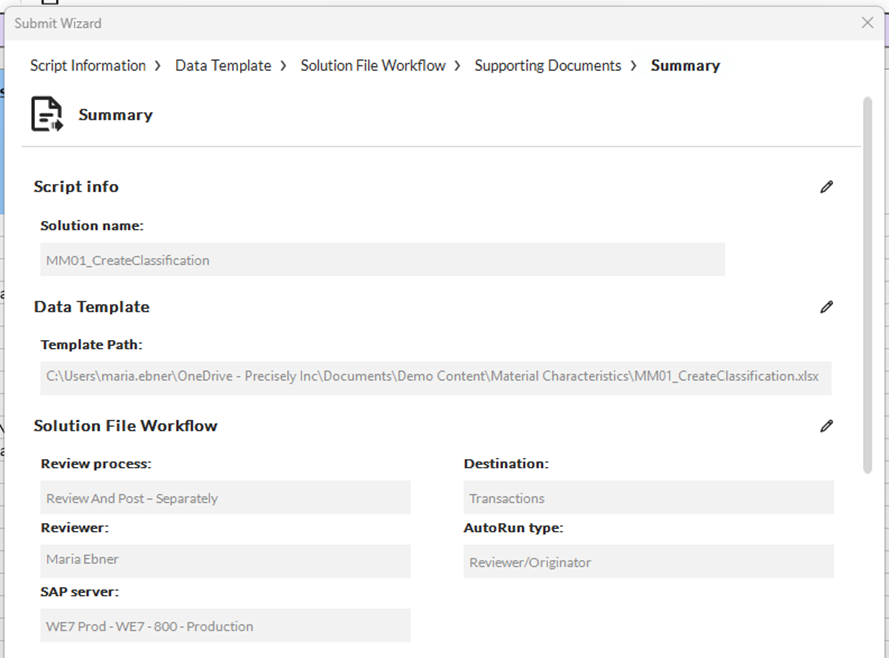
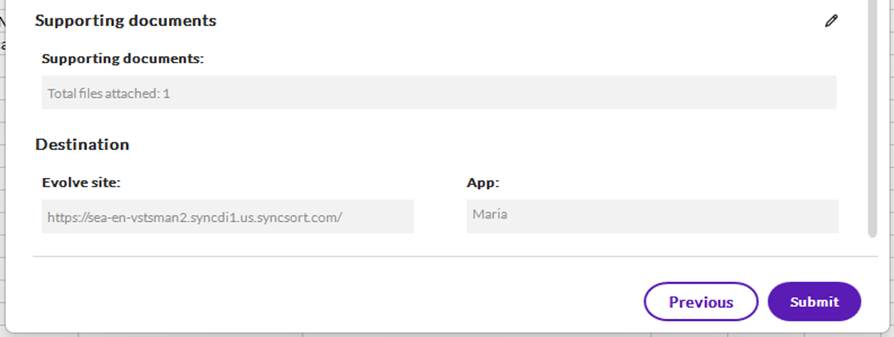
Here the script reviewer approves the script:
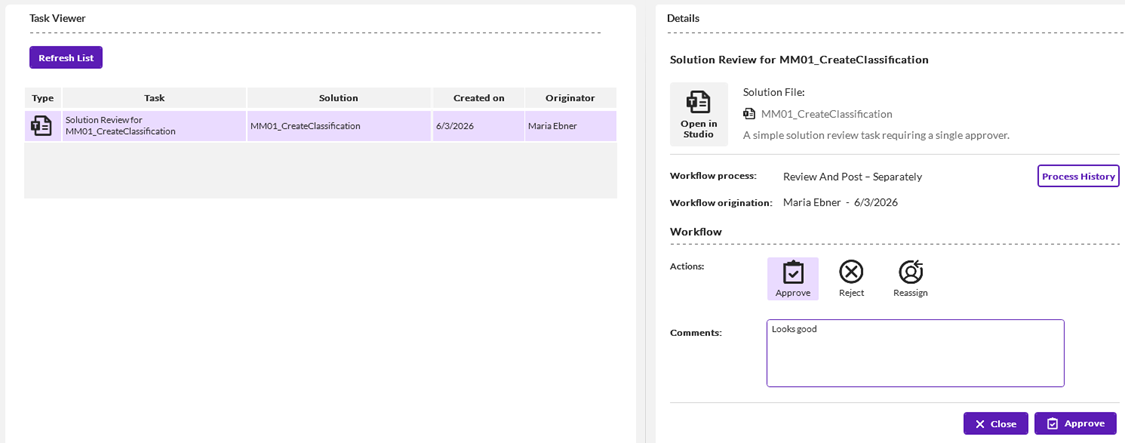
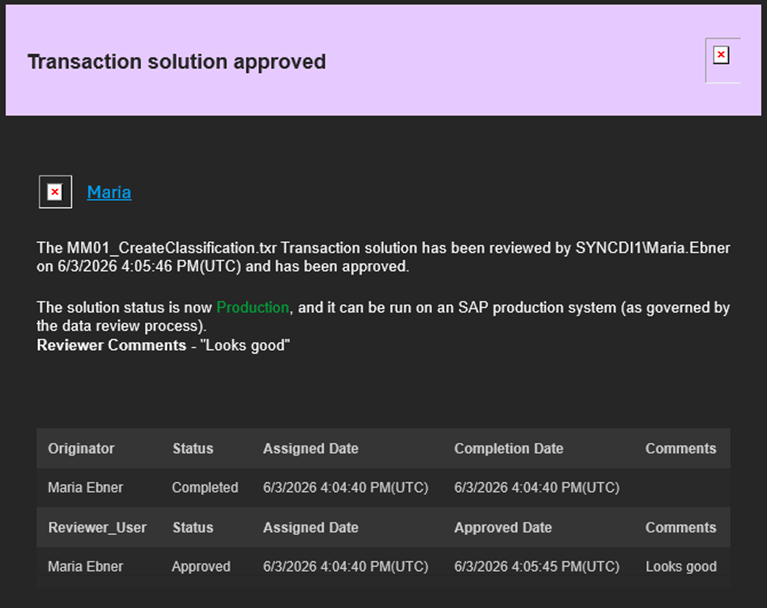
Email notifications are sent to the script reviewer and after the script is approved, an email is sent to the script developer:
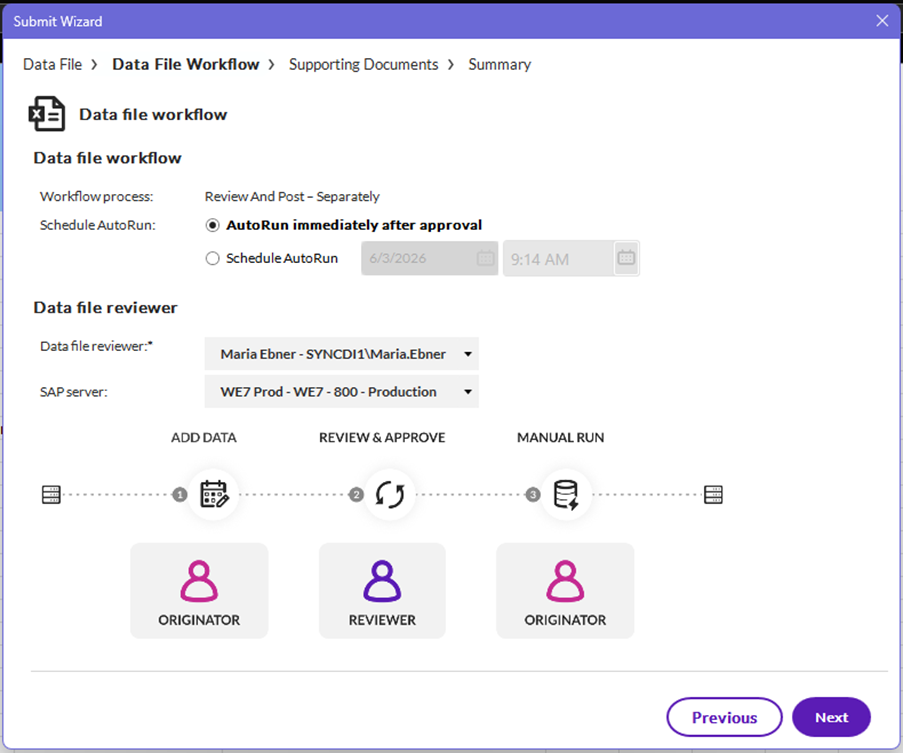
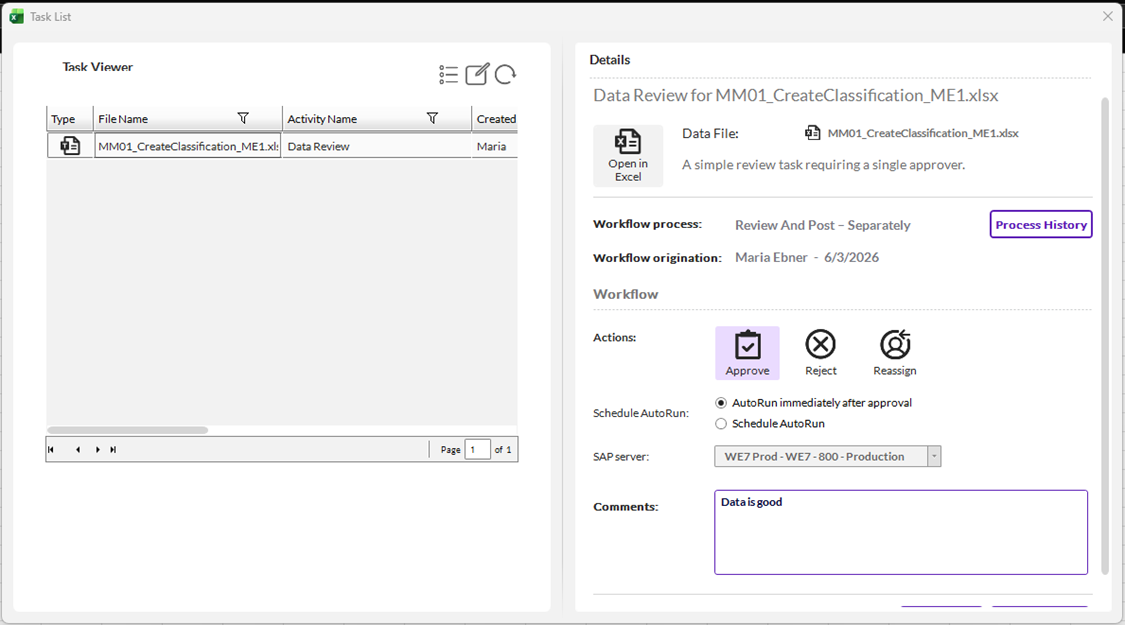
After the script has been approved and is in Production status, a Runner user can start using the script and data file. Here is an example of the Runner user submitting data that must go through an approval process using Review and Post – Separately. The Runner user can specify if it should run automatically or if it should get scheduled to run at a later date and time. The Runner user will choose who reviews the data and the system it should post to after it's been approved. The visual at the bottom of the screenshot shows Manual but this workflow has been set to AutoRun, so it will run on the Server instead.
Here the data reviewer approves the data:
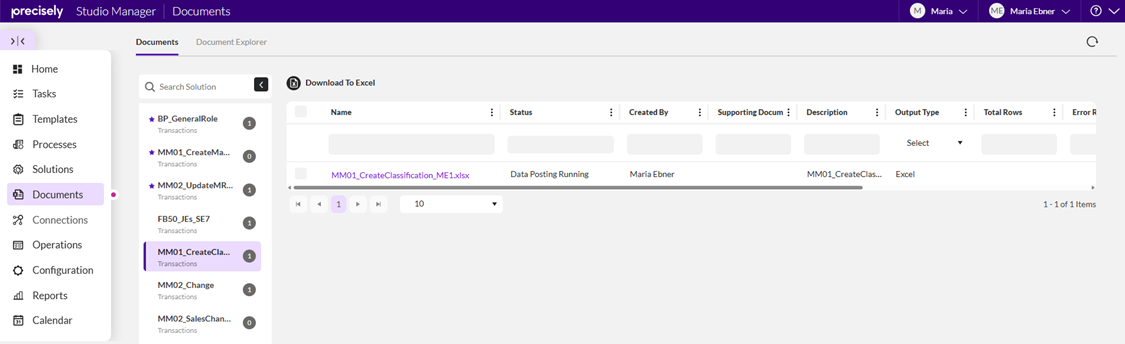
The process history can be viewed along the way within Studio or Excel and at any time within the Documents page in Studio Manager or Evolve. In this screenshot the data has been approved and it's currently posting to SAP through the Server:
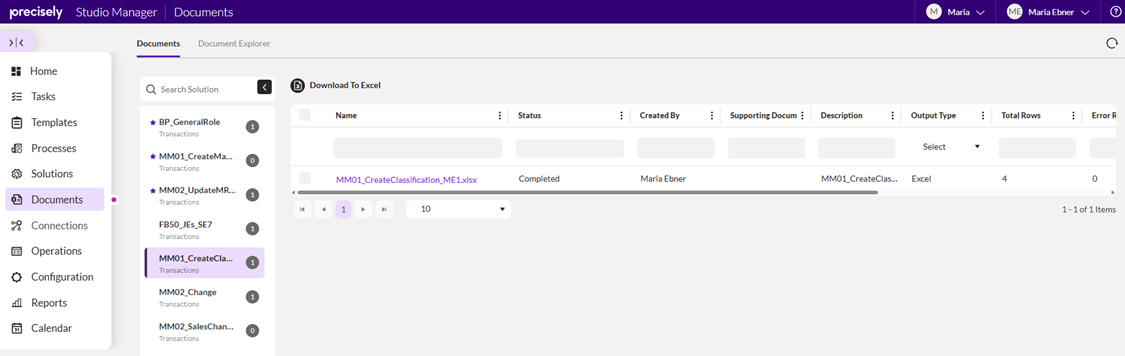
After the script run completes against the Server, the status shows Completed as well as the total rows, error rows, output type, etc. The data file is also available here:
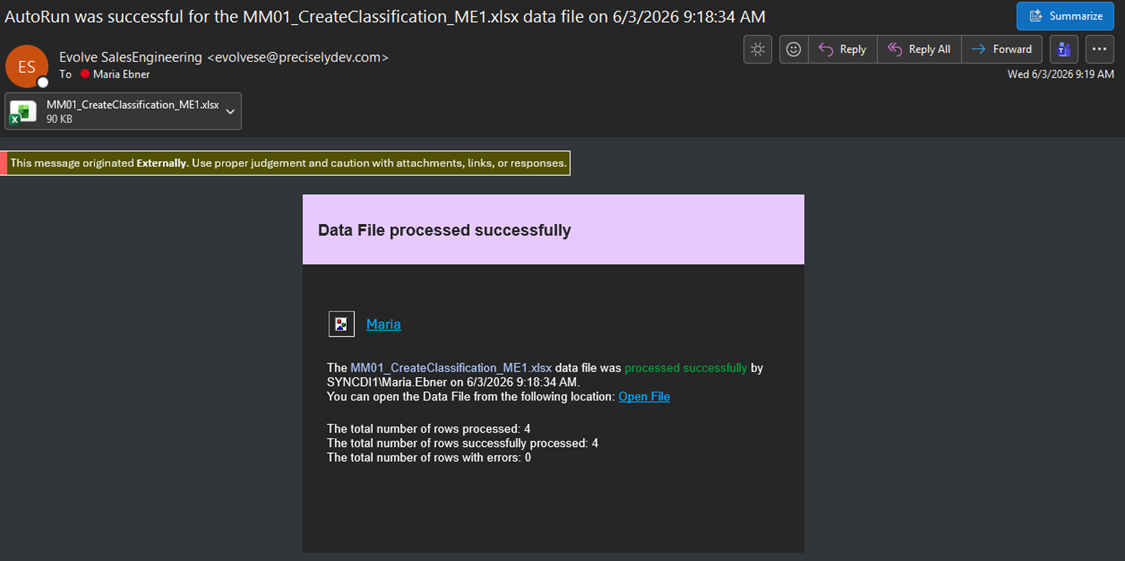
An email notification is also sent to the originator that it is complete and the updated data file is attached (based on the checkbox selected by the script developer):
I hope you're taking advantage of these easy to use out of the box workflows to ensure data quality in SAP.
Thanks!
------------------------------
Maria Ebner
*Precisely Software Inc.
------------------------------