The License Administrator manages specific Evolve licenses, ensuring users are assigned the appropriate license types and that the organization's license inventory is properly maintained.
Unlike a Global Administrator, a License Administrator's focus is licensing management rather than full system administration. Global Administrators have broader permissions across users, licenses, applications, and system settings.
At a high level, here are the steps in Studio Manager or Evolve for managing License Administrators
Add a user as a License Administrator
- Go to Settings
- Click Edit
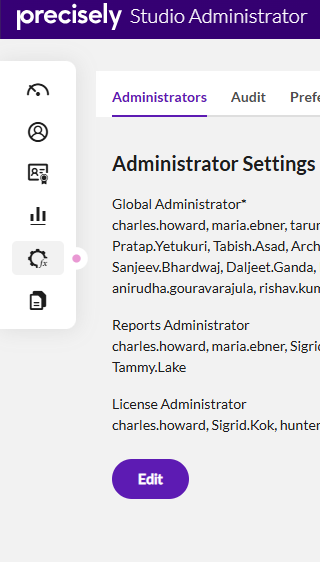
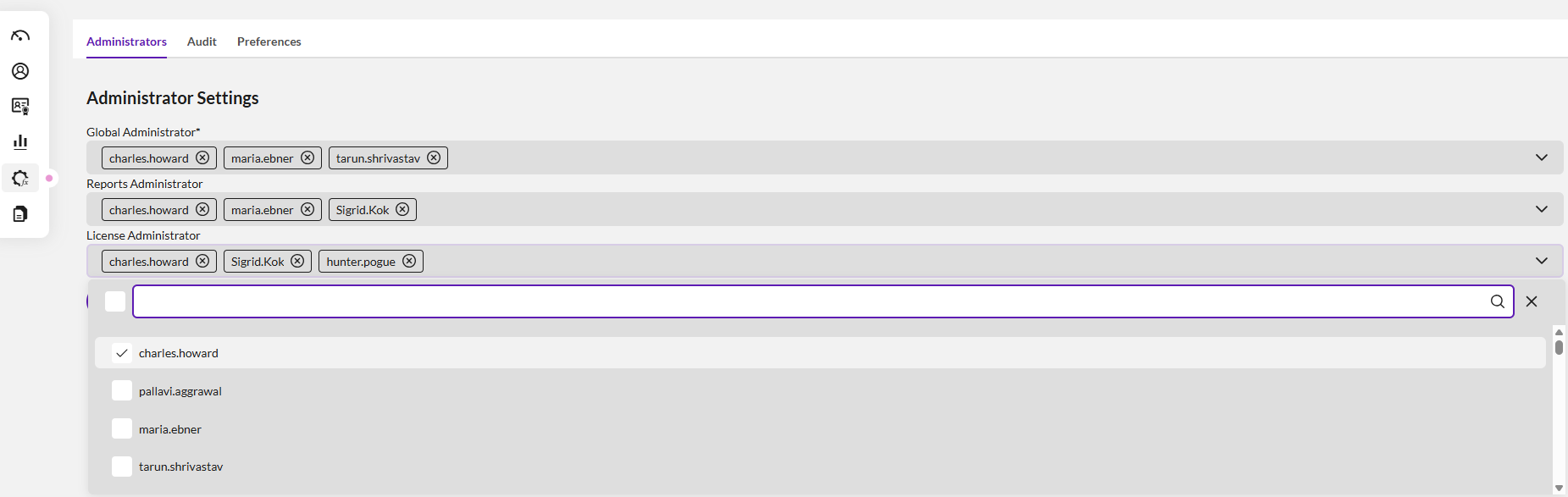
- Click the drop-down in the Licenses Administrator list
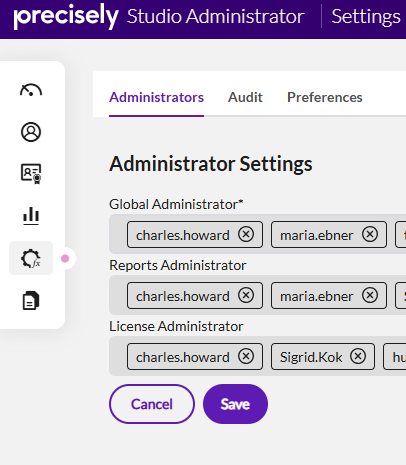
- Select the user(s) to add to the License Administrator List
Transfer licenses to a License Administrator
- Go to License
- Transfer
- Click the + sign to expand the current license administrator containing the licenses you want to reassign
-
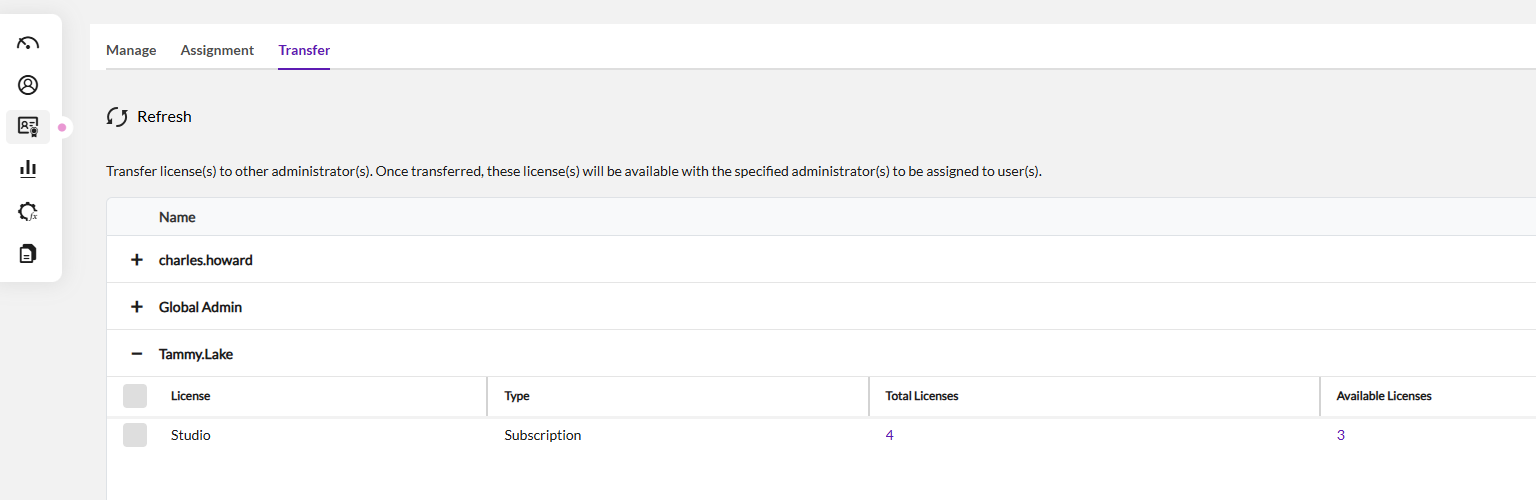
- Click on the number under Total Licenses to open a list of licenses
- Click the checkbox next to each individual license you want to transfer to a new License Administrator
- Click the Transfer button
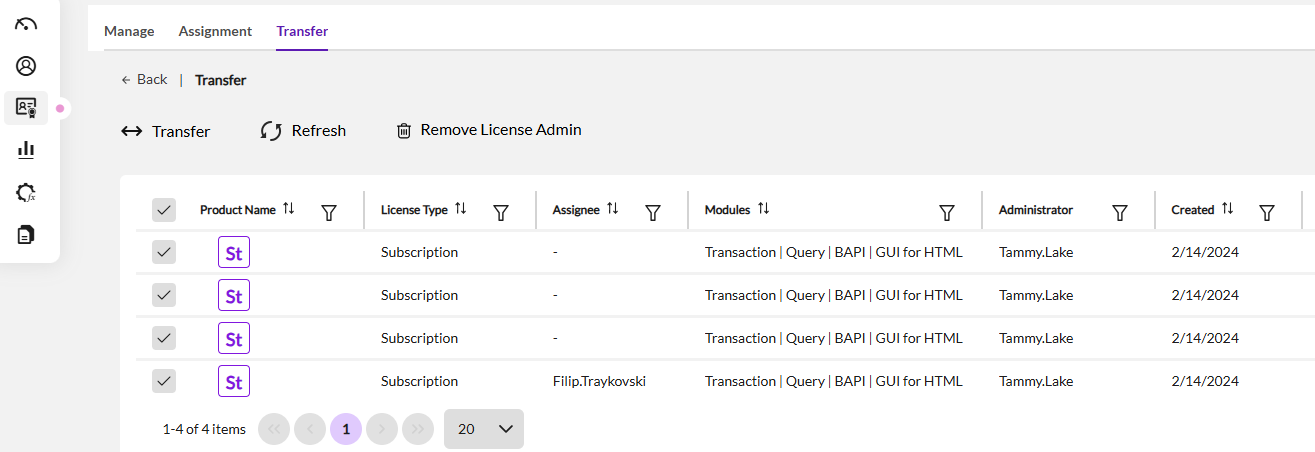
- Choose the User you want to assign as the admin for the selected licenses
- Click Save
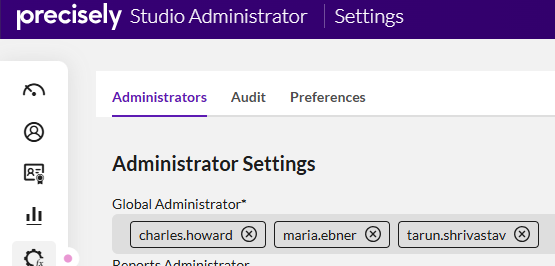
If you don't want the License Administrator to see other licenses, remove the user from the Global Administrator group in Settings
- In the Global Administrator list, click the

- next to the user(s) you would like to remove as a Global Administrator.
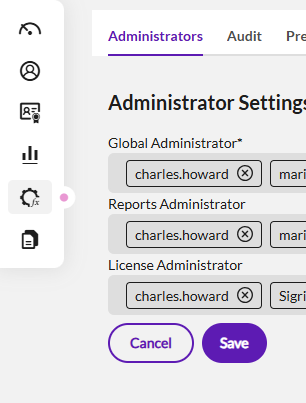
- The licenses visible in the License Assignment screen to the License Administrator will now only be the licenses assigned to the current user.
Important notes: License Administrators
- will only be able to see the licenses they are responsible for
- will be able to see the entire user list
- Using Tags (currently only available in Studio Administrator) - In the Studio Administrator Users list, to enable advanced searching and filtering of users in reports, you can assign semicolon-separated tags by entering them in the Tag(s) column of the template file. Tags can represent criteria such as department, region, team, or any custom classification, and are visible only to Global Admin and Report Admin users.
In tag names, you can only use alphanumeric characters, spaces, hyphens, and underscores, and they can be up to 150 characters long. However, tag names cannot begin with a hyphen.
- will be able to see all reports they have access to see
Use the links below for more details: