In most SAP governance workflows, the email is the “front door” for business users. If notifications are unclear, inconsistent, not localized, or links behave unexpectedly, adoption drops fast. Email Templates in Automate Evolve help you standardize workflow emails (assignment, approval, reminders, errors) while keeping them easy to maintain and consistent across teams, solutions and apps.
1) What are Email Templates:
Email Templates are reusable, standardized emails that Evolve can send automatically during workflow events like task assignment or confirmations. Evolve includes predefined templates that you can customize to match your wording, branding, and language needs. User can also add their own email templates at Global or App-Level.
Global vs App-level templates:
- App-level templates are restricted to that app. Use these in case you want the restrict the use of these email templates only to a particular app or want to define separate email templates for each app.
- Global templates are managed at the global level and are accessible to all the apps.
2) How to add a new Email Template
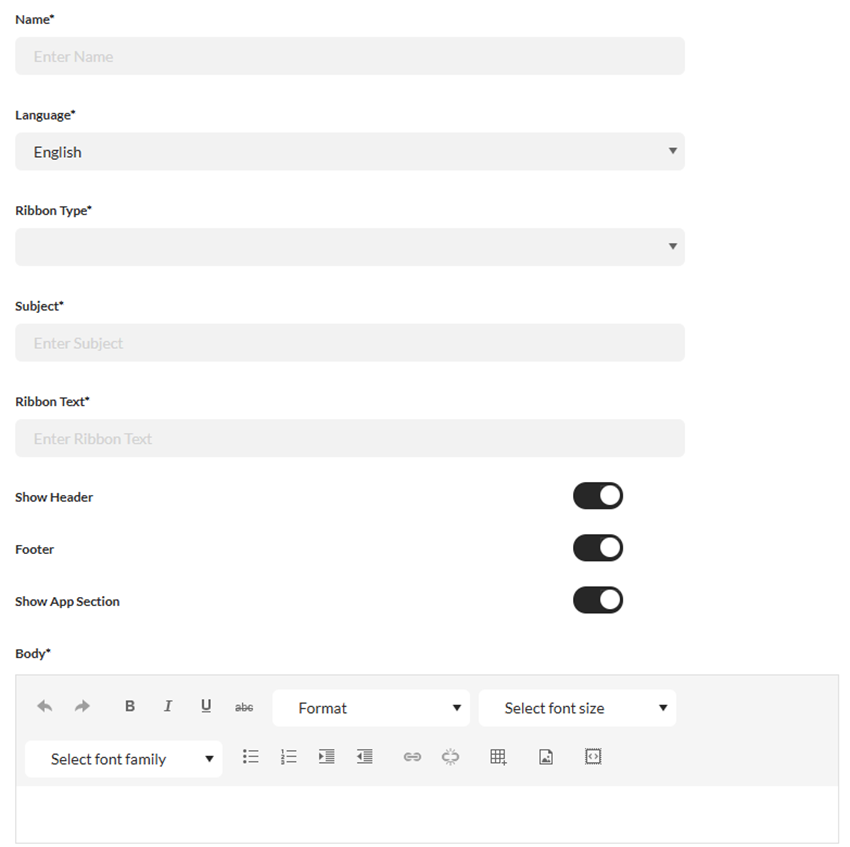
Steps to add a name template at Global or App level are the same. Once on the Email Template page, click Add and provide the values as below:
- Name – Classification of the email. Example: User role changed. This name is used while referring or calling an email template in the Workflow properties
- Language – Language in which you want to create the template
- Ribbon Type – One of the three ribbon types below, to be displayed in the email body
- Notification – Blue ribbon without buttons
- Task – Blue ribbon with an “Open Task” button
- Error -- Red ribbon without buttons
- Ribbon Text – Text to be displayed on the ribbon in the email
- Subject – Subject of the email to be sent
- Notification – Text to be displayed in the notification pane of the home page
- Body – In the Body field, you can enter your email text. Standard HTML editing options are available to customize the look and feel of your message. For example, you can choose the font type and font size.
3) How to manage Email Templates
- App-level templates are managed from the app configuration area. The Email Templates supports view, add, edit, export, import and delete operations. Both Global and App Admins can manage these email templates.
- Global templates are managed at the global level from the Administrator App. Go to Administrator App -> Settings -> Mail -> E-mail Templates. The Email Templates supports view, add, edit, export, import and delete operations. Only a Global Administrator can view and manage these email templates.
Note: Full translation and wording control are not always possible for every string available in emails. Some additional texts that appear in approval emails (example: “Click this link to Approve your assignment”) will not be editable through templates or configuration keys and are not fully exposed in the front-end for customers to customize.
4) How to define language specific Emai Templates
While creating or editing an email template, select the Language and define the Email Subject, Ribbon Text and Body for each language for which you want to configure and send the email. Supported languages available for templates include English, German, Spanish, French, Japanese and Evolve sends the template based on the user language where available. If the template in that language is not defined, or if the email template with that name does not exist, an error email is sent.
Note: Click Save button after adding the details for each language.
5) How Solution Designers “call” an Email Template from a workflow
This is the key concept customers often miss. If a Solution Designer defines a template name in the workflow Message property, Evolve treats that as “send email using the template”, and both subject and body are pulled from the template.
To reference a template, use the format: add $EmailTemplate. followed by email template name -- $EmailTemplate.TemplateName
For example: $EmailTemplate.AssignmentMessage
Note: When the Message property references an email template name, Evolve will use the template, and there is no fallback to a configuration key or property text if the template is missing. If the template is not found (or the language version is missing), an error email is sent.
You can see what that failure looks like in the real world in the email: Email template not found, which explicitly states “The email template was not found… Please contact your administrator to ask that this email template be added.”
Customer takeaway
If a customer is rolling out Email Templates, always validate the following:
- Template exists in the target app (or global) and should be named exactly as referenced.
- Template exists for the required language, otherwise users can receive an error email.
- Test at least one end-to-end assignment and approval notification in each language group.
6) Subject behaviour
A subtle but important rule: when templates are used, Evolve pulls subject and body from the template, and the workflow Subject property is typically empty by design. The Email Template is selected from Message usage, not Subject usage.
7) Power tip: Include .JPG image of the form to email notifications
Use the “Include Item” property of the Activity or Approval node to include the .JPG image of the form to email notifications.
You can even bypass this property using the EmailApprovalIgnoreIncludeItem configuration option defined at Solution level. This option specifies whether 'Include Item' is ignored while sending email with attachment or not.
The following table shows how this works in conjunction with the IncludeItem property.
|
EmailApprovalIgnoreIncludeItem
|
IncludeItem property
|
Results
|
|
True
|
False
|
Attachment is attached to the email sent to the task owner.
|
|
True
|
True
|
Attachment is attached to the email sent to the task owner.
|
|
False
|
True
|
Attachment is attached to the email sent to the task owner.
|
|
False
|
False
|
Attachment is not attached to the email sent to the task owner.
|
Set the EmailApprovalIgnoreIncludeItem configuration option to true in case you want to always send the .JPG image of the form to email notifications irrespective of the value set in Include Item property.
General guidelines on fallback mechanism for emails is as follows:
- Email Template name in the Message property: send email from email template and no fallback in case the email template is not defined or empty instead send an error email
- The Message property is empty: fallback to config key. Users can add an Email Template name in the configuration key as well
- If Property, Config Key, and Email Template are each empty: an error email is sent
-------------------------------------------
-------------------------------------------
-------------------------------------------
------------------------------
Rishav Kumar
*Precisely Software Inc.
------------------------------