Why this matters
To meet SOX compliance requirements, it's critical to ensure no one can approve their own work, unless the workflow is explicitly designed to allow it. Precisely Automate Evolve includes a built‑in compliance setting that helps enforce this automatically.
What is ComplianceCheck
The ComplianceCheck setting prevents a process originator from approving or completing their own approval tasks. By default, this setting is enabled, helping organizations enforce strong separation of duties with minimal configuration.
How the setting works
The ComplianceCheck key supports two values:
- Value = 1 (Default – Recommended): Originators are never reassigned to their own approval tasks.
- Value = 0: The compliance check is turned off.
What Evolve checks when ComplianceCheck is enabled
1. Task reassignment restrictions
Approval tasks cannot be reassigned back to the originator from:
- Workflow Participant controls
- Process controls
- Excel Add‑in reassignment
- Standard workflow steps
- Out‑of‑Office (OOO) delegation
2. When an admin is the process originator:
- They cannot:
- Complete, Approve, Reject, or Reassign open approval tasks from Edit Assignment
- Change future task assignments for the process
- Reassign approval tasks from Operations > Tasks
- They can:
- Act on their own tasks from the My Tasks page
Note: Admins can still Force Approve or Force Reject a process if required; but not individual tasks they originated.
Compliance checks for Out‑of‑Office (OOO) delegation
Evolve also enforces compliance during delegations:
- If a delegated user is the originator:
- The task is reassigned back to the original user
- Admin receives an OOODComplianceCheckFail notification
- If a delegated user does not have access to the app:
- The task is reassigned to the original user
- Admin receives an InsufficientPermissionforDelegation notification
Note: When an originator tries to reassign an Approval assignment to themselves, they will get the following error message:
"If you are both the process originator and the admin of a process, the actions you can perform on that process are limited."
Key takeaway
Keeping ComplianceCheck enabled is a simple but powerful way to:
- Prevent self‑approval
- Strengthen SOX compliance
- Enforce clear separation of duties across workflows
Recommendation: Leave this setting enabled by default unless there is a strong, business reason not to.
Steps to update the ComplianceCheck key
- Log in to the Evolve application and go to the Administrator app
- Go to Settings -> Workflow -> Options
- Find the ComplianceCheck key from the options table
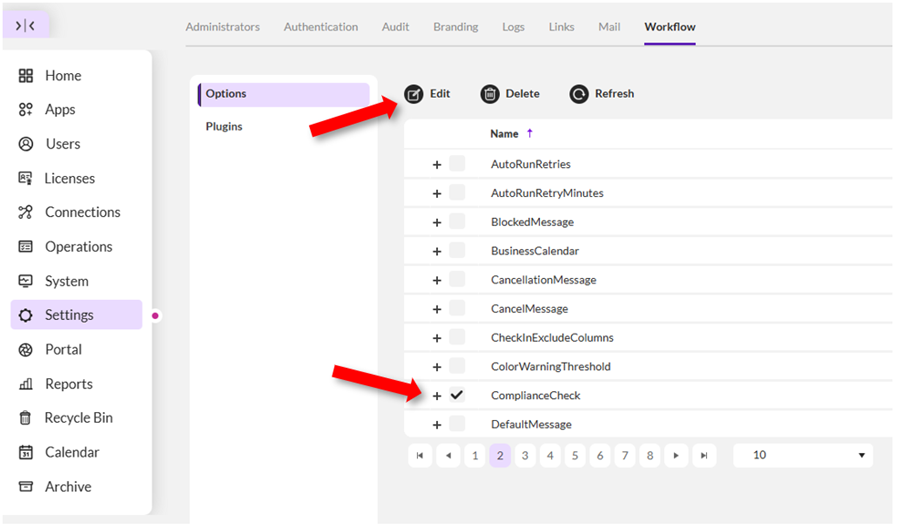
- Select the Key and click Edit
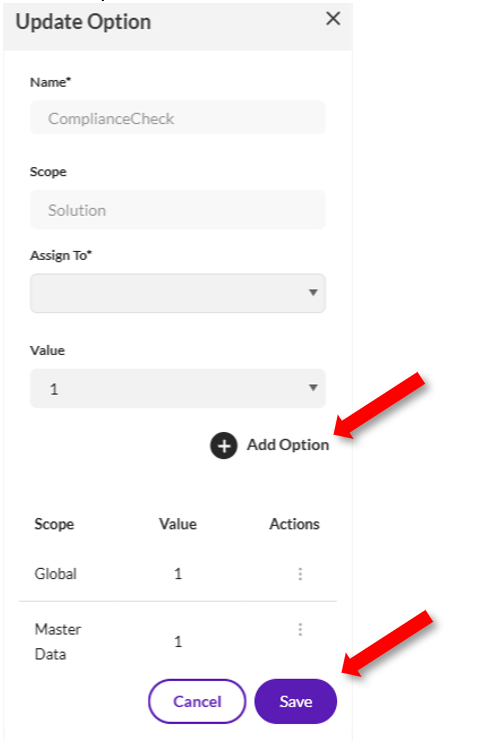
- As this key is Solution Level, set the Solution or App from the "Assign To" dropdown menu
Note:
· If a value is defined at the Solution level, it takes precedence. Any values set at the App or Global level are ignored.
· If no Solution‑level value is defined but an App‑level value exists, the App‑level value is used and the Global value is ignored.
· If neither the Solution‑level nor App‑level values are defined, the Global‑level value is applied.
- Update the value based on your compliance requirement and click "Add Option" button.
- 1 → Enables SOX compliance (prevents self‑approval) -- Recommended
- 0 → Disables the compliance check
- Save the changes and the updated values would be respected in next few minutes. Alternatively, Restart the Evolve application pool from the Evolve server to ensure the change takes effect.
------------------------------
Rishav Kumar
Product Manager
*Precisely Software Inc.
------------------------------