Hello Automate Community! This week's tip focuses on how Padding in Query can save you time and help you avoid unnecessary performance issues.
When working with SAP data in Automate Studio Query, one of the most common challenges is dealing with fields that store internally formatted values, especially those with leading zeroes. If you've ever run a query that returned no results until you added a long string of zeroes in front of your value, you've felt this pain firsthand.
Many SAP fields, particularly document numbers, material numbers, and accounting IDs, use internal formats that don't match the values users see in the UI. For example:
- Material Number
Stored as: 000000000000001873
Displayed as: 1873
Automate Studio provides two ways to deal with internal field formatting:
Use Padding (Recommended)
Padding fills values with the required leading zeroes before execution, ensuring SAP recognizes them. This is much faster than using conversion exits and optimizes performance of the query.
Enable Conversion Exits
Use only conversion exits when you must output the formatted (UI‑friendly) value, or when the field's conversion routine does more than simple zero padding. Keep in mind that enabling conversion exits can slow down extraction of your data when the query is run.
How to Apply Padding in Query
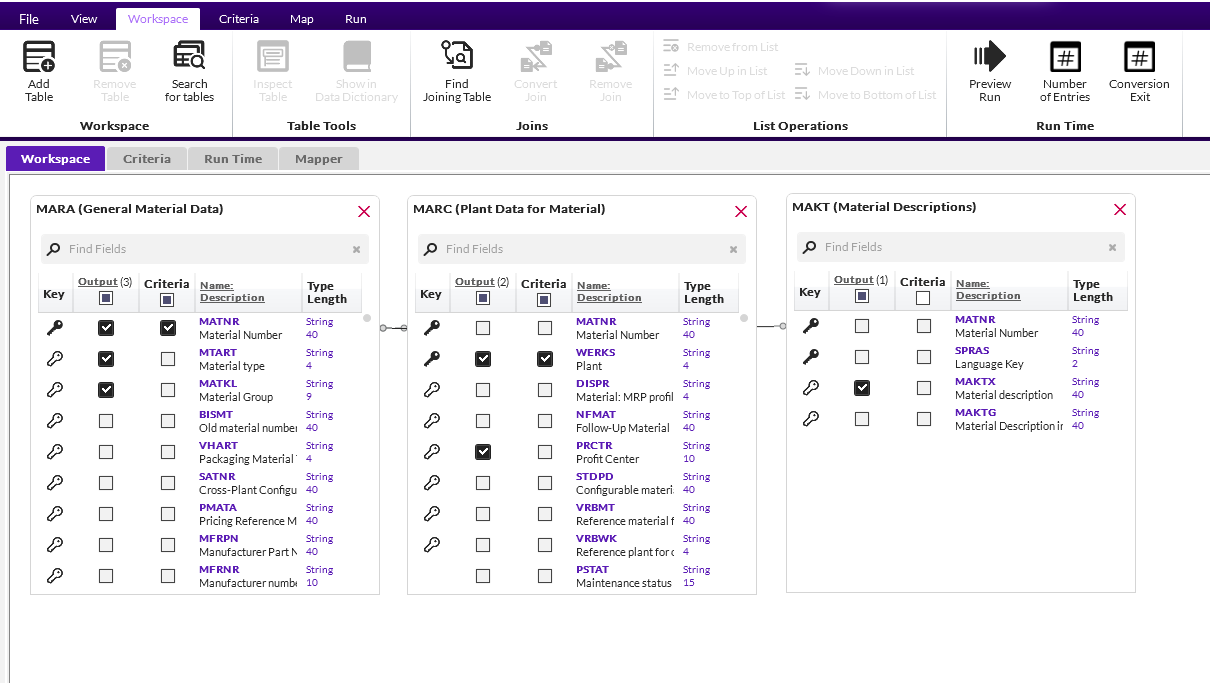
- Add tables to your workspace and select your criteria fields
- In the Criteria tab, select the dropdown list that contains options for padding. These options are:
- No Padding
- Pre-Pad with spaces
- Pre-Pad with zeroes
- Post-Pad with spaces
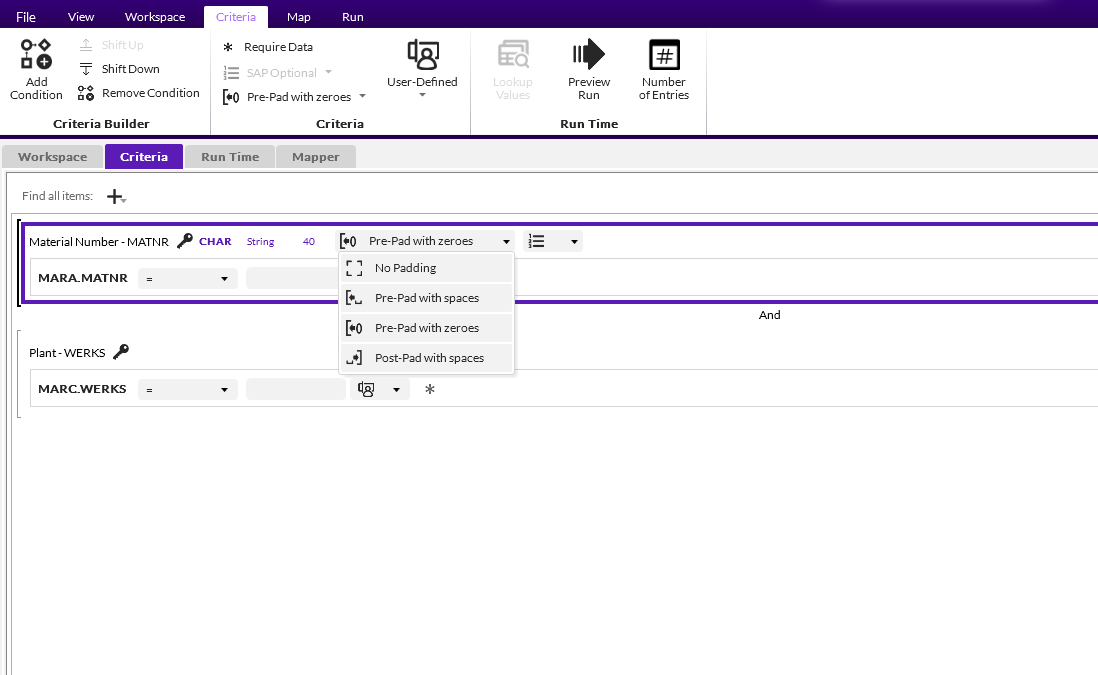
- Once you have selected an option, you can continue to enter the user-friendly values, without needing to manually enter the leading zeroes. Automate Studio automatically pads the value behind the scenes.
By using padding in Automate Studio Query, you can reduce the dependency on conversion exits, ensure your scripts are user friendly, and maintain fast and efficient query performance. I hope this tip was helpful!
------------------------------
Hunter Pogue
Sales Engineer
*Precisely Software Inc.
------------------------------