SAP will sometimes have pop-up screens in Transactions.
They often occur the first time you enter a transaction in any given session, such as a company code pop-up in posting/parking Journal entries, or for the material master classification type pop-up. In the case of journal entries, it can vary based on user settings, as well.
Sometimes pop-up occur when you are in a transaction. One of the most complex includes Sales Orders, as you may have many pop-ups, such as which shipping address do you want to use. You may also get an availability to promise pop-up, and that pop-up can vary based on whether you can ship part of the order or none of it until a later data. As you modify sales orders, some changes can trigger the pop-ups again.
Pop-ups can make it difficult to automate a transaction using any type of automation tool. In Studio, you have the ability to capture those pop-ups and then skip them if they don't occur. As a best practice, developers of Studio automations (aka scripts) should capture as many of the pop-ups that are common and then skip them if they don't occur.
Here are a few examples:
1. Journal Entry company code pop-up – below you see rows 4-7 include the pop-up asking for a company code. Please note you can only see the pop-up screens when you are in Expert view in the mapper, and the screen name often includes Dialog Box in the description, like below:

Click on line 4 with the screen name and in the properties check the option to skip if not present
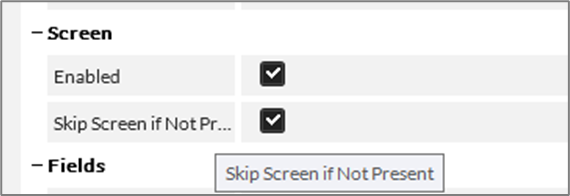
You can also click on line 4 to the left of the screen name you will see a partial circle with a dot – click it and it will check the skip screen if not present.

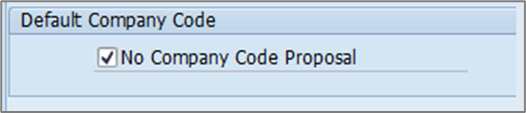
As a script developer if you are not seeing the pop-up, go into the transaction and click on Editing options and check the no company proposal
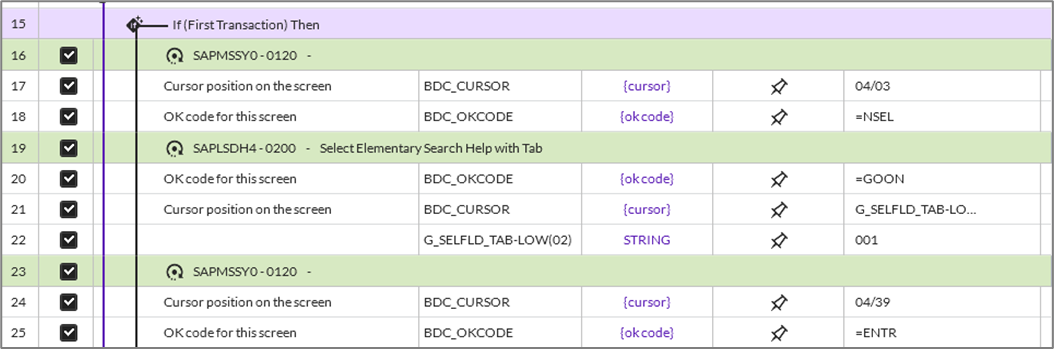
2. Material Classification view class type pop-up, which asks you what type of class you want to add (or update) in your material master. You can either skip it or you can use If First Transaction, because it will only happen for the first material in your session – it will remember it for the second material and beyond.
Here is the skip example

Here is the If First Transaction
3. For sales orders, I highly recommend you use Direct, because there are BAPIs to create and update Sales orders that don't have to deal with varying number of pop-ups. But if you will want to use Transaction with VA01/2, you can skip pop-ups.
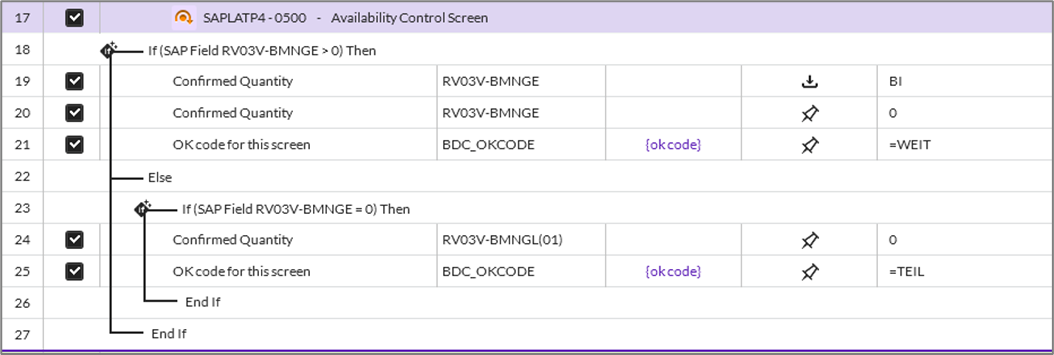
This example skips the availability pop-up, and it is using an IF statement. Based on the type of Availability pop-up, we are checking the confirmed quantity and using a different OK code to check the right option in the pop-up. So, this is a skip if not found, but if it's found, find the right action (i.e. ok code) to perform, as it's different. These pop-ups can occur with a lot of actions/field settings in a sales order, so you may need this logic in many places in your script.
( I'll bet that BAPI is looking pretty good right now :) )
For more information on this feature, please check out the documentation here: Skip screen if not present documentation
I'm sure there are many other examples. Where have you had to use skip screen if not present?
Happy scripting!
Sigrid
------------------------------
Sigrid Kok
*Precisely Software Inc.
------------------------------