Hi Automate Community!
Chaining or linking scripts is used to automate an SAP process that requires running multiple scripts. For example, if you need to create a material, extend it, create a BOM and routing, etc., you can chain all those scripts together. Once the scripts are chained, click the run button on the first script and it will automatically run all the scripts in that chain. This can save a lot of time if you need to run multiple scripts and there is no limit to the number of scripts you can link. I was impressed to find out that Columbia Sportswear chained together 148 scripts to automate SAP testing!
I want to share several tips about chaining. If you're interested to learn the process of chaining, please review the documentation here: https://help.precisely.com/r/t/1016755894/2023-12-31/Automate-Studio/Connect/Latest/en-US/Automate-Studio-with-Studio-Administrator-User-Guide/Link-Scripts
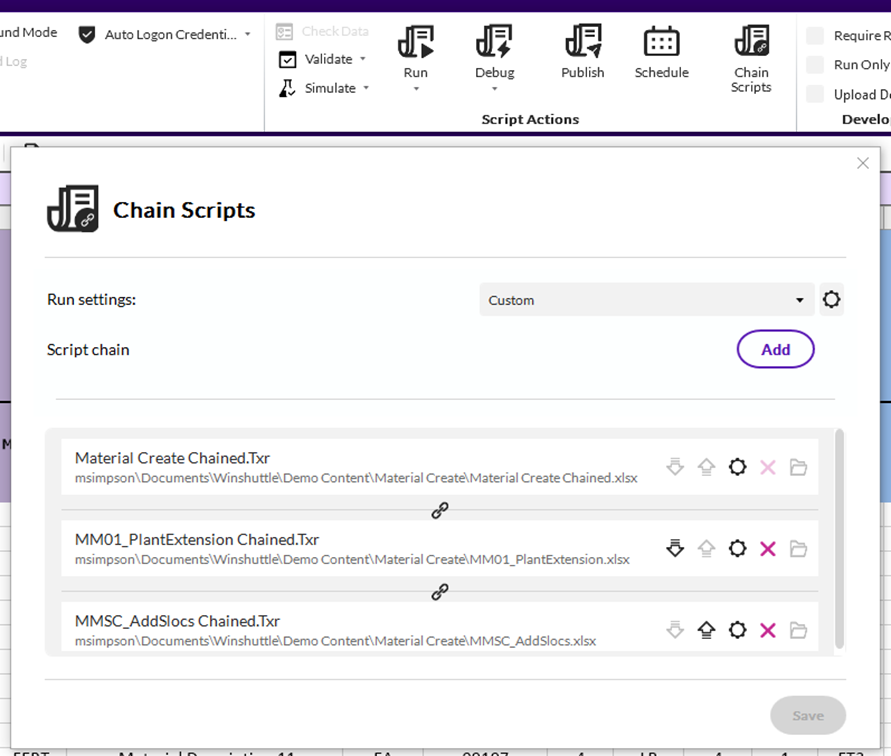
Here is a screenshot showing 3 chained scripts:
Before chaining scripts, I recommend the following:
- Test each script individually to make sure it works as expected.
- Check the run settings for each script. For example, if the start row should be 2, make sure it's 2. I've seen where the start or end row was changed while testing and they need to be changed back before chaining. I've done this to myself many times!
- Create a copy of each script and add the word chain or something that indicates it's in a chain. You can also add a number to each script so you can easily see where it is in the chain. Once a script is in a chain, it will always run the chain. You won't be able to run it individually.
While chaining scripts, I recommend the following:
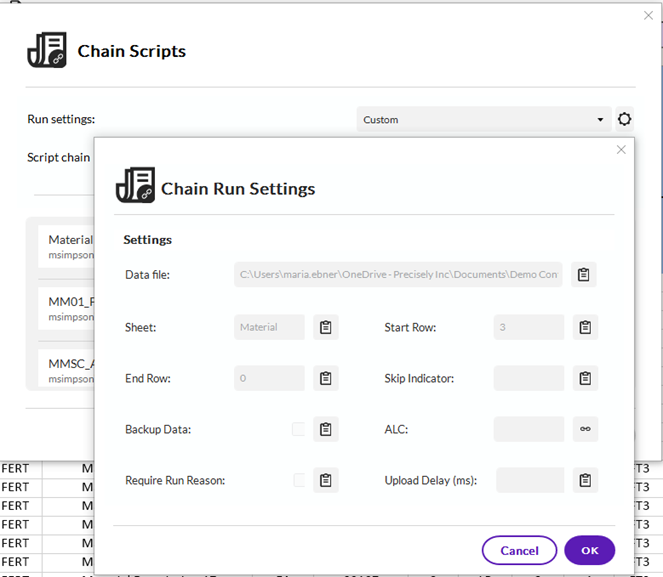
- Choose the appropriate run settings for the scripts. You can choose "All from first script", "All from individual scripts", or "Custom". For the screenshot below, custom was chosen because I wanted to use the SAP logon (ALC) from the first script and the sheet and start row from the individual scripts. Click the settings button next to custom to make changes to the custom run settings.
- Check the run settings for each script by clicking the settings button on each script. This isn't needed if you choose "All from first script".
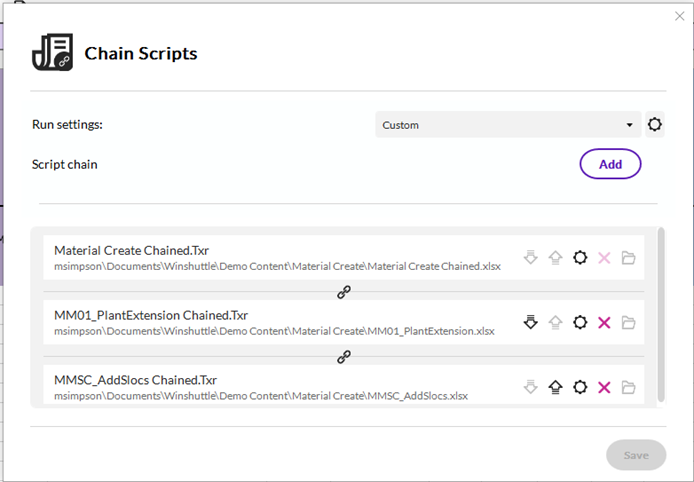
After chaining scripts, I recommend the following:
- Run the chained scripts to ensure every script runs as expected.
- Publish the chained scripts to the Excel file to make it easier for end users (runners). If you've already published and need to make changes to any of the scripts in the chain, remove the published scripts in the Excel add-in, make the necessary script changes, and publish the chained scripts again. If you're using Studio Manager or Evolve, you will need to submit the chained scripts instead of publishing.
Other tips and notes:
- If there is a Transaction script in a chain you might not want to run because of an error or maybe it's not needed for that row of data, add an if condition in the mapper to the entire script.
- You have the ability to cross-link meaning you can chain or link Transaction scripts and Query scripts ("All from individual scripts" is the only run setting): https://help.precisely.com/r/t/1016755855/2023-12-31/Automate-Studio/Connect/Latest/en-US/Automate-Studio-with-Studio-Administrator-User-Guide/Cross-link-Scripts?tocId=IuTR69OioBJfNoGCCKKjWw
- Chaining scripts for web forms/workflows in Evolve is done in Composer, not in Studio.
- Chaining will run all the rows for the first script, then all the rows for the second script, etc.
I'm sure this doesn't cover every tip, so please share any tips or stories you have about chaining. Perhaps you've chained more than 148 scripts?
------------------------------
Maria Ebner
Precisely Software Inc.
------------------------------