Extracting data from SAP can be helpful to
- Create operational reports, extracting into Excel and creating quick pivots
- Extract data prior to updating – what we call a round trip
In order to create the extract, you need to know or search for tables or views, or leverage Infosets or Logical databases, which are pre-joined tables with fixed search criteria.
Most people will use tables to create Query extractions. In order to find them, you can:
1. Use a search engine, for example search for "SAP material tables"
2. Search the tables from Query
3. Use the data dictionary, which includes two options
a. Expand a functional area to see all tables
b. Go to the tcode section and expand tables – only available for common tcodes
4. Use the F1 on a field and go into technical details to see if the table name is displayed – note that sometimes you'll see a structure name instead of a table name, which is where the data is temporarily stored while you are in the transaction
5. Run a SQL trace in SAP with tcode ST05
If those options are daunting, geeky or provide too many options, we have the option to create a Query extract from a recording. It will capture all of the fields you touch in a transaction and pull in the tables at the end of the recording.
Steps to create a Query extract using a Transaction recording include:
1. Open Studio
2. Choose New
3. Choose Query
4. Choose Create from a recording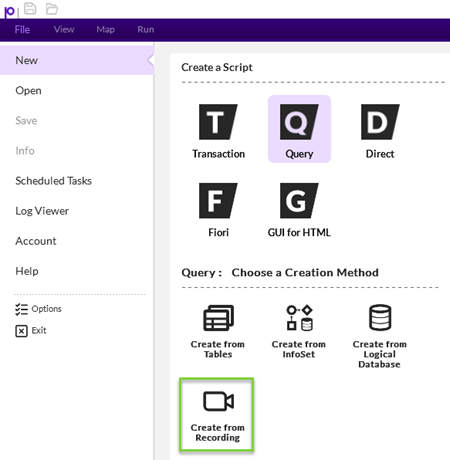
5. Enter a tcode that includes the data you want to extract and a description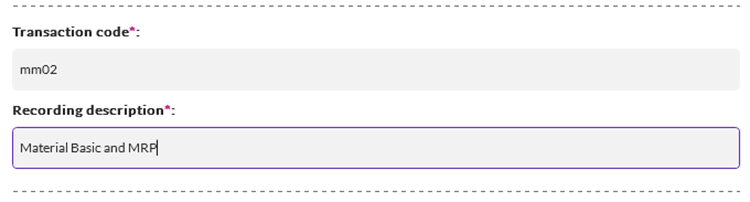
6. In the recording step, navigate to the areas you want to extract data and touch the fields in the recording, i.e. overtype or add a space
7. When done, you don't have to save
8. During the Map step, it will open query after synchronizing the tables and you will see a blank work space :) But fear not, your recording captured tables and fields
9. Choose the Data Dictionary on the right-hand side, and you will see at the very bottom Recorded Transaction Codes (RC) expanded, with the description you entered prior to recording, like this: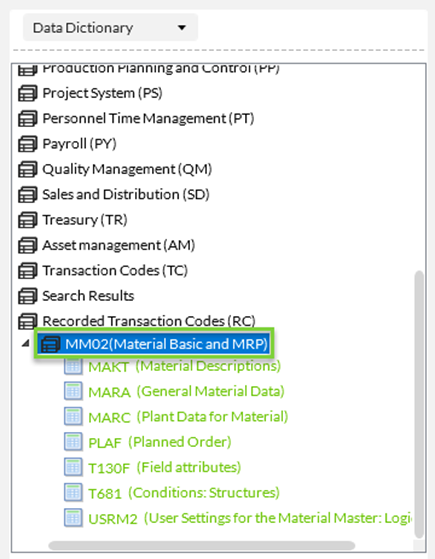
The synchronize step gave you the descriptions to the tables and shows them in a green color, like above. This gives you a friendlier way to identify the tables beyond the "geeky" table names.
These recorded Queries will persist, so you can close Studio and choose to create a Query from Tables, expand that Data Dictionary Recorded Transaction Codes (RC) section to see it again.
If you look at the tables, you'll often see USR… or T### tables, which can usually be ignored for most recorded queries.
Also note that Planned Order captured the Storage Location, but you might want to look for the real table for Material Storage Locations.
How you search is up to you. Here is the Data Dictionary under Transaction Codes (TC) for MM01/2/3/4:
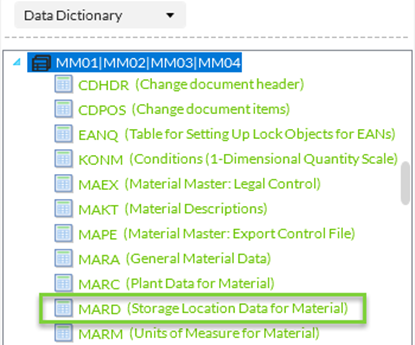
but an online search for "SAP material storage location table" can work well. It turned up this friendly site for information: https://tablesinsap.com/storage-location-tables-in-sap-a-complete-guide-for-sql-users/ There are other sites that list every possible table for a functional area or the community.sap.com site is a good place to look. Please use what works best for you.
Double click on MARA, MAKT and MARC to add them to your workspace
You will see something like below: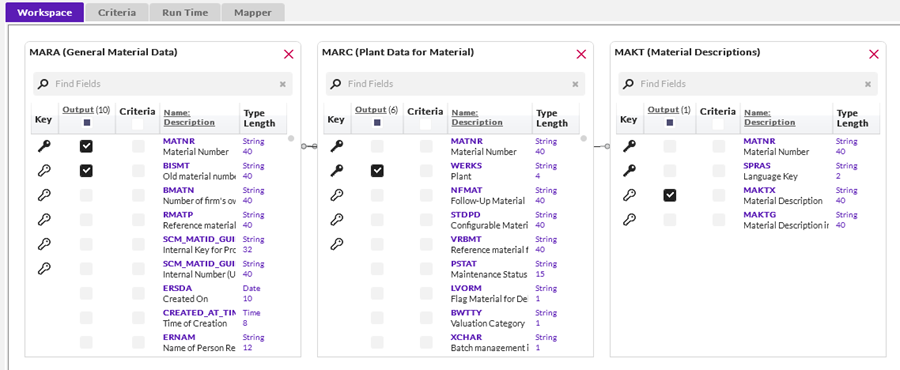
Note:
· that each table auto joins on key fields, which you can override, and in some cases, you should override although not often
· you will see the fields you touched are selected for output, which you can also adjust to include by selecting the checkbox in the output column – or deselecting by unchecking the checkbox. You can scroll, search and inspect each table to find just the data you need, searching by field name or description or sorting. Here's an example:
o This search on "type" in the MARC table went from 307 fields to a manageable number to scroll through to find MRP Type or Procurement Type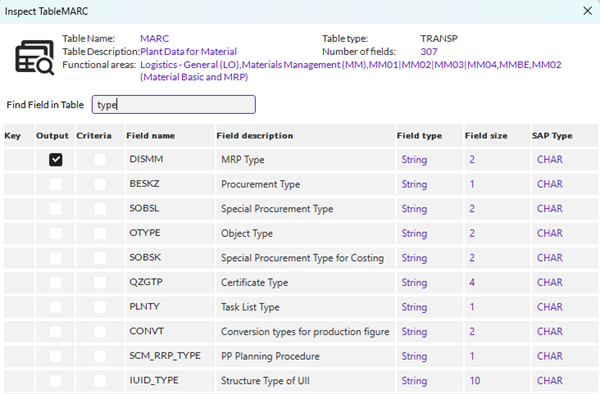
· you'll want to add some criteria fields to ensure the user of the Query finds just the data they want, and doesn't return the entire Material Master set of data :)
o Note with Descriptions, the MAKT table includes a language key, so that you pull the description back in the language of your choice. You may want to make that part of the search criteria, or you will get a record for each language description.
· then do a test run on the Run Time tab
Here is the Map tab, where it includes the output fields I touched in the recording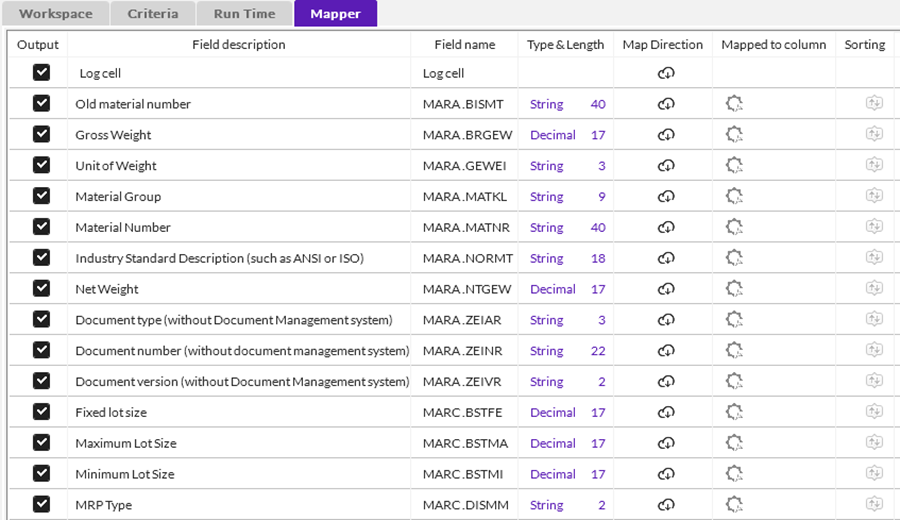

Map and run to ensure you have the results you desired. If using Excel, use sorting and formulas, as needed.
Please note that some tcodes and some tcode areas will not provide usable results when you Record a Query, but it can help. An example is class characteristics, with the field names with descriptions and values with descriptions. There was an educational webinar on that, which should be available on the Precisely University.
In case the recording doesn't give you the results you need, consider:
· searching online such as on the SAP developer's site
· look for examples on the Community in the SAP Module Templates community
· download data via a Transaction
· download data via a Direct script
· Post questions on the Automate Community, and colleagues and customers will be happy to give you pointers.
Additional Resources:
· There are several Tip of the Week postings in the Automate community that relate to various aspects of Query, so please do a search and see if you can find a tip for any questions you may have.
· Please check out the Precisely University Studio class and look for the Query module.
· Please check out the documentation located here:
o Studio: https://help.precisely.com/r/n/Automate-Studio/Connect/Latest/en-US/Automate-Studio-with-Studio-Administrator-User-Guide/Query
o Studio with Evolve: https://help.precisely.com/r/n/Automate-Studio/Evolve/Latest/en-US/Automate-Studio-with-Evolve-User-Guide/Query
Happy scripting!
Sigrid
------------------------------
Sigrid Kok
*Precisely Software Inc.
------------------------------