Hello Automate Community,
For the "Tip of the Week" this week, I will be covering how to publish and remove Studio scripts from your Excel data file.
When you publish a script in Studio, you embed the script in the Excel data file. This allows Runners to run the script directly from the Excel worksheet using the Automate Studio Excel Add-in.
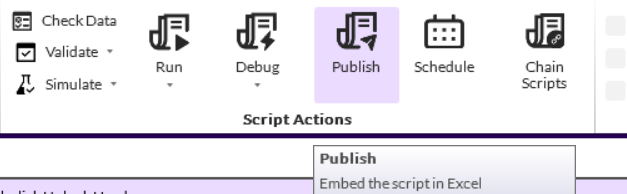
Once you have tested your script and it is ready to be published, navigate to the Run tab in Studio, then click Publish. If you are prompted to save the files, click Save and then click Publish again.
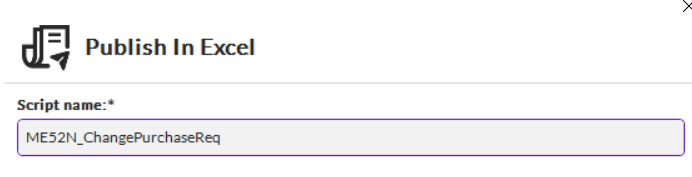
In the Script Name box, type a name that is descriptive and will help Runners identify what the script will do.
Double check to make sure you are publishing to the correct Excel file. You can browse to find the correct file from this screen. Studio defaults to using the data file that is currently open.
You can choose the sheet you want users to use, and you can also "lock" the sheet to prevent Runners from using a different worksheet.
Click Publish
The script is now embedded in the data file and can be seen in the dropdown on the Studio tab.
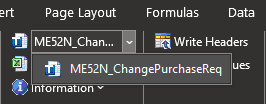
***Note*** You can publish multiple scripts to one data file. They will appear as a list in this same dropdown. This can be a combination of Transaction, Query, or Direct scripts.
To make changes to a published script, users must remove the script from the Excel file and republish.
To remove a script, open your data file and navigate to the Studio tab. Make sure the script you are wanting to remove is displayed in the drop-down list.
Click Information, and then click Remove.
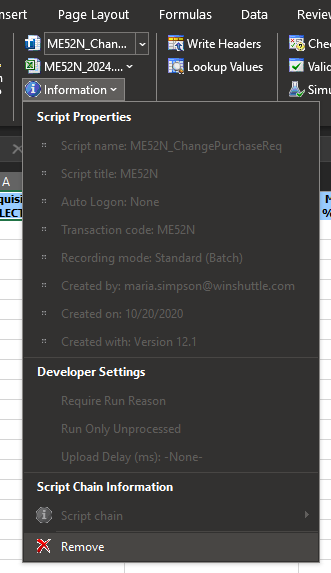
You can then open your script in Studio, make the necessary changes, and then republish.
I hope this was helpful!
Thanks,
Hunter
------------------------------
Hunter Pogue
Sales Engineer
Precisely Software Inc.
------------------------------