Hi Automate Community!
This week's tip applies to user governance and additional security options in Studio Manager or Evolve. If you want to limit the number of updates made into SAP during a run, you can do that through a Transaction policy. There is a default policy already set up, so you can modify it or create a new policy. Please note that even though the name says Transaction, this policy applies to scripts created using the following modules: Transaction, Direct, Fiori, and GUI for HTML.
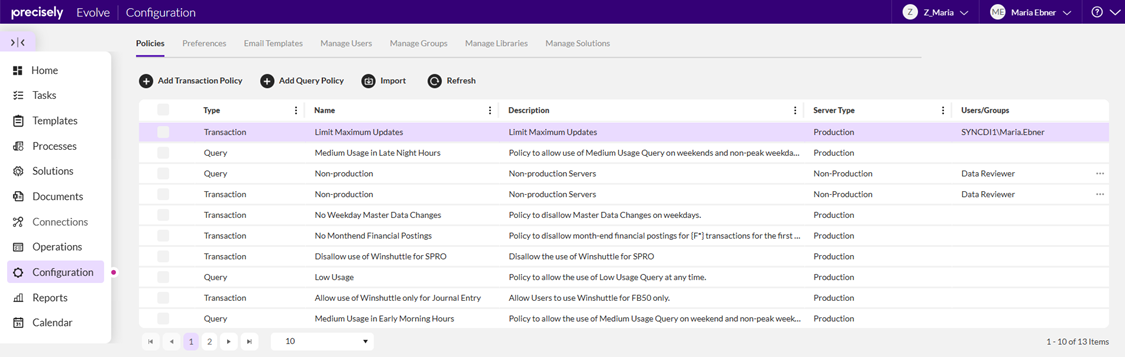
This policy is created on the Configuration page at the App level. On the Configuration page, go to "Policies" and either click "Add Transaction Policy" or select the policy named "Limit Maximum Updates" and choose "Edit".
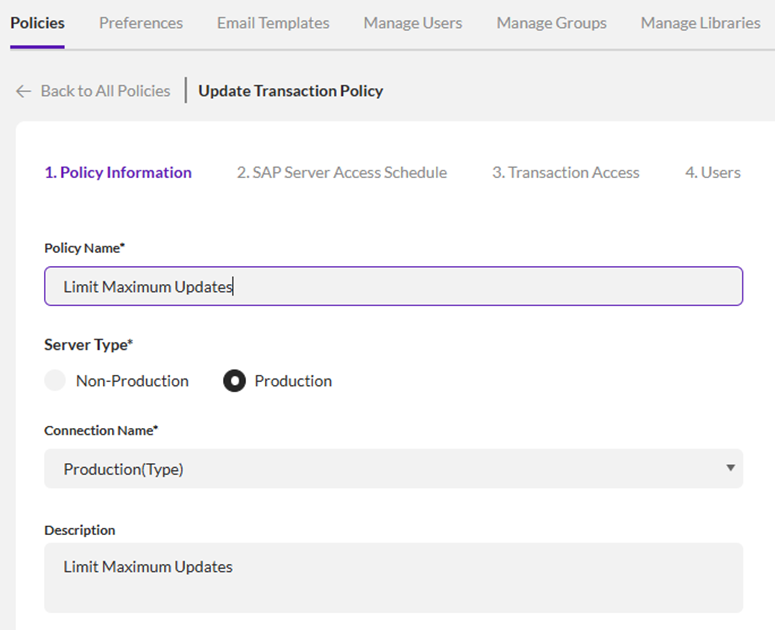
Step 1: Policy Information
You can create or edit the policy name. You can select if the policy applies to Non-Production or Production. If you want this to apply to both, please create an additional policy. Choose the Connection name. You can select one SAP system or choose NonProduction(Type) or Production(Type) at the bottom of the list which will apply the policy to all non-production or production systems. Enter or update the policy description.
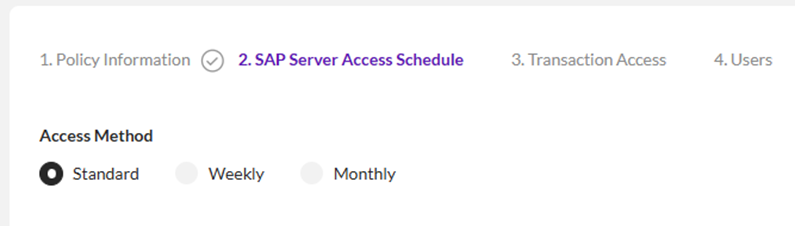
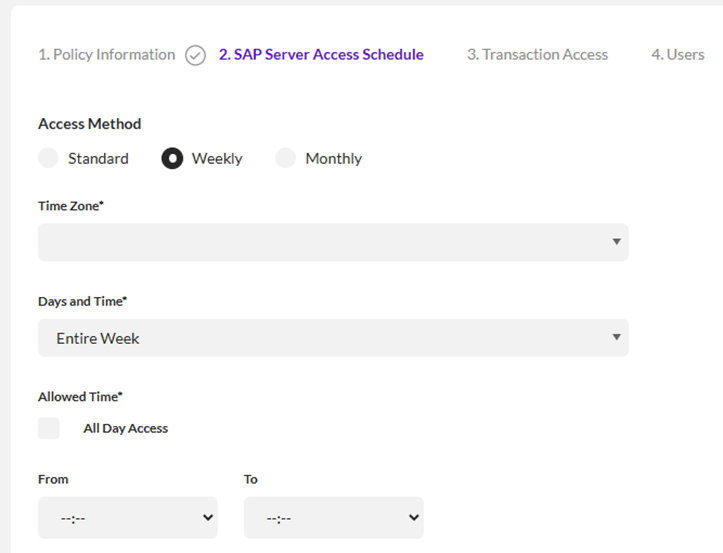
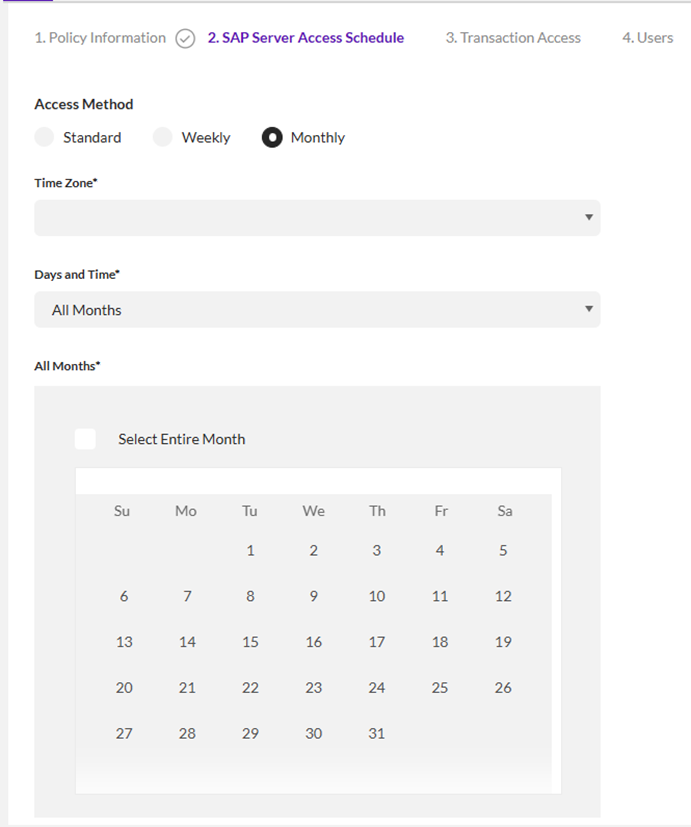
Step 2: SAP Server Access Schedule
You can choose if this policy applies all the time or on a weekly/monthly basis:
Step 3: Transaction Access
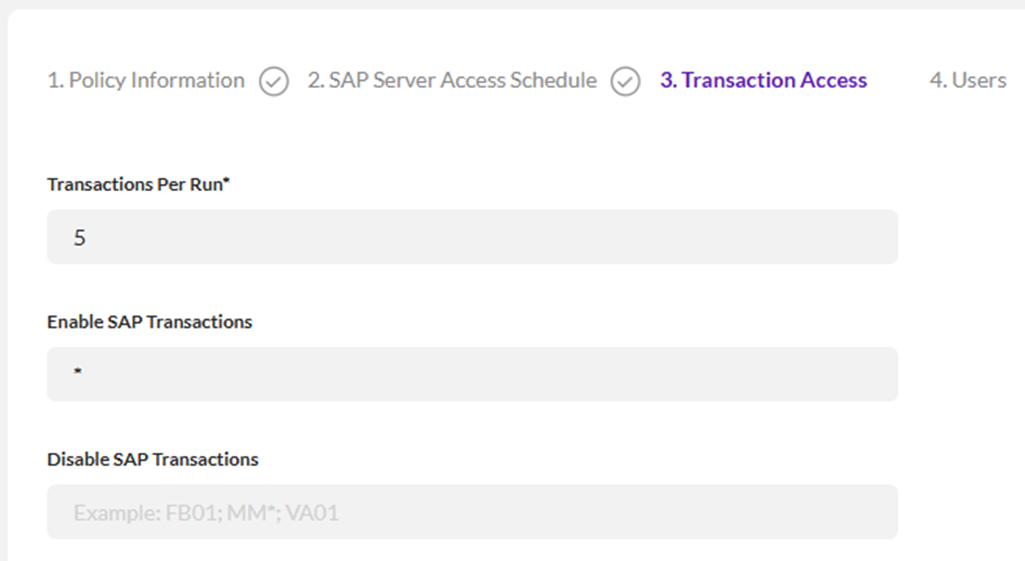
As previously mentioned, this policy applies to scripts created using the following modules: Transaction, Direct, Fiori, and GUI for HTML because these all have the same file extension, .Txr. There are 3 options on this step. The first is the number of transactions per run. This is where you enter the maximum number of updates you would like a user to run at one time. If you don't want to limit it, then please set this to an asterisk *. The second and third options are to enable or disable SAP Transactions so you can choose to apply this policy to specific transaction codes. Here is an example of what you can enter which shows how to do multiple transaction codes and how to use wild cards: FB01;MM*;VA01. For testing purposes, I created an example limiting the number of updates to 5 per run:
Step 4: Users
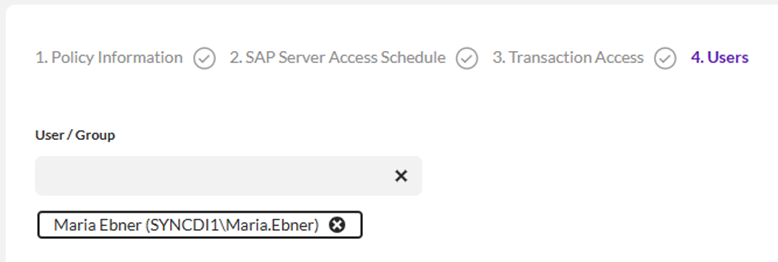
If a user or group is not assigned, then the policy doesn't apply and isn't being used. You can choose one or more users or groups to apply this policy to. For testing purposes, I applied this policy to myself:
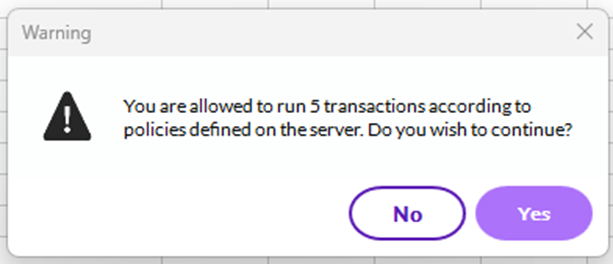
Let's look at the end user experience after the policy has been created and applied. When I click Test/Run in Studio I get the following message (based on the number 5 entered in the policy):
My data has more than 5 rows, but this policy now limits me to running 5 rows at a time:
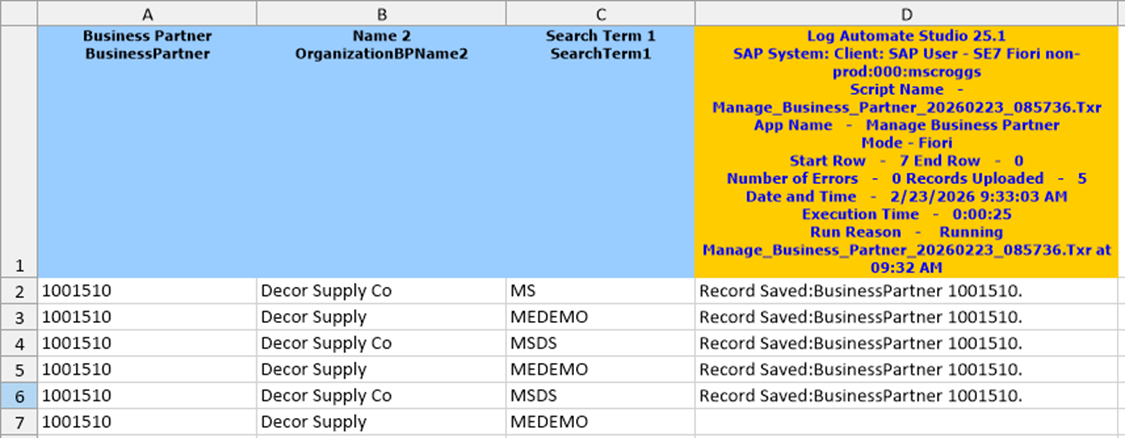
I was able to change the start row to 7 and update the last record that didn't run before. Please note that even if you have 1 row of data, you will still see the Warning message about the policy and what has been defined.
I hope this tip helps you see how Studio Manager and Evolve provide additional methods of user governance and security through policies.
Thanks!
------------------------------
Maria Ebner
*Precisely Software Inc.
------------------------------