Libraries in Precisely Automate Evolve are essential for organizing solutions and reference data. Creating libraries also provide governance, security, and logical separation for better scalability.
Why Libraries Matter
- Organize solutions for clarity and control.
- Simplify permission management.
- Enable logical grouping by business area, geography, or data type.
Library types & their uses
|
Library Type
|
Purpose
|
Typical Use‑Case
|
|
Form Solution
|
Stores workflow web form solutions
|
Building request/approval workflows (Material Create, Vendor Create), role-based data entry, SAP validation workflows.
|
|
Excel Solution
|
Hosts Excel workflow solutions, including templates and workflows bind with them. We can define library workflows as Solution Level and Library Level.
|
Mass data collection & approvals, offline/Excel‑driven workflows, round‑trip SAP updates.
|
|
Transaction
|
Stores transaction scripts (GUI, GUI for HTML, Fiori UI5) used for posting data to SAP.
|
Posting master/transactional data such as MM01, BP creation, FI documents, pricing updates.
|
|
Query
|
Stores Query scripts used to extract data from SAP tables, views, infosets or logical databases.
|
Operational reporting, pre‑update “round‑trip” extracts, mass analysis before approvals.
|
|
Reference Data
|
Centralized repository for lookup values used across forms, Excel workflows, rules, and participant resolvers.
|
Dropdown lists (plants, material groups), approver mappings, business rule configuration datasets.
|
|
SAP API Store
|
Stores SAP Data API definitions mapped from Studio scripts, enabling JSON‑based interactions via SAP Data API.
|
Exposing SAP load/extract capabilities as APIs for 3rd‑party integrations, RPA and middleware.
|
|
Document Explorer
|
Repository to view documents related to different solutions created by different users in a single table view.
|
Logical view of data objects.
|
Creating a Library in Evolve User App
Purpose: Organize workflow solutions for governance and access control.
Steps
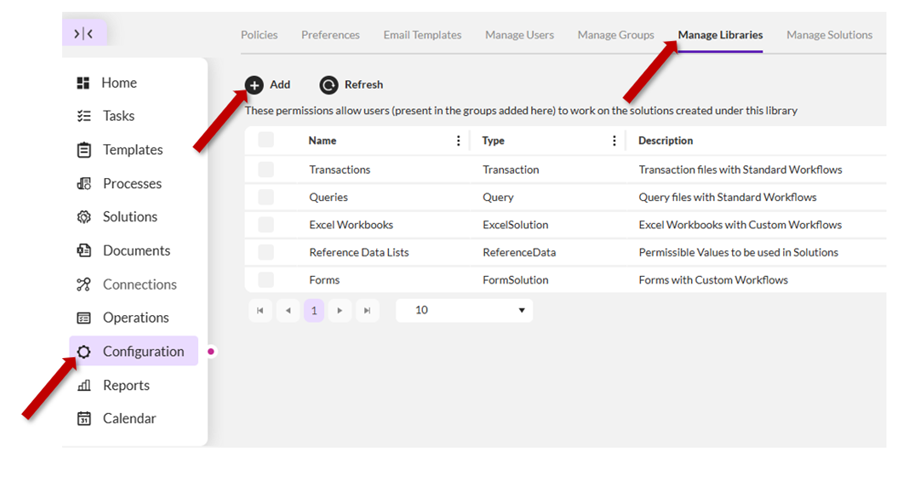
- Navigate to User App → Configuration → Manage Libraries.
- Click Add → Select Type -> Enter Name & Description.
- Click Save and configure Permissions (see below).
Note: Once created, we cannot change the library type.
Creating a Library in Evolve Reference Data App
Purpose: Store Reference Data Lists for dropdowns, lookups, and mappings.
Steps
- Navigate to Reference Data App → Configuration -> Manage Libraries.
- Click Add → Select Type -> Enter Name & Description. Note: Only Query and Reference Data libraries are allowed in Reference Data App.
- Click Save and configure Permissions (see below).
Editing a library
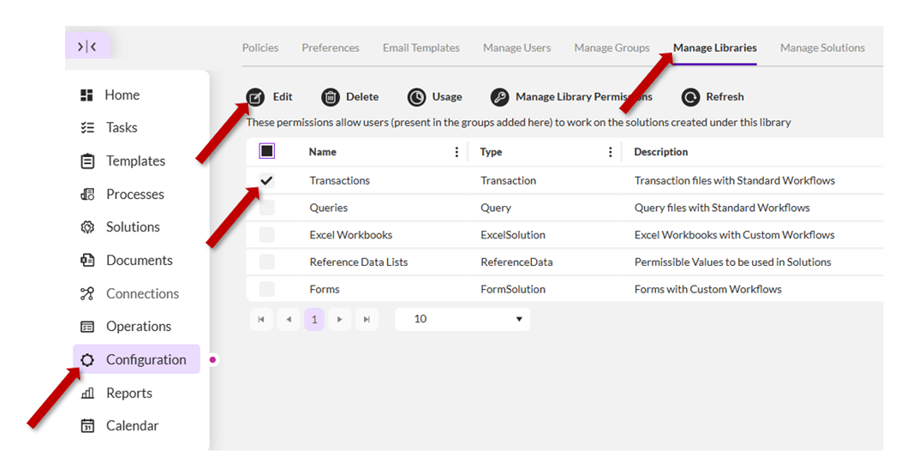
- Navigate to User App → Configuration → Manage Libraries.
- Click the Edit button. A side panel will open.
- Update the library name and description and click Save.
Deleting a library
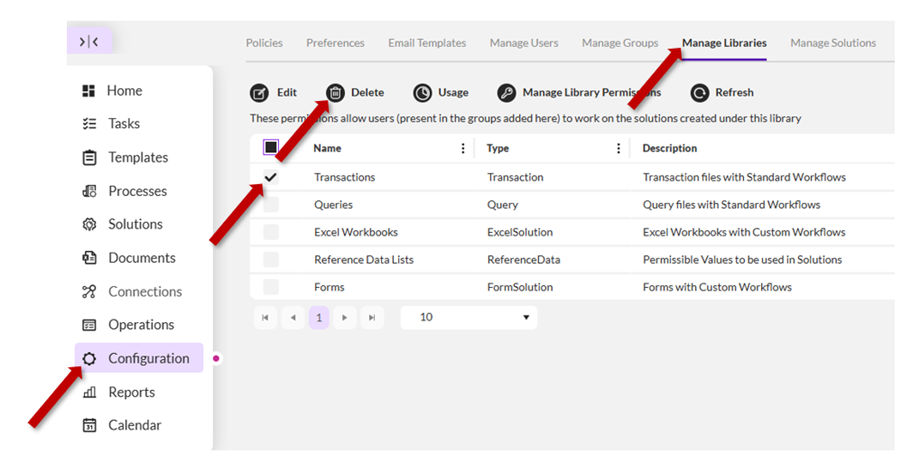
- Navigate to User App → Configuration → Manage Libraries.
- Select the library you need to delete and click the Delete button.
- When the confirmation pop-up opens, confirm the library deletion.
Note: Deleting a library moves it to the Recycle Bin. Global admins can restore libraries at any time, and restoring libraries restores all library contents (including all solutions and permissions)
Managing Library Permissions
Permissions define what actions the users can perform within a library. We cannot provide permissions to libraries to a user directly. First, we add a user to a Group and then provide library permissions to these groups.
To add library permissions:
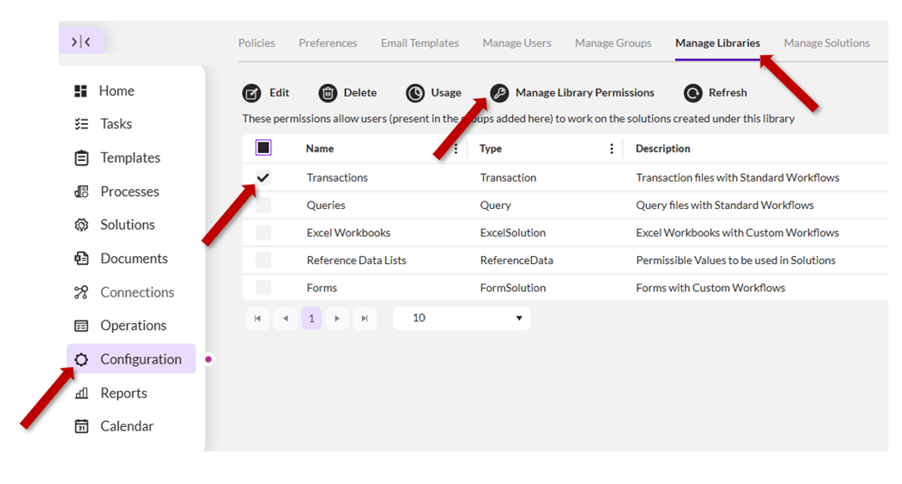
- Navigate to User App → Configuration → Manage Libraries.
- Select the library and click Manage Library Permissions.
- Click the library permissions category (Library Solutions or Processes) and then select groups for different permission levels like Originator, Solution Reviewer etc.
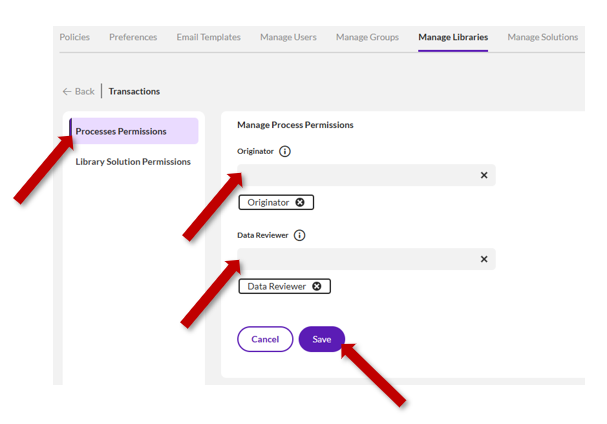
- Click Save. You will be notified that the permissions have been added successfully.
- Click Process Permissions and then select groups for Originator and Data Reviewer permissions.
- Click Save. You will be notified that the permissions have been added successfully.
To remove library permissions:
- Navigate to User App → Configuration → Manage Libraries.
- Select the library and click Manage Library Permissions.
- Click the library permissions category (Library Solutions or Processes) you need to edit.
- Hover over the group name and click the ‘X’ to delete that group.
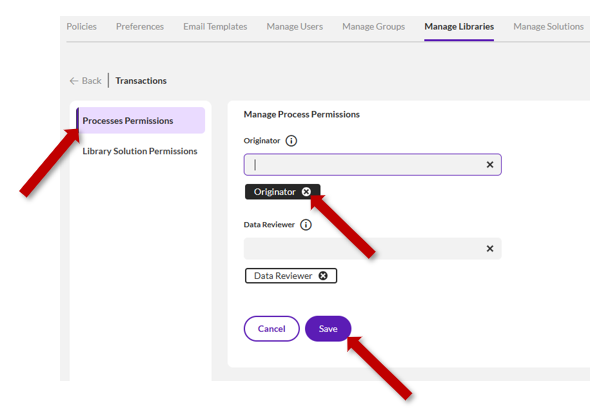
- Click Save.
Default Library Permissions
When a new library is created, the following groups are provided with Process and Library Solution permissions:
|
Library Type
|
Process Permissions
|
Library Solution Permissions
|
|
Form Solution
|
Originator
|
Solution Developer
|
|
Excel Solution
|
Originator
|
Solution Developer
Solution Reviewer
|
|
Transaction
|
Originator
Data Reviewer
|
Solution Developer
Solution Reviewer
|
|
Query
|
Originator
|
Solution Developer
Solution Reviewer
|
|
Reference Data
|
Originator
Data Reviewer
|
Solution Developer
|
|
SAP API Store
|
Originator
|
Solution Developer
Solution Reviewer
|
|
Document Explorer
|
Originator
|
Solution Developer
|
Permission definitions:
· Originator: When a Group is added to this permission, the users within that Group can submit new solution documents and/or launch a document process or form process for a given solution. By default, solutions inherit this permission from their library. In addition, Administrators can control this permission for a specific solution.
· Data Reviewer: When a Group is added to this permission, the users within that Group can participate in the document review process (applicable to Standard Workflow only). If this is a Transaction type solution, the document submit wizard includes these users in the Reviewer list. The document submitter can then select one of the reviewers to review the document.
· Solution Developer. When a Group is added to this permission, the users within that Group can create or update solutions within this library. Example: If it is a Transaction type library, users can create or update Transaction solutions in this library. Note that for this Transaction library example, the user must have the required valid license.
· Solution Reviewer: When a Group is added to this permission, the users within that Group can be the solution reviewer – for the solution within this library only. If this is a Transaction type library, these users will be listed in the Reviewers list and the solution submitter can select one of the reviewers to review the solution.
Tips & Tricks
- Plan grouping: Separate libraries by business area or geography.
- Naming conventions: Avoid special characters; use descriptive names.
- Favorites: Pin frequently used solutions within the libraries for quick access.
- Governance: Keep global data in Global Reference Data libraries; avoid mixing with User app libraries.
- Use groups: Easier permission management than individual users.
Gotchas
- Irreversible Type: Once set, library type cannot be changed.
- Permissions: Must be reviewed and configured explicitly.
- Solution management: Avoid too many solutions in one library—split logically.
- Migration Impact: Incorrect setup complicates migration between environments. Keep the same library structure across your Dev/QA/Prod environments.
-------------------------------------------
------------------------------
Rishav Kumar
Product Manager
*Precisely Software Inc.
------------------------------