This article applies to Automate Studio version 26 and earlier.
Long text functionality is not available in SAP GUI for HTML transactions, nor in SAP Fiori® Basic and Standard modes. This functionality is currently only available when using SAP GUI recording mode.
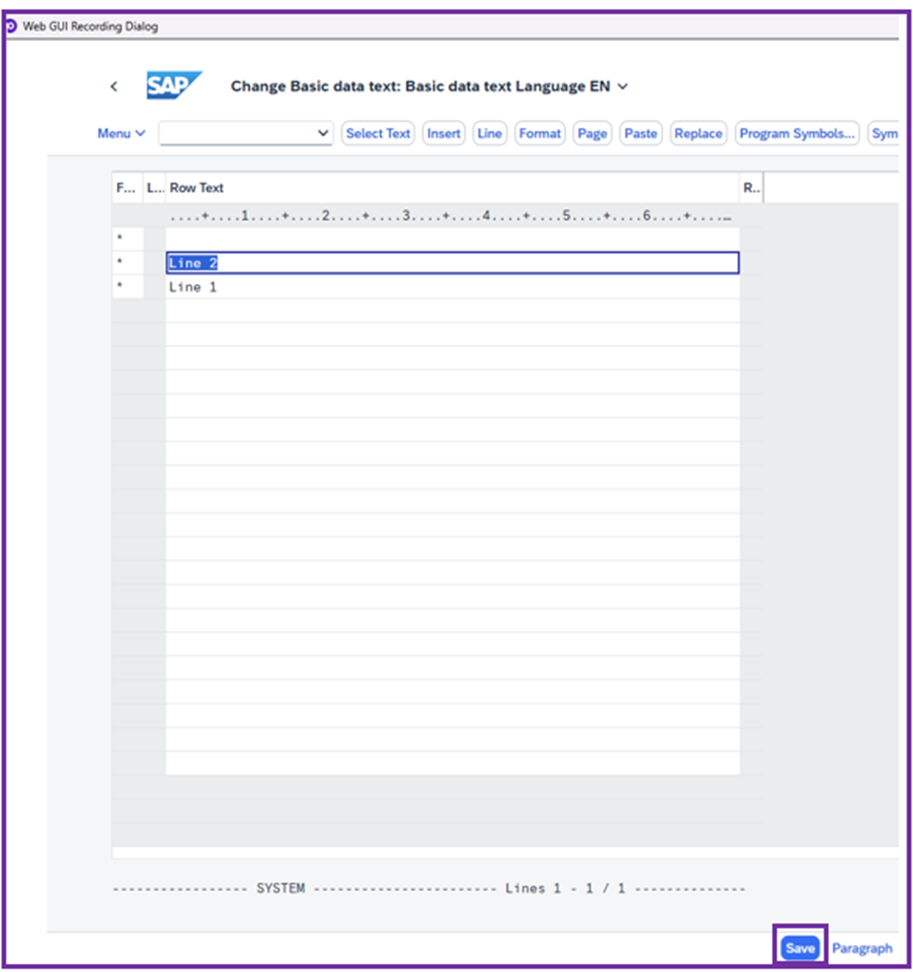
At present, the only way to record long text using SAP GUI for HTML is to enter the text via the line editor, as shown in the screens below.
Step 1: Go to Basic Data Text
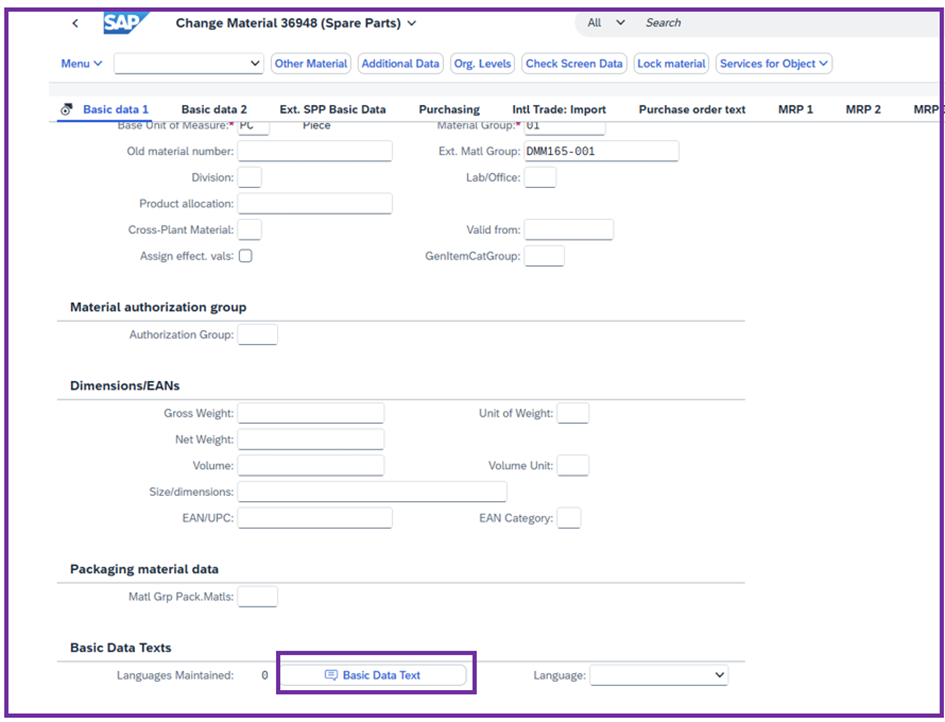
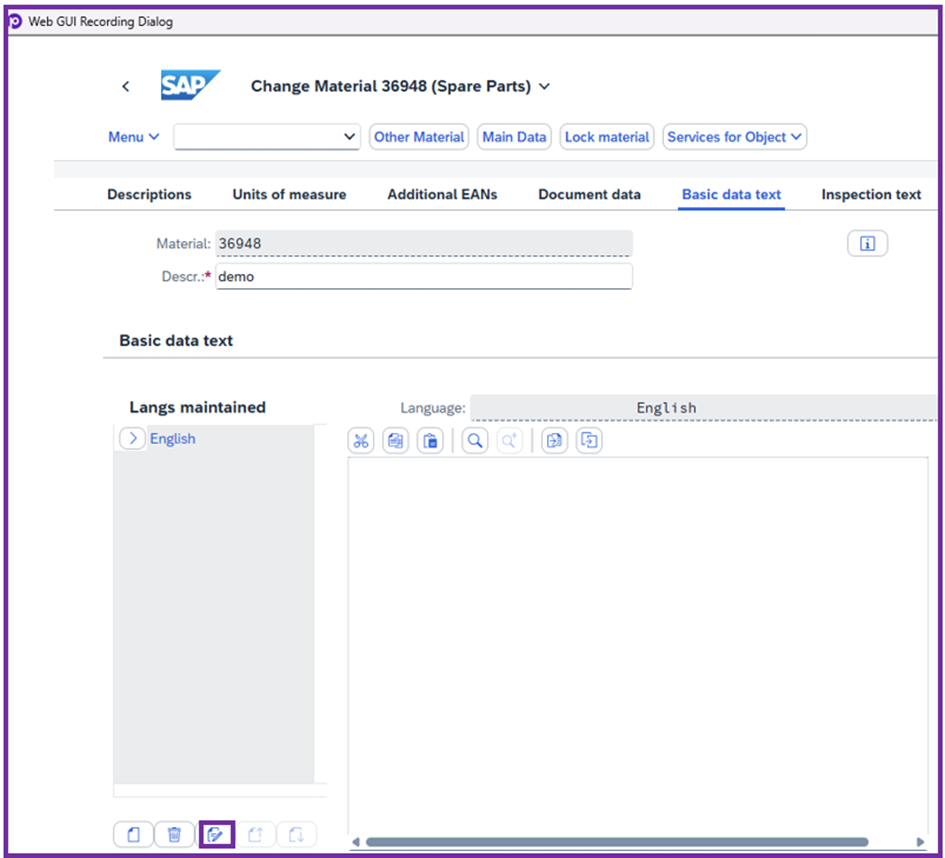
Step 2: Open the SAP Editor by selecting the appropriate icon
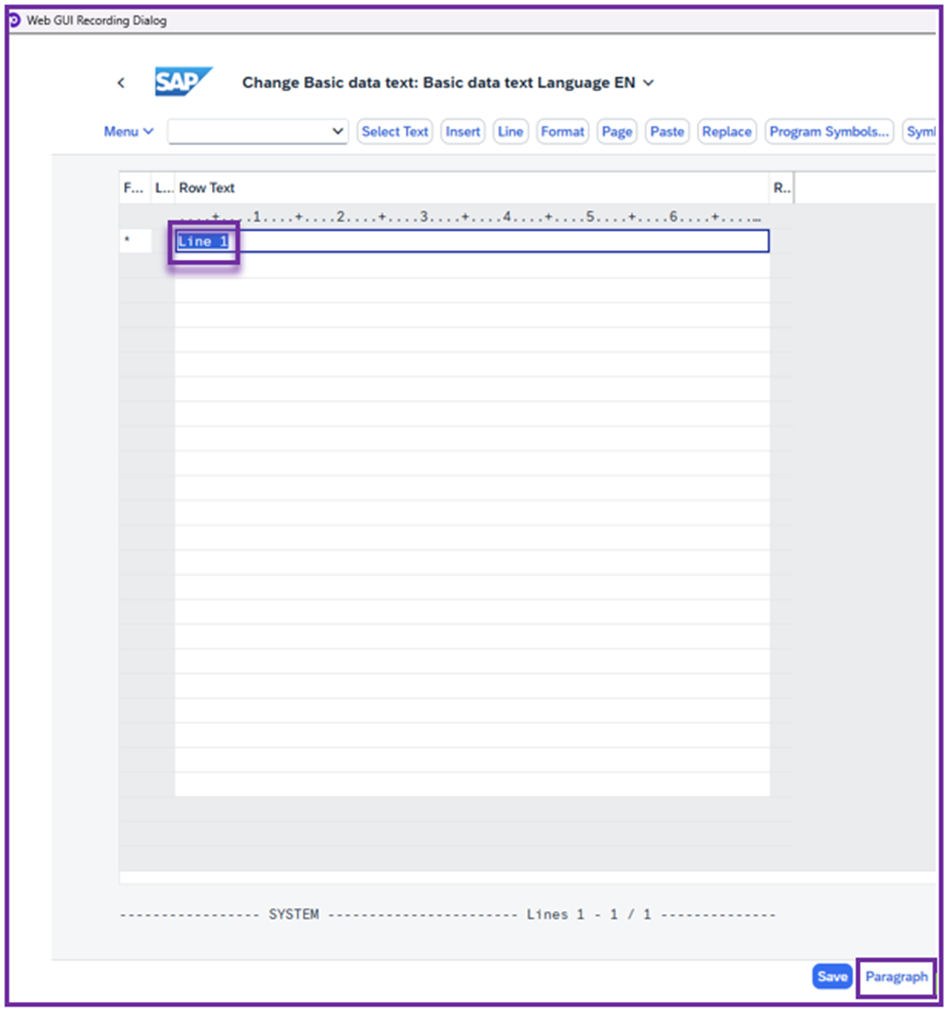
Step 3: Enter the first line of text in line 1, select it, then click the Paragraph button located at the bottom right of the screen.
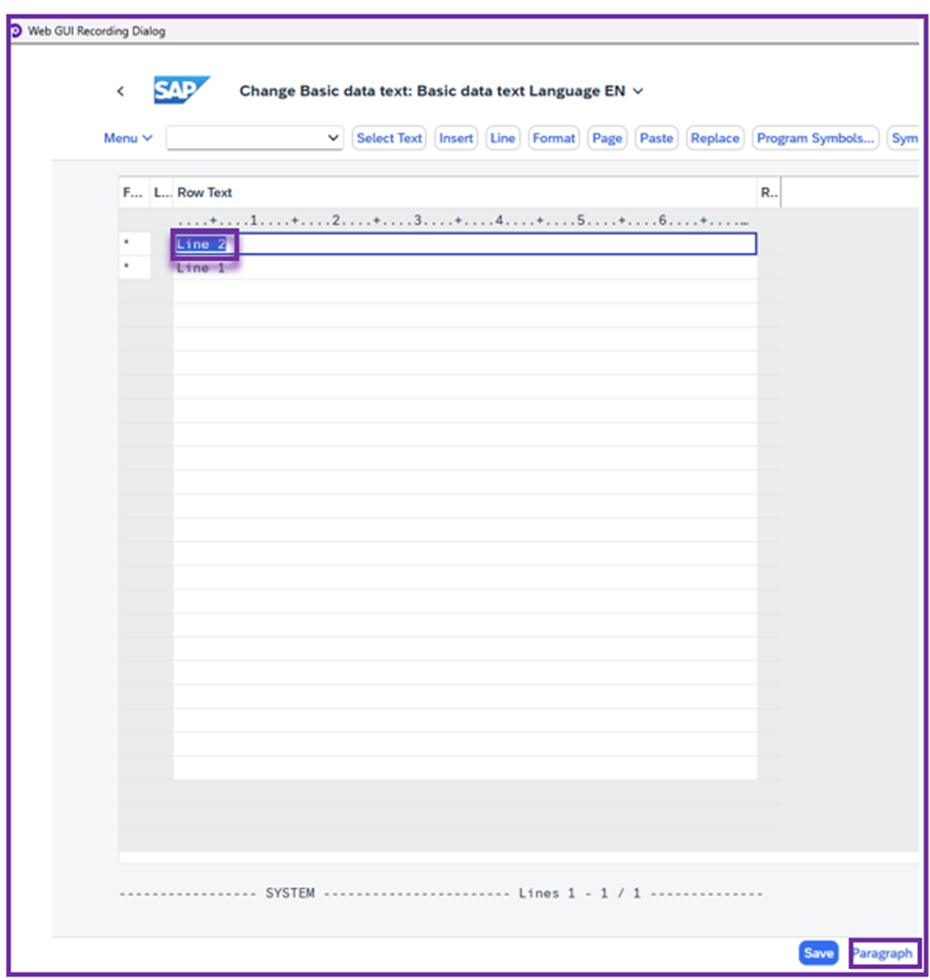
Step 4: Repeat the same process with a second line so that the loop can be identified afterward.
Step 5: Save the text by clicking the Save button located at the bottom right of the screen, save the item, and then finalize the recording.
In our mapping, within the Basic view, we can clearly see the two text lines mapped to the same position. This allows us to create a loop.
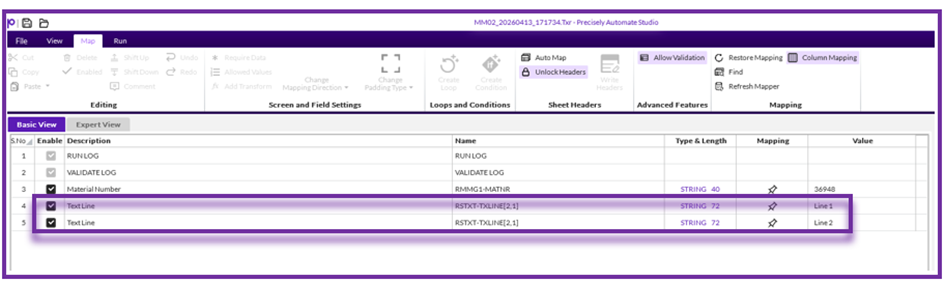
Going forward, the next step is simply to create a loop in order to add as many lines as necessary.
------------------------------
Mays Bensanah
Senior Sales Engineer
*Precisely Software Inc.
------------------------------