Tip of the Week – Evolve Workflows – Process History
Evolve processes log the who, what and when for the workflows you build. This can be important for reporting on processes, as well as auditing. No matter the process, including the out-of-the-box workflows in Studio Manager, it logs:
· Who is it assigned to
· What is the task
· When – was it assigned, due and completed
The information is stored in the Evolve SQL database. For reporting purposes, these views are beneficial to use:
· RPT_ProcessReportingDetailsView – overall process information
· RPT_AssignmentView – for assignment details – for active tasks or approvals use AssignmentType = 3 or 4, because Assignments also log start and end nodes, plugins, etc.
· WF_AssignmentStatus – to decode the status fields
If you promote properties for an Evolve solution, you can have a solution-specific view with solution data. It captures the solution-specific promoted data, such as BP name, city, region, country, company code(s), sales area(s), etc. This is optional and something the solution designed specifies in the Solution Builder (aka Composer)
Example: RPT_BusinessPartner-Create-S4Hana_EVO_MAS_FOR – the name is composted of several parts
o BusinessPartner-Create-S4Hana is part of the solution name
o EVO means Evolve
o MAS is the first 3 letters of the App
o FOR means form solution

You can use this information in any reporting tool or even Excel.
Here are a few example SQL queries that can work with any Evolve process. You will need to swap in your Evolve database name where you see YourEvolveDBName. Note you can calculate values in other tools, like Power BI or Tableau, so those parts are optional. And for those who are experts in SQL, I'm sure there is room for improvement. I have used the below in Power BI.
Process Query: to extract data at the process level
SELECT
/* process view */
[ProcessName] ,p.[SolutionName] ,[AppName] ,[LibraryName] ,p.[Status]
,[CreationDate] ,[CompletionDate] ,[Originator] ,[CreationDateDiff] ,[DueDate]
,[IsCreatedToday] ,[IsCompletedToday] ,[IsPassedDueDate]
,[IsRunning] ,[IsCompleted], Note
,CASE WHEN ([CompletionDate] is Null) THEN DateDIFF(MINUTE,[CreationDate],GETDATE()) ELSE DateDIFF(MINUTE,[CreationDate],[CompletionDate]) END AS ActualDurationMinutes
,CASE WHEN ( [CompletionDate] > [DueDate] ) or ( [CompletionDate] is Null and GETDATE() > [DueDate] ) THEN 'TRUE' ELSE 'FALSE' END AS IsLate
FROM [YourEvolveDBName].[dbo].[RPT_ProcessReportingDetailsView] p
Assignment Query: to extract data at the assignment level
SELECT /* assignment data */
[ActivityName] ,[AssignedDate] ,a.[DueDate] ,[ReviewDate]
,[CompletedDate] ,a.[Status] ,[Actor] ,[ReminderNotified]
,[LateNotified] ,[ActorDisplayName] ,[AutoApproved]
,[Disposition] ,[AssignmentType]
/* status data */
,ps.[Description] as StatusDescription
/* process data */
, SolutionName, ProcessName, Originator,[AppName]
/* derived assignment data – optional – calculations duration and IsLate true or false*/
, CASE WHEN (a.[CompletedDate] is Null) THEN DateDIFF(MINUTE,a.[AssignedDate],GETDATE()) ELSE DateDIFF(MINUTE,a.[AssignedDate],a.[CompletedDate]) END AS ActualDurationMinutes
, DateDIFF(MINUTE,a.[AssignedDate],a.[DueDate]) AS EstimatedDurationMinutes
,CASE WHEN ( a.[CompletedDate] > a.[DueDate] ) or ( a.[CompletedDate] is Null and GETDATE() > a.[DueDate] ) THEN 'TRUE' ELSE 'FALSE' END AS IsLate
FROM [YourEvolveDBName].[dbo].[RPT_AssignmentView] a, [YourEvolveDBName].[dbo].[WF_AssignmentStatus] ps, [YourEvolveDBName].[dbo].[RPT_ProcessReportingDetailsView] p
/* assignment type 3 and 4 are activities and approvals */
where a.AssignmentType in ('3','4') and a.Status=ps.Code and a.ProcessId=p.ProcessID
Process with Solution promoted data view – to extract solution-specific data (promoted) at the process level
· tip: join process and solution data with DataFileID
· Your solution data view will vary – mine is RPT_BusinessPartner-Create-S4Hana_EVO_SED_FOR
SELECT
/* process view */
[ProcessName] ,p.[SolutionName] ,[AppName] ,[LibraryName] ,p.[Status]
,[CreationDate] ,[CompletionDate] ,[Originator]
,[UserId] ,[CreationDateDiff] ,[DueDate]
,[IsCreatedToday] ,[IsCompletedToday] ,[IsPassedDueDate]
,[IsRunning] ,[IsCompleted], [Originator]
/* solution view */
,[BPNumber] ,[City] ,[ckCanceled]
,[Company_Code] , [Country_Key] ,[Distribution_Channel] ,[Division] , [Purchasing_Org]
,[flagCustomerOrSupplier]
,[LogField_CustCompany] ,[LogField_CustSales] ,[LogField_General]
,[Name_1_of_organization], [City]
,[Sales_Organization] ,[SolutionFormName], [RegionState]
,[Title] ,[CreatedByDisplayName]
/* process status */
,ps.[Description] as StatusDescription
FROM [YourEvolveDBName].[dbo].[RPT_BusinessPartner-Create-S4Hana_EVO_SED_FOR] s, [YourEvolveDBName].[dbo].[RPT_ProcessReportingDetailsView] p, [YourEvolveDBName].[dbo].[WF_ProcessStatus] ps
WHERE s.[DataFileID] = p.[DataFileID] and p.AppName='SEDemo' and p.SolutionName='BusinessPartner-Create-S4Hana' and s.Status=ps.Code
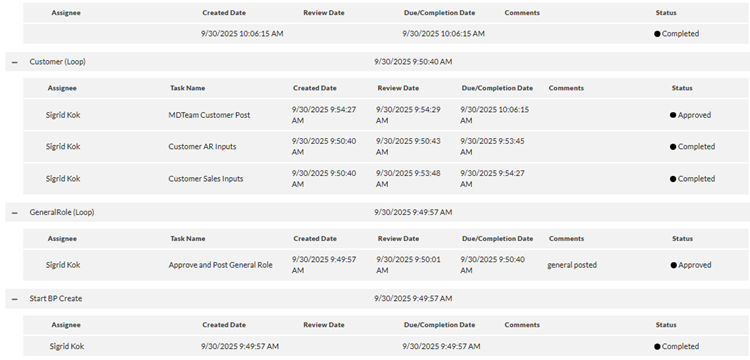
Evolve also provides a number of ways to visualize the Process History without having to create reports. Please note the order can vary, often showing the steps starting at the bottom, with the most recent on the top. Otherwise, it's shown top down.
You can view Process History a number of ways:
1. Process Control on a web form
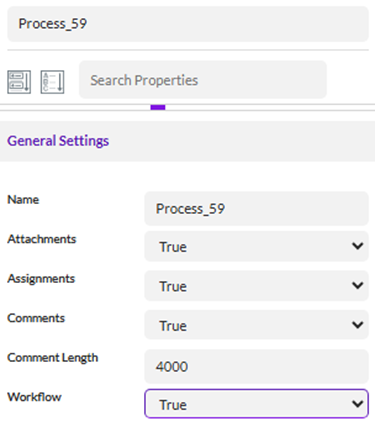
Displays like: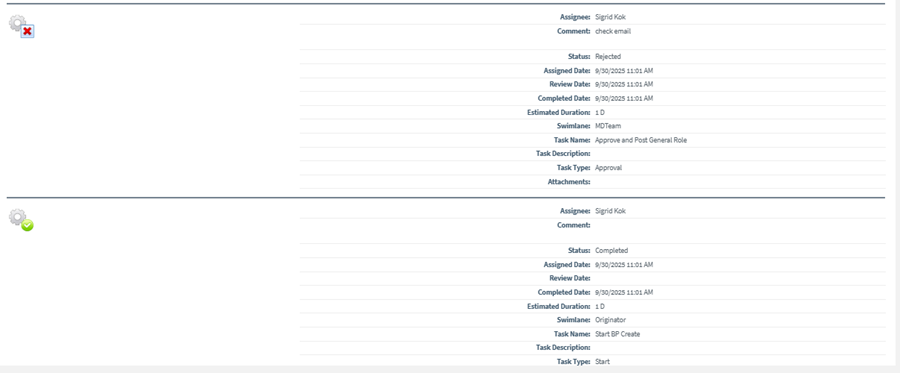
Documentation link: https://help.precisely.com/r/t/1016755516/2023-12-31/Automate-Evolve/pub/Latest/en-US/Automate-Evolve-User-Guide/Process-Control-Element-Properties
2. Process History control on the web form
a. Graphical – optionally with a box around the step you are on. Select Graphic and option select Highlight Active Task, etc.
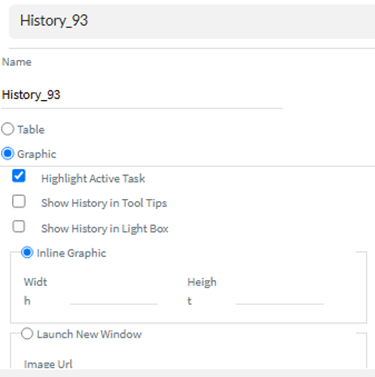
Displays like this
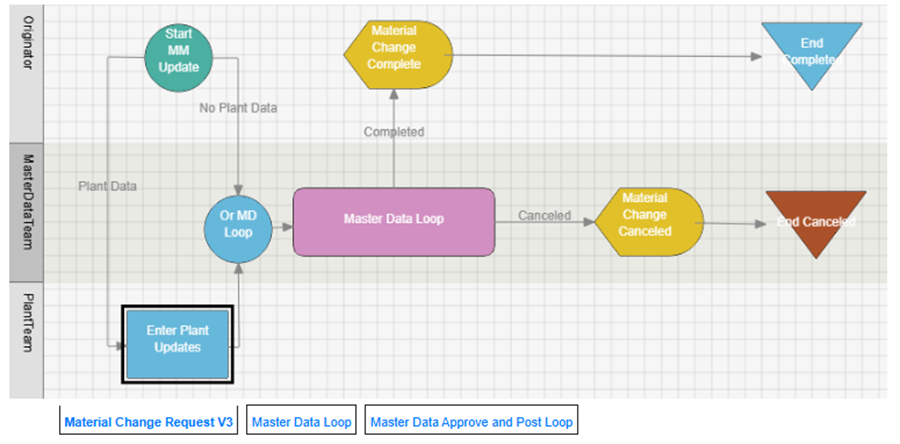
Note the box around the step the process is on – which is a checkbox on the Process History control. If you have loops, like above, they display as tabs on the bottom of the graphic, which you can click to drill down into the process.
b. Table – see the history in a table on the form
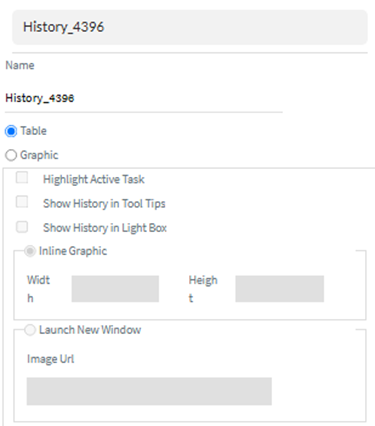
Displays like this – bottom up

Documentation link: https://help.precisely.com/r/t/1016755517/2023-12-31/Automate-Evolve/pub/Latest/en-US/Automate-Evolve-User-Guide/Process-History-Element-Properties
3. Documents – this is similar for both Evolve and Studio Manager out-of-the-box (OOTB) workflows
a. Select a process document and click Process History
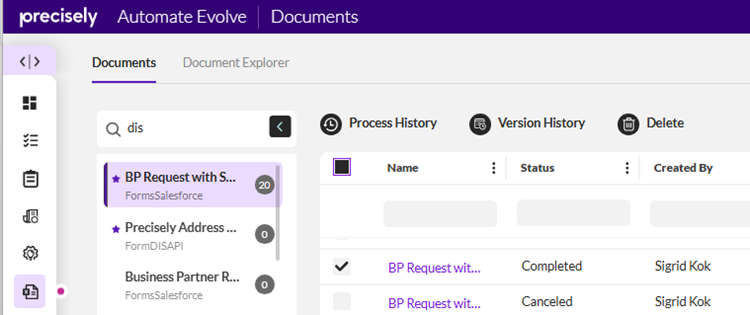
b. This is displayed bottom up - by default - each portion/loop is collapsed, which you can expand
Documentation: https://help.precisely.com/r/t/1016755323/2023-12-31/Automate-Evolve/pub/Latest/en-US/Automate-Evolve-User-Guide/Documents?tocId=39q2bni1z8zHXWoNUEKAsQ§ion=documents__view-workflow
4. Tasks – this is similar for both Evolve and Studio Manager out-of-the-box workflows
a. For Form workflows - open a task and click view history in the browser – click History on the right

It will display history like you see for document history above
b. For Excel workflows – also works for Studio Manager OOTB workflows
i. use the Task pop-up – select a task and view process history – bottom u
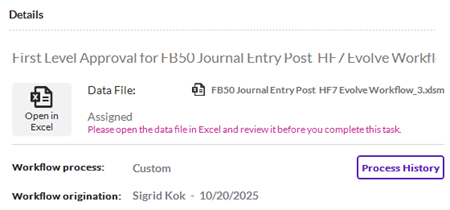
It will display like this - bottom-up
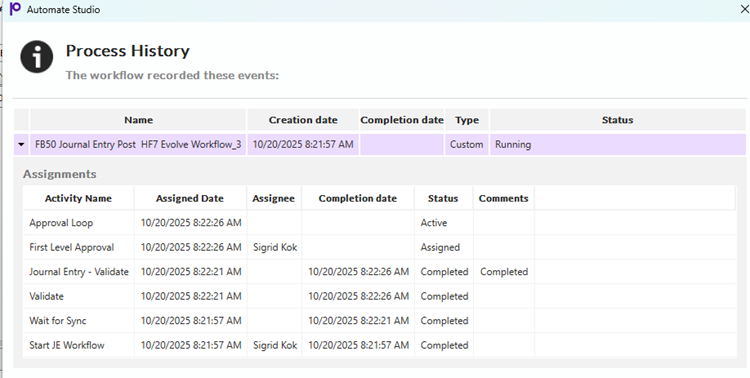
ii. use the Evolve Ribbon once you have a task open to view the Process History in the middle of the ribbon – displays the same as from the Task pop-up:

iii. use the Tasks in the Evolve site – History icon on right

Displays bottom-up
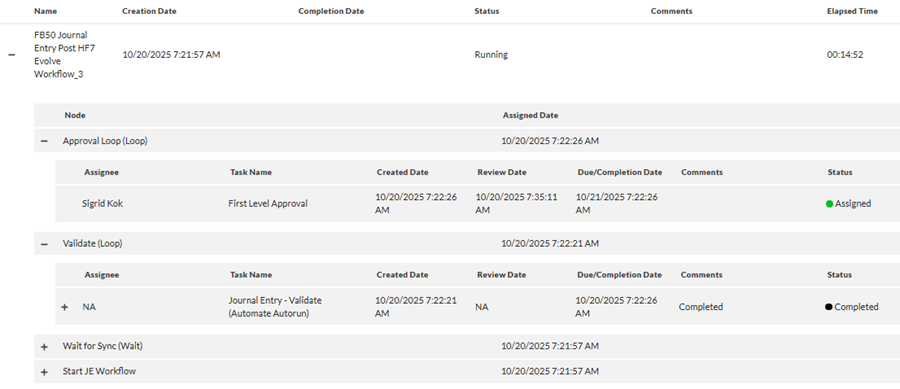
Documentation link: https://help.precisely.com/r/t/1016755404/2023-12-31/Automate-Evolve/pub/Latest/en-US/Automate-Evolve-User-Guide/Tasks?tocId=P9_ycmS9HKNuPgTuURUCNg
5. Emails – this is similar for both Evolve and Studio Manager out-of-the-box workflows
a. By default, Emails include process history – this shows top-down steps in the process to date:
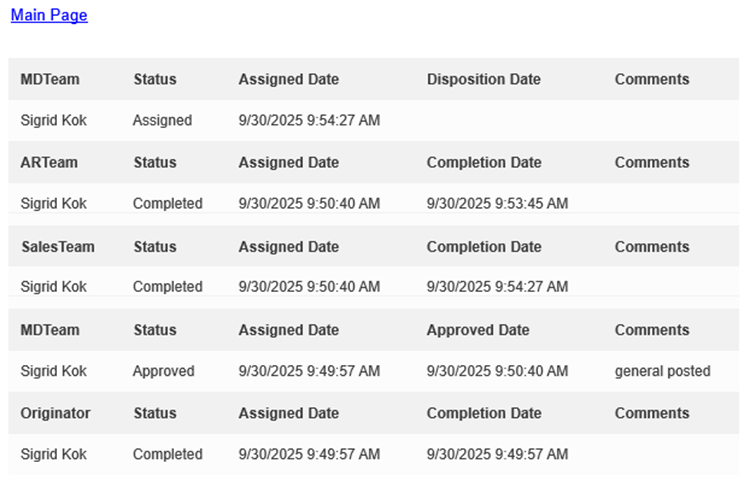
You can create custom email templates and customize what gets included, including the process history – see the documentation here: https://help.precisely.com/r/t/1016755324/2023-12-31/Automate-Evolve/pub/Latest/en-US/Automate-Evolve-User-Guide/Email-Templates?tocId=ZsZAV_NgqSLVVoC0IPPdeQ
6. Export Process History plugin
a. You can use a plugin in an Evolve process to save the history and potentially attach it to SAP or store it in a specific location
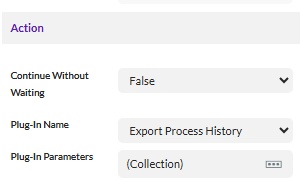
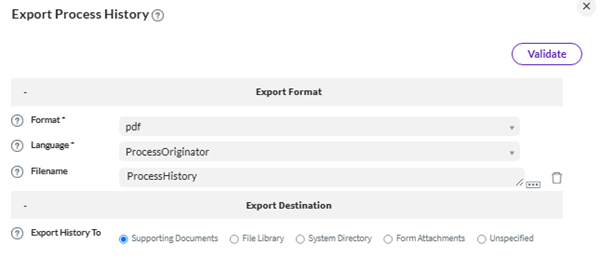
Documentation on this plugin is here:
https://help.precisely.com/r/t/1016755550/2023-12-31/Automate-Evolve/pub/Latest/en-US/Automate-Evolve-User-Guide/Export-Process-History-Plug-in
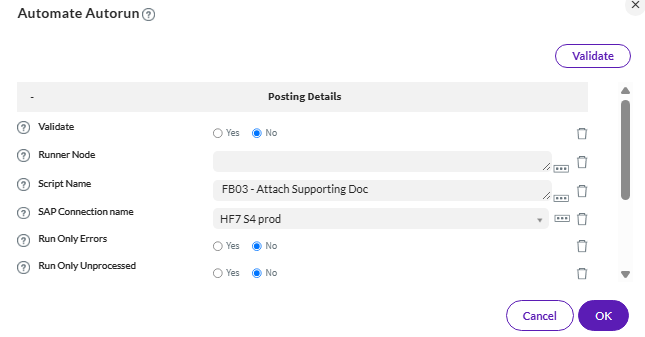
b. You can optionally attach process history, as part of an attachment script, which now includes the process history
Have you found other useful tables when reporting or auditing Evolve processes? Please share it here.
Happy solution building, reporting, auditing!
Sigrid
------------------------------
Sigrid Kok
*Precisely Software Inc.
------------------------------