Documents:
What is the purpose of having documents section under Automate Evolve?
1. Source of truth for workflow files- Workflows in Automate Evolve often rely on templates, data files, forms, or generated outputs. The Documents area provides a single, consistent repository so every workflow step uses the correct version of each file.
2. Version control and governance- Documents typically need controlled updates, approvals, and tracking. The section ensures:
· Version history
· Controlled edits
· Auditability
· Compliance with organizational standards
This prevents outdated or incorrect documents from entering automated processes.
3. Reusable assets for multiple processes- Many workflows reuse the same templates or reference files. Storing them centrally avoids duplication and ensures consistency across projects, teams and automated tasks
Who can see what?
- Global or App Administrators - can view all documents.
- Originators or Submitters - can view only the documents they submitted.
What you can access and do in the Documents section?
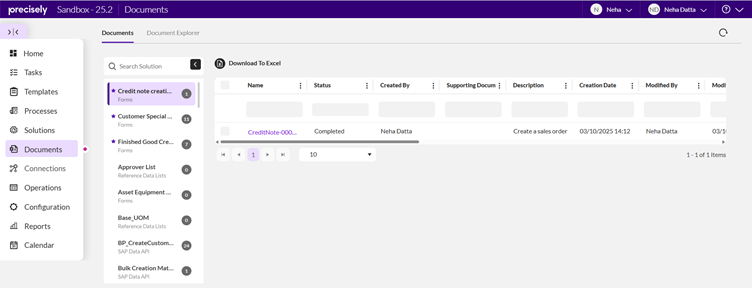
- View all submitted data files and forms - every file submitted through Form or Excel workflows is listed.
- View submitted processes for each Solution - lets you see which workflow a document belongs to.
- View process history - shows the lifecycle of each submission.
- Download metadata to Excel - exports document metadata for reporting or analysis.
- View version history - track changes to submitted Excel files or forms.
- Open Excel sheets in the Studio Add‑in - directly launch the file for editing or review.
- Download Excel sheets - retrieve the latest version of the submitted file.
- Download supporting files - access any attachments included with the submission.
- Delete documents - available based on permissions and licensing.
- View document status
- In Form workflows, clicking the document name shows its status.
- In Excel workflows, clicking the name downloads the latest file.
How this data is getting published?
Documents and document explorer is system‑generated and dynamically populated as part of Automate Evolve's standard reporting framework, using defined backend APIs, database tables, and stored procedures.
1. Fetch the Details for the left solution grid with Solution name, Library and data count.
API - /svr/api/v1/fr/GetSolutionWithDataCount
Stored procedures used: SolutionListwithDataCount
2. Fetch all the data items for the solution selected in document side grid.
API - /svr/odata/v1/LibraryOdata/getsolutiondataitems(libraryId, SolutionId)
Table Used: FR_FileInfo_DataFiles
3. Get the custom fields (columns) for a solution eg. headers shown in solution data grid.
API - api/v1/fr/library/{libraryId}/solutions{solutionid}/customfields(SolutionId)
Tables Used: FR_FileInfo_ScriptFiles
Query created inside using LINQ:
SELECT 1 AS [C1], [Extent1].[TeamspaceId] AS [TeamspaceId], [Extent1].[DataFileID] AS [DataFileID], [Extent1].[TenantId] AS [TenantId], [Extent1].[Version] AS [Version], [Extent1].[Description] AS [Description], [Extent1].[Autorun] AS [Autorun], [Extent1].[AutoRunAfterReview] AS [AutoRunAfterReview], [Extent1].[RunReason] AS [RunReason], [Extent1].[SapSystemId] AS [SapSystemId], [Extent1].[SapClient] AS [SapClient], [Extent1].[SapConnectionName] AS [SapConnectionName], [Extent1].[SystemPost] AS [SystemPost], [Extent1].[ReviewerId] AS [ReviewerId], [Extent1].[RunnerId] AS [RunnerId], [Extent1].[ScriptName] AS [ScriptName], [Extent1].[ScriptVersion] AS [ScriptVersion], [Extent1].[ScriptStoreId] AS [ScriptStoreId], [Extent1].[ErrorRows] AS [ErrorRows], [Extent1].[TotalRows] AS [TotalRows], [Extent1].[RunDetails] AS [RunDetails], [Extent1].[AutoRunStatus] AS [AutoRunStatus], [Extent1].[AutoRunMessage] AS [AutoRunMessage], [Extent1].[DataReviewProcess] AS [DataReviewProcess], CAST( [Extent1].[AutoRunTime] AS datetime2) AS [C2], [Extent1].[CreatedBy] AS [CreatedBy], [Extent1].[CreatedDate] AS [CreatedDate], [Extent1].[ModifiedBy] AS [ModifiedBy], [Extent1].[ModifiedDate] AS [ModifiedDate], [Extent1].[IsLatest] AS [IsLatest], [Extent1].[Status] AS [Status], [Extent1].[Locked] AS [Locked], [Extent1].[FileName] AS [FileName], [Extent1].[StoreId] AS [StoreId], [Extent2].[DisplayName] AS [DisplayName], [Extent3].[DisplayName] AS [DisplayName1], [Extent1].[SupportingDocs] AS [SupportingDocs], [Extent1].[OutputDataSource] AS [OutputDataSource] FROM [dbo].[FR_FileInfo_DataFiles] AS [Extent1] LEFT OUTER JOIN [dbo].[User] AS [Extent2] ON [Extent1].[CreatedBy] = [Extent2].[UserId] LEFT OUTER JOIN [dbo].[User] AS [Extent3] ON [Extent1].[ModifiedBy] = [Extent3].[UserId] WHERE ([Extent1].[TenantId] = @p__linq__0) AND ([Extent1].[TeamspaceId] = @p__linq__1) AND (1 = [Extent1].[IsLatest]) AND (0 = [Extent1].[MovedToCompleted]) AND ([Extent1].[ScriptStoreId] = @p__linq__2) AND ([Extent1].[StoreId] = @p__linq__3) AND (0 = [Extent1].[State])
Documents Explorer:
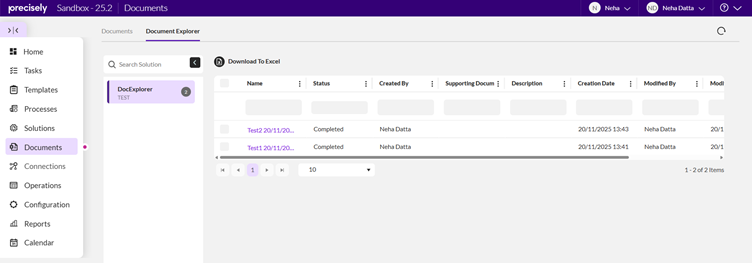
Document Explorer in Automate Evolve is to give users a structured, searchable, and filterable way to track every document as it moves through a workflow. It exists to solve a visibility and control problem: once forms or Excel files are submitted, teams need a centralized place to monitor progress, check statuses, and review details.
What is the purpose of having documents explorer section under Automate Evolve?
1. Centralize all workflow documents- It provides a single location where all submitted forms and data files can be viewed, regardless of which solution or workflow they belong to.
2. Track workflow progress- It shows the current status of each document, making it easier to understand where it is in the process and whether any action is required.
3. Improve search and filtering- It allows users to quickly locate documents using filters such as submitter, date, status, or workflow, which is especially important in high‑volume environments.
4. Support audit and compliance- It helps administrators and users review document history, making it easier to audit changes or troubleshoot issues.
5. Replace legacy SharePoint list tracking- Precisely's community discussions highlight that Document Explorer serves as the modern replacement for the SharePoint list‑based tracking used in older Foundation workflows.
What are the pre-requisites for having data to be shown under document explorer section?
· A workflow must exist and be deployed - Document Explorer only displays documents generated from active, deployed Form or Excel workflows. No workflow = no submissions to show.
· A user must submit a Form or Excel file - The section populates only with actual submissions. Until at least one submission is made, the list remains empty.
· The submission must be successfully processed - Failed or incomplete submissions do not appear. Only valid, system‑accepted submissions populate the explorer.
· The solution must be published and accessible - If the solution containing the workflow is not published or the user lacks access, its documents will not appear.
· The user must have permission to view the documents -
o Global/App Admins see all documents
o Submitters see only their own If the user lacks permission, the explorer appears empty even if documents exist .
· Licensing must allow document‑related actions - Some actions (viewing history, downloading files) require at least one valid Automate Evolve license. Without the required license, data may not fully populate or actions may be restricted .
· The user must have read access to the source libraries - The platform requires at least read‑only access to the libraries where workflow data is stored. Without this, the system cannot display the documents to the user. The library of document explorer type needs to be created first.
How this data is getting published?
1. Fetch the Details for the left solution grid with Solution name, Library and data count.
API - /svr/api/v1/fr/GetSolutionWithDataCount
Stored procedures used:
DocumentViewSolutionListwithDataCount
2. Get the custom fields (columns) for a solution eg. headers shown in solution data grid.
API - api/v1/fr/library/{libraryId}/solutions{solutionid}/customfields(SolutionId)
Tables Used: FR_FileInfo_ScriptFiles
3. Get all solution data item details
API - getsolutiondataitems(libraryId, SolutionId)
Table Used: FR_FileInfo_ScriptFiles , FR_FileInfo_DataFiles
4. Fetch the Document details like Selected solutions and libraries used to create a particular document in document explorer.
API- api/v1/fr/library/{libraryId}/solutions/getSearchSolution/{searchSolutionName}
Query created inside using LINQ SELECT 1 AS [C1], [Extent1].[TeamspaceId] AS [TeamspaceId], [Extent1].[DataFileID] AS [DataFileID], [Extent1].[TenantId] AS [TenantId], [Extent1].[Version] AS [Version], [Extent1].[Description] AS [Description], [Extent1].[Autorun] AS [Autorun], [Extent1].[AutoRunAfterReview] AS [AutoRunAfterReview], [Extent1].[RunReason] AS [RunReason], [Extent1].[SapSystemId] AS [SapSystemId], [Extent1].[SapClient] AS [SapClient], [Extent1].[SapConnectionName] AS [SapConnectionName], [Extent1].[SystemPost] AS [SystemPost], [Extent1].[ReviewerId] AS [ReviewerId], [Extent1].[RunnerId] AS [RunnerId], [Extent1].[ScriptName] AS [ScriptName], [Extent1].[ScriptVersion] AS [ScriptVersion], [Extent1].[ScriptStoreId] AS [ScriptStoreId], [Extent1].[ErrorRows] AS [ErrorRows], [Extent1].[TotalRows] AS [TotalRows], [Extent1].[RunDetails] AS [RunDetails], [Extent1].[AutoRunStatus] AS [AutoRunStatus], [Extent1].[AutoRunMessage] AS [AutoRunMessage], [Extent1].[DataReviewProcess] AS [DataReviewProcess], CAST( [Extent1].[AutoRunTime] AS datetime2) AS [C2], [Extent1].[CreatedBy] AS [CreatedBy], [Extent1].[CreatedDate] AS [CreatedDate], [Extent1].[ModifiedBy] AS [ModifiedBy], [Extent1].[ModifiedDate] AS [ModifiedDate], [Extent1].[IsLatest] AS [IsLatest], [Extent1].[Status] AS [Status], [Extent1].[Locked] AS [Locked], [Extent1].[FileName] AS [FileName], [Extent1].[StoreId] AS [StoreId], [Extent2].[DisplayName] AS [DisplayName], [Extent3].[DisplayName] AS [DisplayName1], [Extent1].[SupportingDocs] AS [SupportingDocs], [Extent1].[OutputDataSource] AS [OutputDataSource] FROM [dbo].[FR_FileInfo_DataFiles] AS [Extent1] LEFT OUTER JOIN [dbo].[User] AS [Extent2] ON [Extent1].[CreatedBy] = [Extent2].[UserId] LEFT OUTER JOIN [dbo].[User] AS [Extent3] ON [Extent1].[ModifiedBy] = [Extent3].[UserId] WHERE ([Extent1].[TenantId] = @p__linq__0) AND ([Extent1].[TeamspaceId] = @p__linq__1) AND ([Extent1].[StoreId] IN (LinkedScriptFiles)) AND (1 = [Extent1].[IsLatest]) AND (0 = [Extent1].[MovedToCompleted]) AND (0 = [Extent1].[State])
Additional Documentation to find feature details:
Documents:
https://help.precisely.com/r/n/Automate-Evolve/pub/Latest/en-US/Automate-Evolve-User-Guide/Documents?tocId=zZZWP59OVGad1bSYQOEnyA
Documents Explorer:
https://help.precisely.com/r/t/1016755321/2025-10-16/Automate-Evolve/pub/Latest/en-US/Automate-Evolve-User-Guide/Document-Explorer?tocId=jssczQqf0EiKBrGUbPHv6w
Thank you! Hope this information gives more context on documents and document explorer views!
------------------------------
Neha Datta
*Precisely Software Inc.
------------------------------