Tip of the Week – Evolve - Repeating Tables vs Selectable Tables vs Repeating Groups
In Evolve forms, you may have repeating data that users may wish to display, select and/or edit. To accomplish this, we can leverage Repeating Tables, Selectable Tables and Repeating Groups.
When you have repeating data, you can drag it onto your form and choose from the following
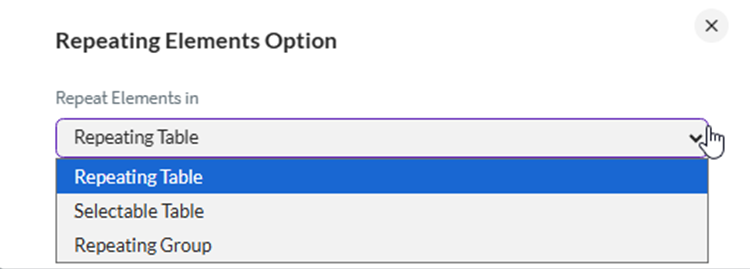
The link in the documentation for these options is here: https://help.precisely.com/r/t/1016755499/2023-12-31/Automate-Evolve/pub/Latest/en-US/Automate-Evolve-User-Guide/Form-Elements
Look for the Container elements:
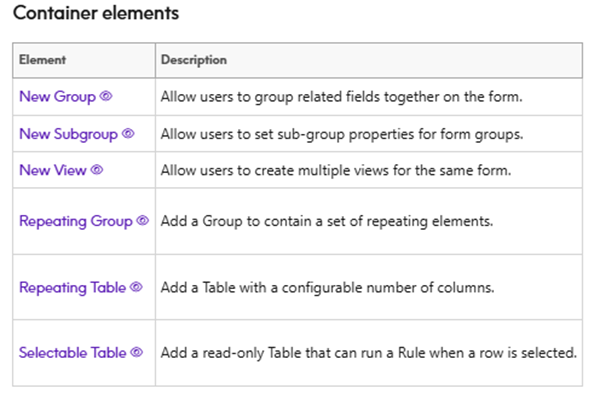
Repeating Tables
Repeating tables are typically used to allow users to edit data, for example:
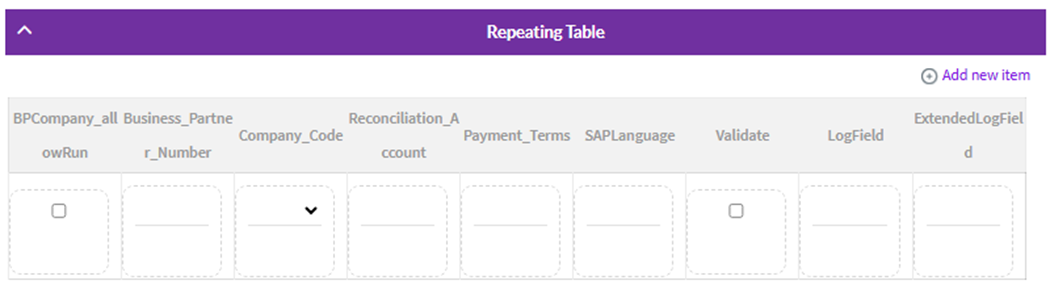
Some of the properties of a Repeating table include:
· New Item location – this is where Add new item is displayed
· Enable Search – displays a search field to find a value in the table
· Enable Sort – allows you to click on a column header to sort ascending or descending
· Enable Excel Operations – allows you to upload or download data to/from the table
· Enable Validation Results – shows you a count of potential errors based on your rules, which you can display as a pop-up showing the error and which page it's on if you have pagination
· Paginate Content – will paginate the results, which by default are 10 rows per screen full. This is important to select for both performance (not showing everything at once) and usability
· Table Width – by default it will try to fit all of the columns in the display without scrolling left to right (horizontal scrolling). If you have many fields, you may want to increase the width and allow scrolling left to right. This may or may not affect usability.
· Etc.
If using a script, it may look something like the above. The example shows Business Partner company code fields. There are additional fields included, such as:
· AllowRun – if true (checked), you will run the script on this row
· Validate – validate this row
· Logfield & optionally ExtendedLogField – messages from the script run
By default, each column is editable and you may optionally:
· Make them read only
· Default the value for the user
· Provide lookups/dropdowns to help fill out the data
· Hide the column
· Re-order the column(s)
· Rename the column headers
· Add columns like descriptions
· etc
You can use Repeating tables for more than just script execution, as they can be tied to Database/Reference Data list queries or API calls, for example.
You may also have an instance where you are searching and returning information in a nested table like this:
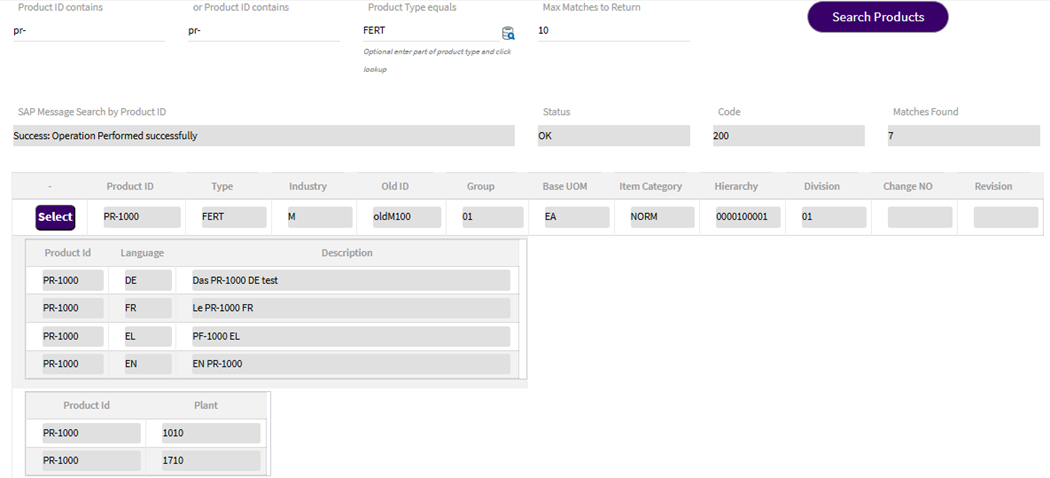
Above I have product information returned from an SAP OData GET call, and it includes the main information plus the descriptions and plants, which are nested below the product row. I cannot display this in a Selectable table (see below) with nested values, so I used a Repeating table and added a column with a button to select the row at the product level.
Selectable tables
Selectable tables display values. The values may be populated via a Query – whether a Studio Query script or an API call or a Reference data query, for example.
Repeating tables have less options because the data is read only. Some of them include:
· Enable Search
· Enable Sort
· Paginate Content
· etc.
Please see descriptions above
You can select only one row by clicking on it. When you select the row, you set what happens via rule(s) at the table level. Options typically include:
· display the details of the row selected – possibly executing another script or web service
· choose a duplicate
· select from a list of values you want to update other fields, such as address validation service calls updating the address fields for SAP or Salesforce or the address element in your web form
For example, I may wish to Query a system – SAP via a Query script or Salesforce through an API call and then select a row to update or display.
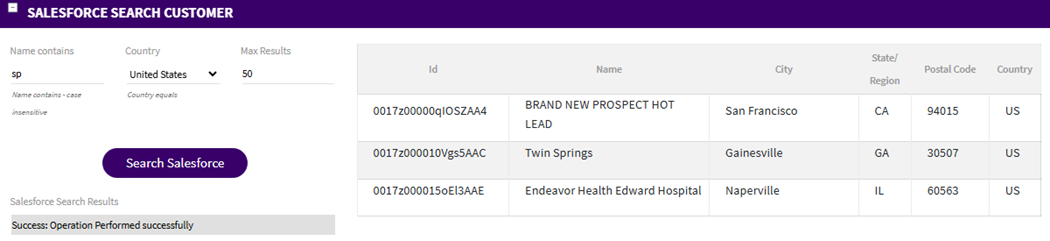
Here is an example of a Salesforce Query output into a selectable table
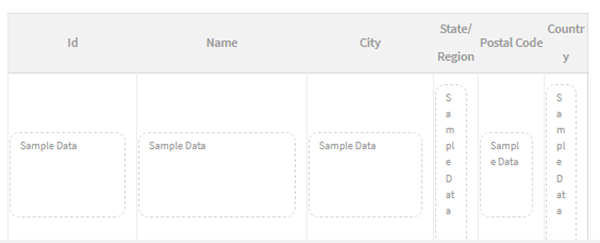
In Composer it looks like this
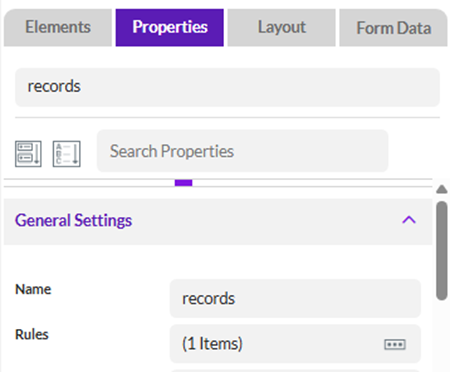
You would click on the table itself and set a rule (or several rules) for what to do if a row is clicked:
Typically, you will set other field values in the form and may or may not execute another script or web service:
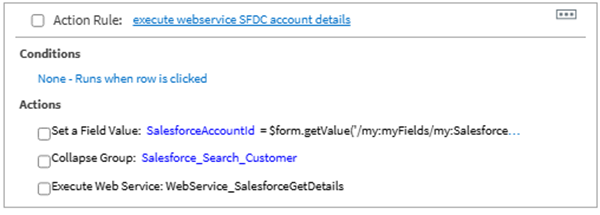
Above I am setting the Salesforce Account ID field, collapsing the search group and executing another web service to get the Salesforce account details, which I will display on the form.
You can also use the same scenario for address validation. In this case you call the API to check the address and list the options. Once clicked, you could set the address element fields and/or SAP fields to the values returned in the API call, which may do things like correct the spelling, complete the address, enrich it with the extended postal code and potentially provide a latitude and longitude, for example.
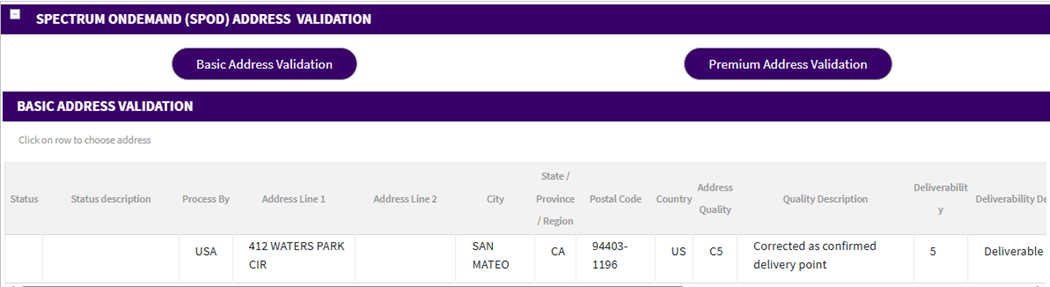
You can also use this concept for searching for duplicates. You can present the search criteria, search for duplicates and present potential matches. If you click on a row, you could capture the duplicate information.
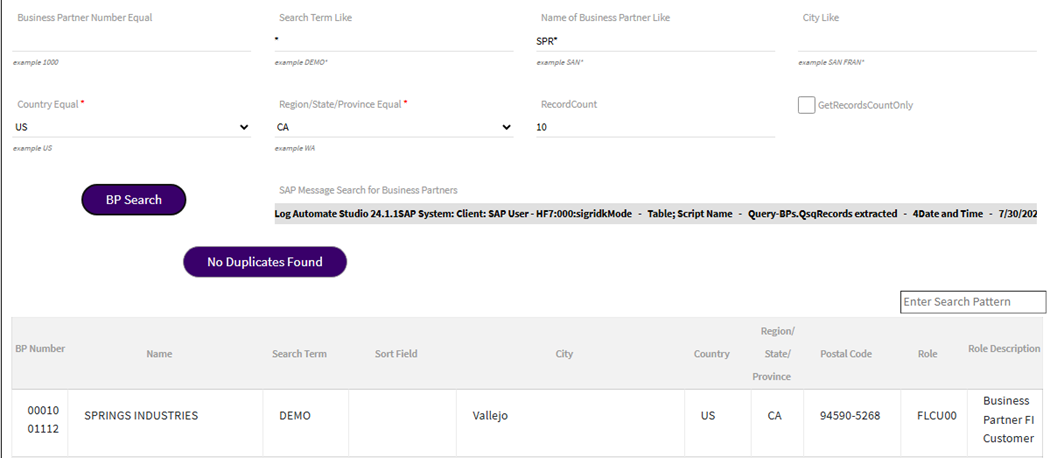
Click a row and display the duplicate

You can then either email the requestor alerting them to the duplicate & cancel the process – or – you could return the request to the requestor and allow them to correct the request or cancel it themselves.
Repeating Groups
There are instances where displaying fields is not practical/usable in a table. You may have many fields or nested tables which are not easy to work with in Repeating tables. In those instances, you can choose to use a repeating group. The form will show the values as individual fields, and that entire set of fields repeat in the form.
You can set the number of columns, like a non-repeating group, but the actions for a table like insert row or delete row are also present based on selections:
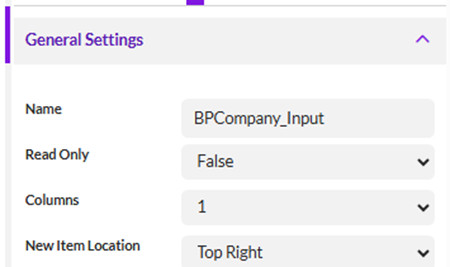
The repeating group will then show the fields, as configured
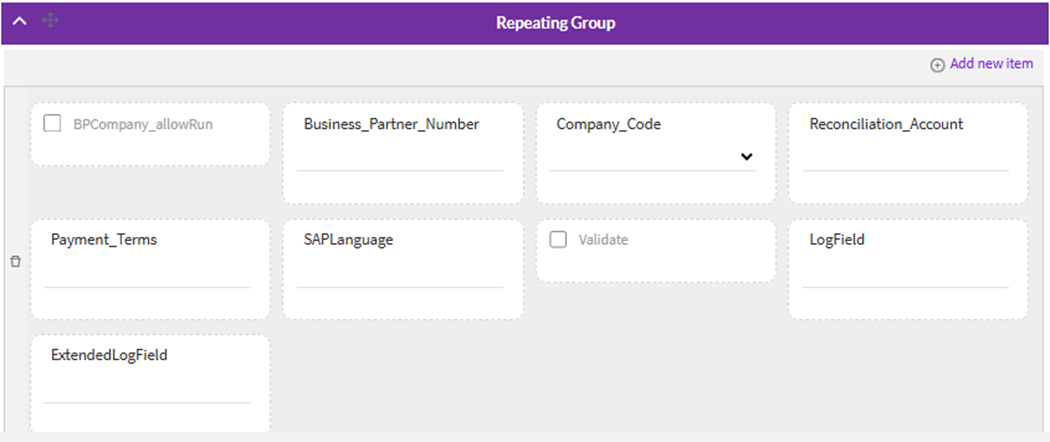
The choice on how to display the data is yours and whether the fields are editable or just selectable.
Happy solution building!
Sigrid
------------------------------
Sigrid Kok
*Precisely Software Inc.
------------------------------