Tip of the Week – Evolve Form Views
Evolve form processes can tie a specific task in a workflow to a view, presenting the information relevant to the role and step in the process. That view can be customized to show a participant:
· More or less fields
· More or less objects
· Make fields editable or read only
· Based on the task type, there may be approve/reject buttons or simply a complete task, as well as sending notifications with a view attachment
Providing these views simplify the process for the participants to only see and work with data that is important to them in a process, at a specific point in the process. For example you may have a new product process:
· One team enters basic information
· Purchasing adds their data and gains approval(s)
· Manufacturing adds their data and gains approval(s)
· Finance adds accounting/costing information
· Master data posts the data to SAP (and potentially other systems)
As an example, the Evolve views present each team with just the data they need to see or enter data, instead of the 100's of fields that often make a material master. In addition, you may have additional objects that you create with a material, such as purchase info records, sources lists, prices, BOMs, routings/recipes, production versions, etc. Each team can see and interact with the form view based on the one you assign to a step in the Evolve process.
An example for material creation:
· Initial view finds a copy from material and loads a table with basic data for new materials
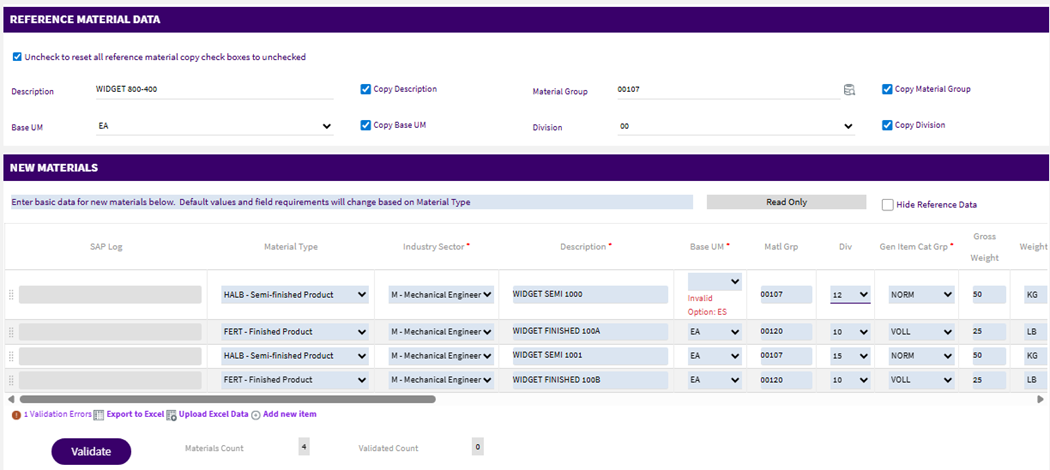
· The plant/manufacturing team can only see part of the basic data, read only, and can add/adjust the specific data they are allowed to edit
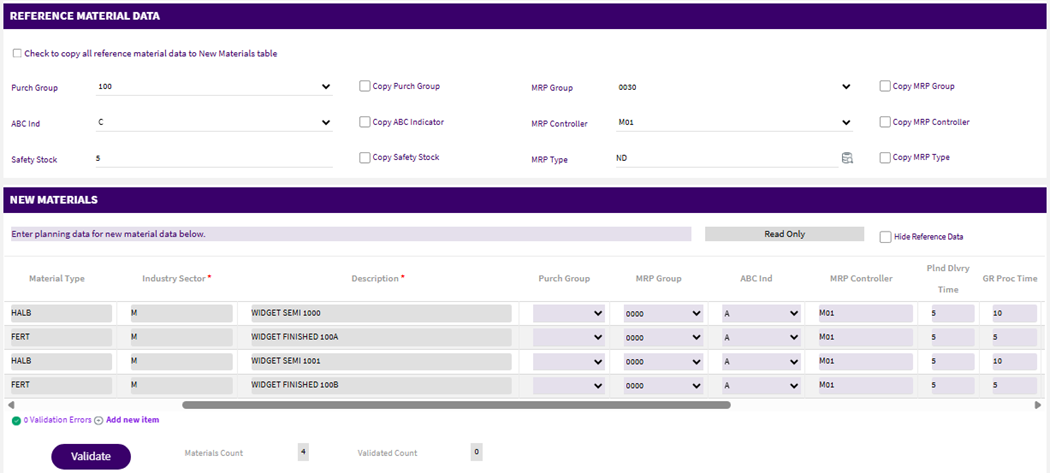
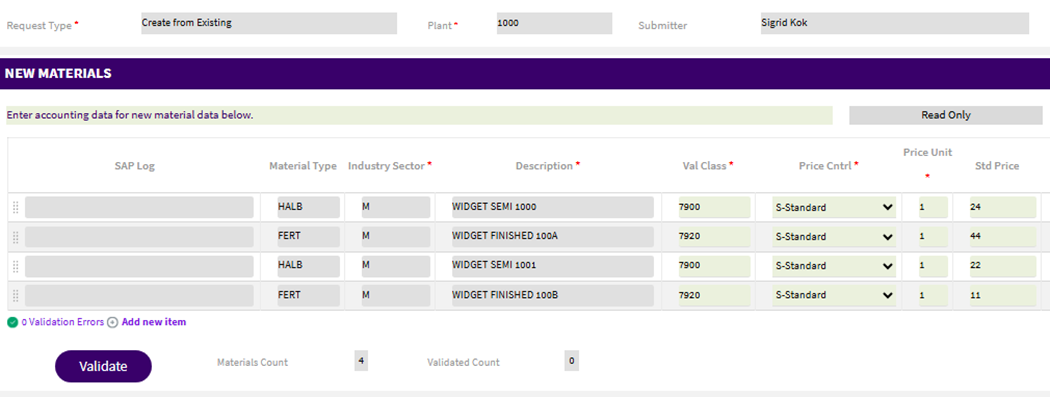
· The accounting team can also see partial basic data that is read only, and then only enter information for the accounting tabs setting valuation class and prices
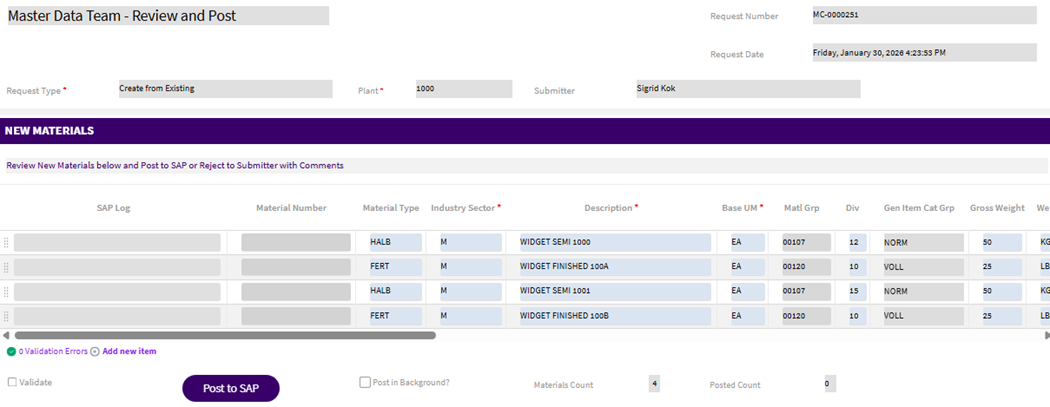
· The master data team, once everything is collected and approved, can review all of the data and post. Prior to this step, people could only enter and validate the data.
A solution designer can create and use multiple views in a process:
· Open a solution and go to the Forms tab
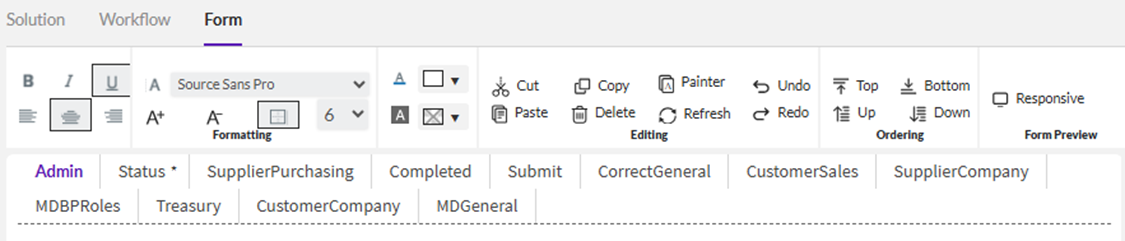
Above you'll see a number of views related to a Business Partner process.
· Status is the default – you'll know that because there is an asterisk next to it
· If you click on a view name you can see its properties
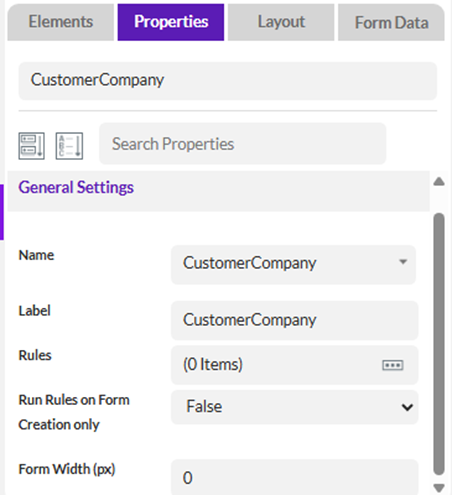
You'll see the name and label above, as well as the fact that there are not rules run when this view is initially displayed.
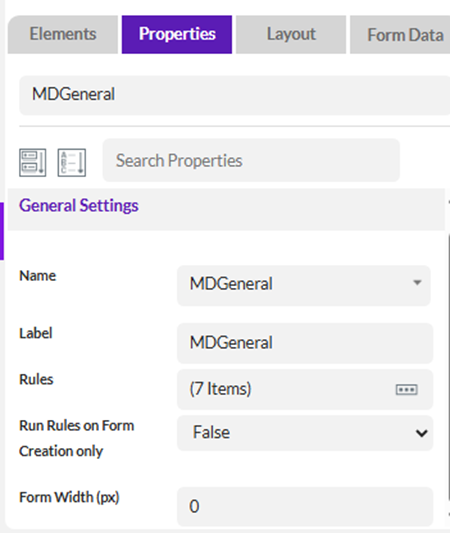
Above you'll see another view that has 7 rules that are run on view load
Some views may have a label with a different name, which relate to special view names that are built into the solution designer (aka Composer) for a specific purpose:
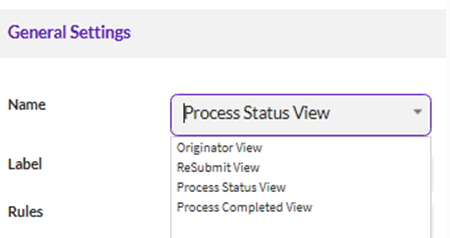
· Originator View: This view is displayed to the Originator, prior to launching the process. The person who starts this process may enter some data and start the process. This is often made the default view by default, but that can be changed.
· ReSubmit View: This view is displayed when re-submitting a form. Forms may be re-submitted if an administrator Cancels them, or if they end up in a Rejected state.
· Process Status View: This view is displayed for a person who has rights to see the form but does not have an outstanding assignment or task for the form.
o This view can be made default, so that when anyone checking the status of this process by clicking on it, they can see the data entered so far.
o There is no approval or completion buttons as it's simply meant to view the data.
o Typically the fields are made read only, but even if they are not, nothing is changed in the process when viewing the process status view
o It can be good to add the history control, either tabular or graphical, so that reviewers can quickly see what has transpired so far
o This can be attached to emails for people/groups who are simply being informed of where things are in the process
· Process Completed View: This view displays after a process has finished. An auditor may click on a process and see the completed view. It is often setup in a similar way to the Process Status view.
o The data is read only
o You might include the history control in a tabular format so that someone can quickly see who did what and when
o There are no actions to take on this view
o It's often used to send emails with a view attachment at the end of a process
Documentation on form views is here: https://help.precisely.com/r/t/1016755513/2023-12-31/Automate-Evolve/pub/Latest/en-US/Automate-Evolve-User-Guide/New-View-Element-Properties
In order to use the views, you will tie them to a step in the process, and potentially notifications.
Go to the Workflow tab and click on a step in the process:
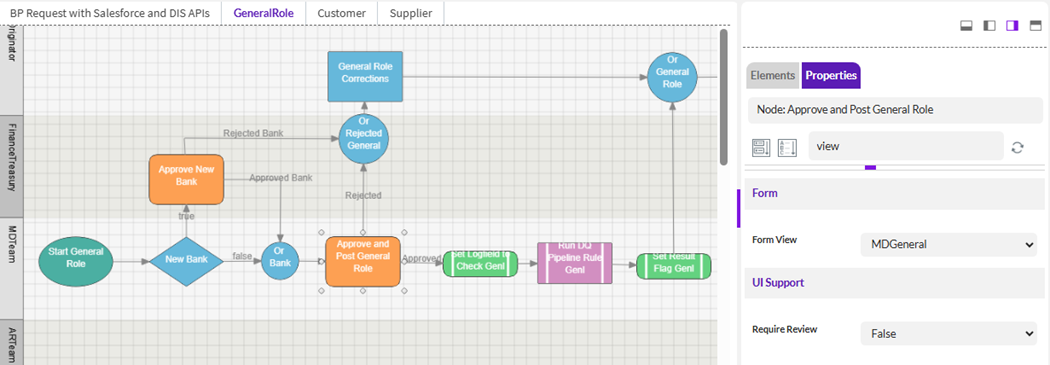
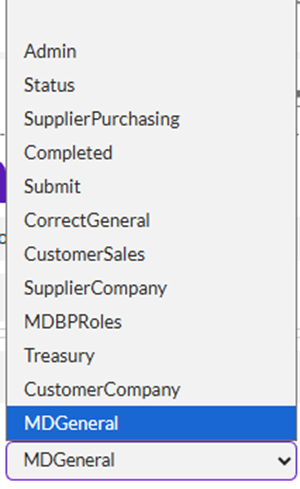
· For the Approve and Post General Role, the Form view is MDGeneral. It is selected via a dropdown for the property Form View:
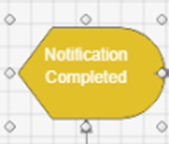
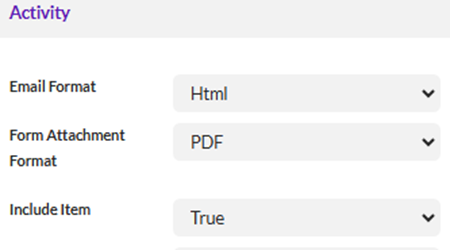
· On a Notification node, you can select a form view to be used to attach a copy of the form:
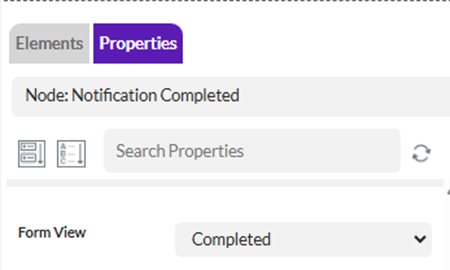
You will also need to make these settings to use that form view
· Form Attachment Format
· Include Item set to True
I hope you can see how powerful form views are. In addition, the built-in views that tie to process origination, re-submission, completion and status can be helpful for anyone starting or checking the status of a process. Form views are participants window in to the process and should help make it easy to enter or view just want they need to accomplish a task or check a status.
Happy solution designing!
Sigrid
------------------------------
Sigrid Kok
*Precisely Software Inc.
------------------------------