Tip of the Week – Evolve field dependencies
Solution designers want to be able to help process participants fill in the data correctly. There is the ability to use several options for choosing values for individual fields:
· Live F4 Lookup control
· Staged data lookups in reference data lists or SQL tables
· API calls
However, there are often dependencies on field values. For example:
· If I pick plant 1000 – these are the MRP controllers you can pick in the MRP tab
· If I pick plant 1010 – these are the work centers for plant maintenance
· If I pick company 1710 – these are the accounts I can post to in a Journal Entry
· If I pick this class characteristic color , these are the values that can be set
· If I pick sales org 3000 – these are the distribution channels I can pick, then list the divisions I can pick from that
· If I pick material type FERT – these are my possible valuation classes on the Accounting tab
There are many, many more examples in SAP.
Inside the SAP application, the underlying code takes care of this. But in an Evolve form, you will need to accommodate these dependencies.
The easiest way to do so is use a Query and populate a Reference data list or SQL table with the possible combinations. You can schedule the Query to refresh as much as you need it.
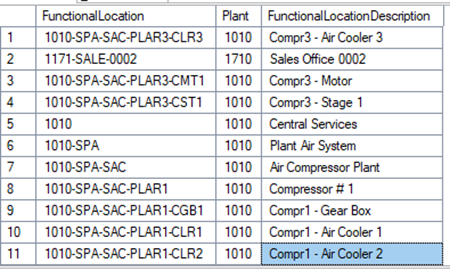
Here's an example in a SQL table for plant to FLOC (aka functional location) with Functional location to Plant:
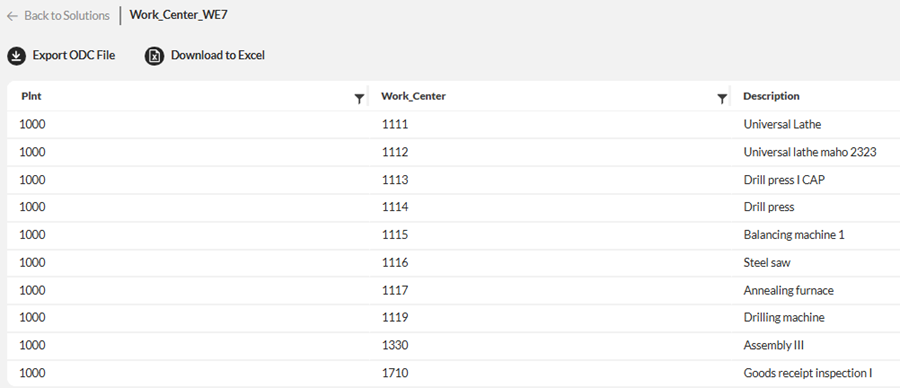
Here's an example of Plant with work center in a reference data list:
First, add the data connection to your solution
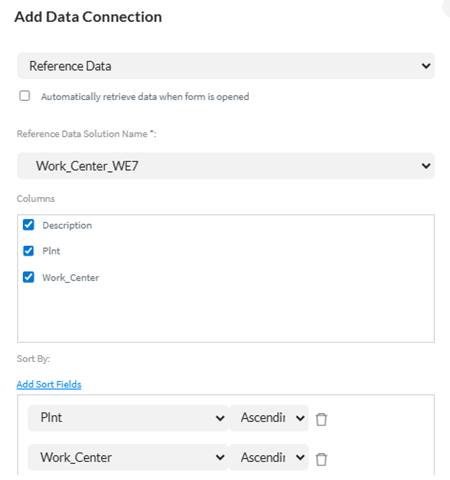
I typically sort so that users will see values in the expected order – whether by code or description or some combination of the two.
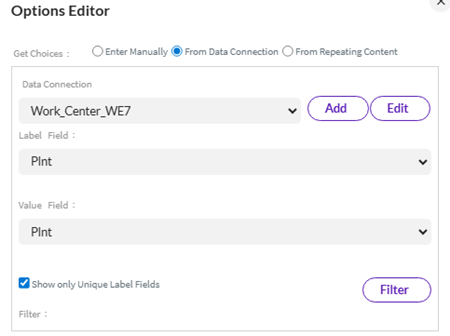
Add the fields to your form, which may come from an imported Studio script. Then make the field a dropdown and point to the data connection. Start with the field that would filter the possible values in the dependent field – in this case plant.
Do the same for the dependent field(s), but you will then want to add a filter
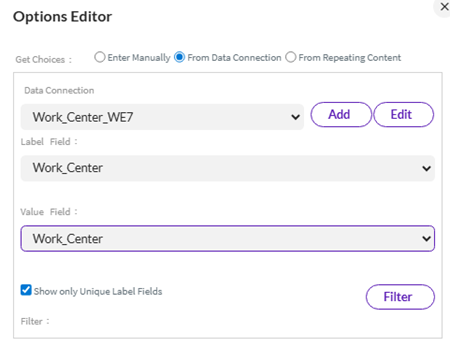

Please note you can filter on many fields, as needed. Deploy and test.
Start by picking a plant
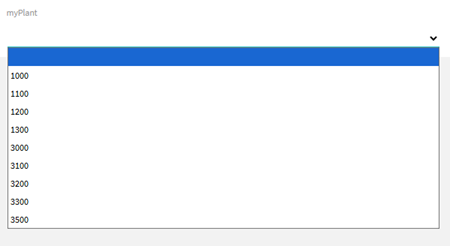
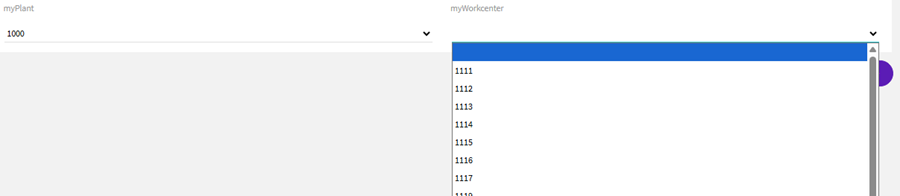
An additional step you can take is to make the dependent field disabled until the initial field is filled in. This guides the end user to enter the first value so that the dependencies can be filtered. Please ensure you choose the Run Rule on Form Load option so that the dependent fields are disabled at the start.
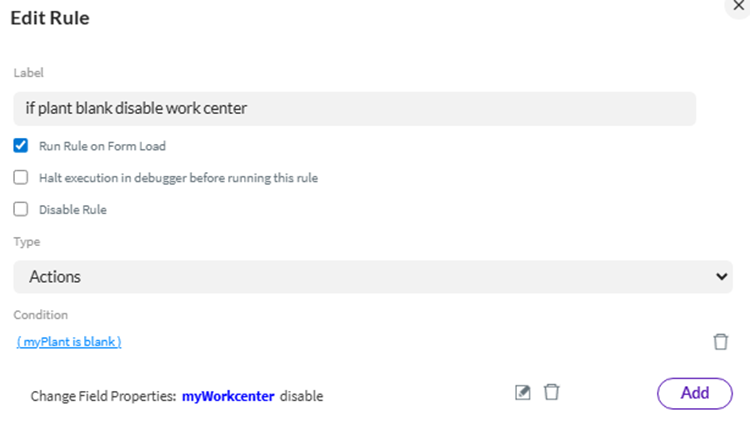
Please be sure to copy that rule and edit it for the opposite – if plant is filled in, enable work center.
You should have both rules noting that the "*" next to Action Rule at the top denotes that it will run on form load:
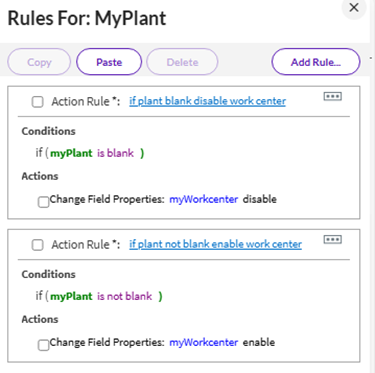
With plant blank, you will see work center is disabled

Once plant is filled in, work center is enabled and filtered

Another way to filter is via the Lookup control filters. In my experience, this is the best option in a table.
Here is a link to the documentation on it: https://help.precisely.com/r/t/1016755509/2023-12-31/Automate-Evolve/pub/Latest/en-US/Automate-Evolve-User-Guide/Lookup-Element-Properties
Here is an example for Business Partner Sales area data – role FLCU01. The Sales office is dependent on the Sales Org, so you would use the filter on the lookup control to filter the Sales Offices:
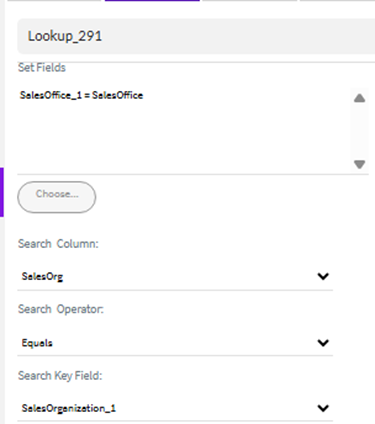
Search Column is the SalesOrg field from your data connection and SalesOrganization_1 is in the table from the script.
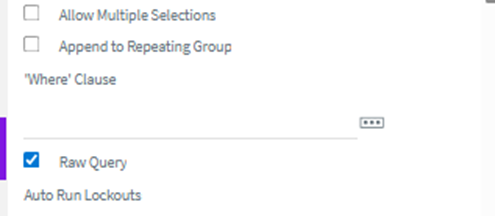
If you have more than one field to filter on, please use the Raw Query Where clause
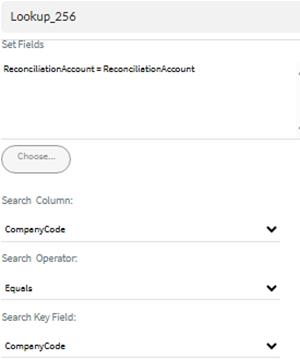
Here's another example for Business Partner Company Data role FLCU00. Reconciliation Account lookup control:
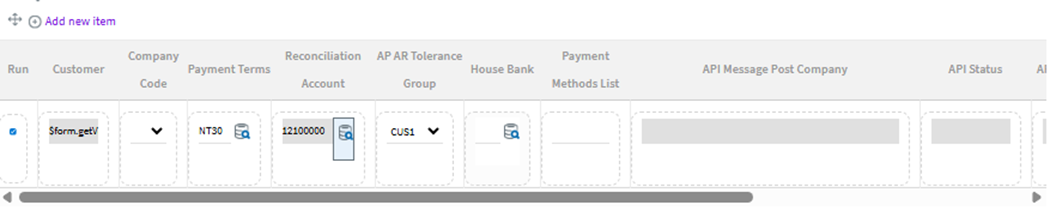
The filter is on Company code
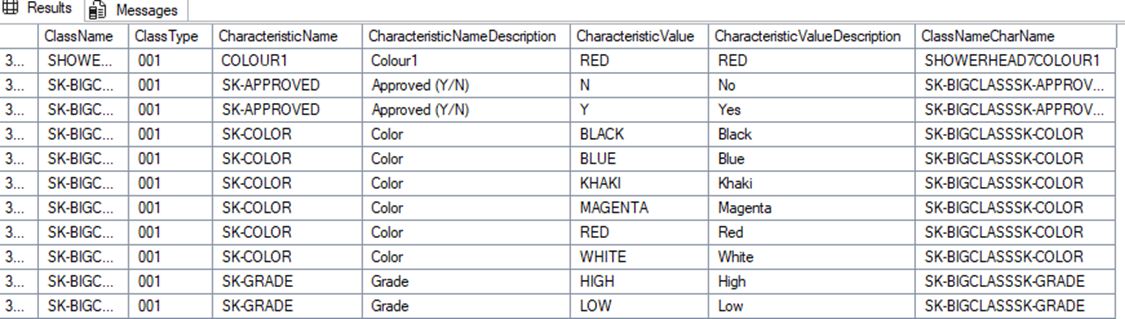
One of the hardest use cases that I worked on was trying to have a dynamic lookup for class characteristic values. Here's the SQL table, with the class name and type, the characteristic name and value. Note the calculated column on the right, which is a combination of class name and characteristic name (not description – field name is unique) – that's how I filter.
In my Evolve solution, I search for a product (aka material) to update, use a Query to find which classes are assigned to that product, and finally use our custom function module to pull in all of the values across all classes. As I extract, I create a new field and concatenate the class name and characteristic name with a rule, so that I have a matching key.
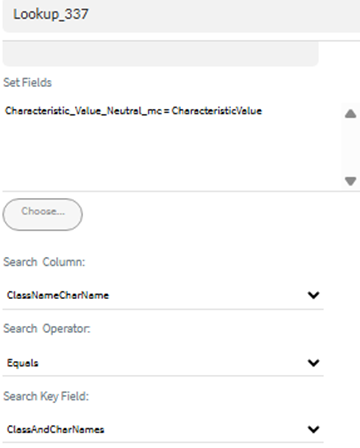
Here is the filter on the lookup control:
It looks something like this in my form, noting you don't have to display all of the values. The far right column is the concatenation of the class name and characteristic name, so that I have a key to match on in the form.
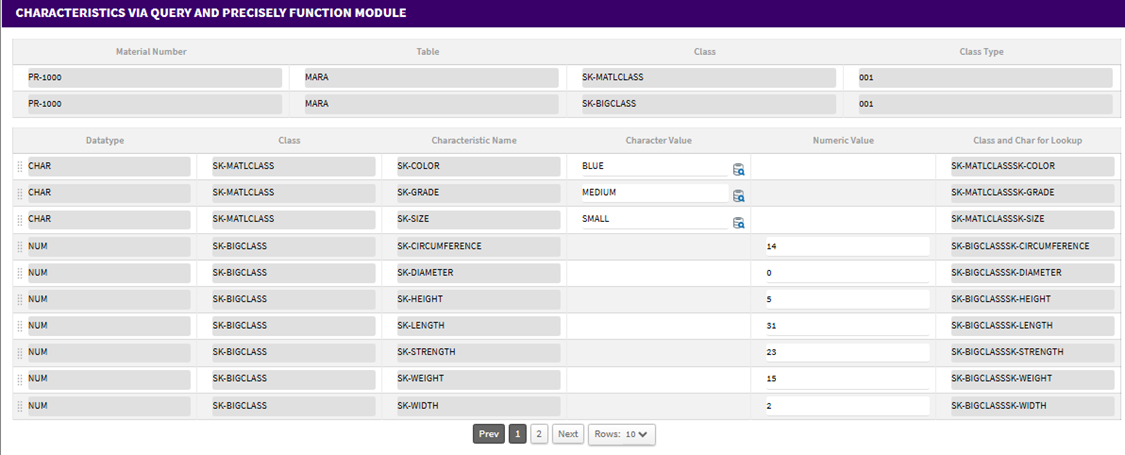
This is displaying the class, characteristic and then the values if there are any. If there are values to pick, I have a lookup control. Otherwise there is a value to enter in the Numeric Value column.
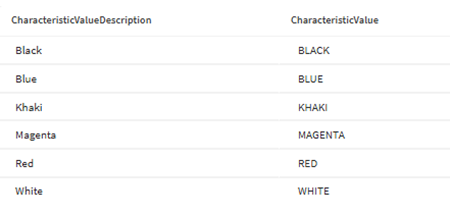
When I click lookup on Color, I see these choices:
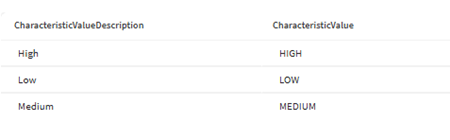
When I click on the same lookup for Grade, I see these choices:
I hope you can see that as a solution designer, you have a few options for guiding a process participant to fill out the form easily, with values to choose that are filtered, so that you get the data first time right.
What use cases would this be helpful for you at your company? Any tips I missed? Feel free to comment below.
Happy solution designing!
Sigrid
------------------------------
Sigrid Kok
*Precisely Software Inc.
------------------------------