Hi All,
When you record a script using a Transaction, any field you touch/change will be captured and shown in the mapper. But:
· What if you want to enable a field you missed, or possibly disable a field you captured, but don't want in your SAP data automation (aka script)?
· What if the business user you built the script for changes their mind and wants different fields included?
You don't always have to rebuild the script – you can leverage the disabled fields to enable (add) fields and can disable (remove) fields you captured that you no longer wanted included in the script.
It can be quite simple to modify a script, as long as it's on a screen you visited during the recording. (Note if you didn't visit the screen where you want to enable fields, you might just record that portion of a script and copy and paste it in, but you may need to adjust OK codes, so that's for another tip.)
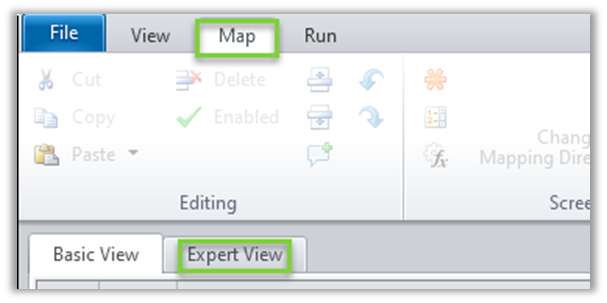
Open a script you have recorded, go to the Map tab then click Expert view.
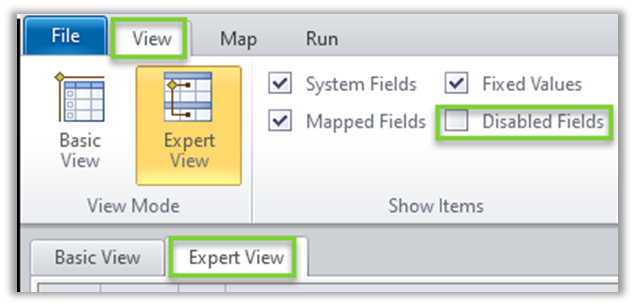
From Expert view, click View on the upper ribbon and then check the box for Disabled fields
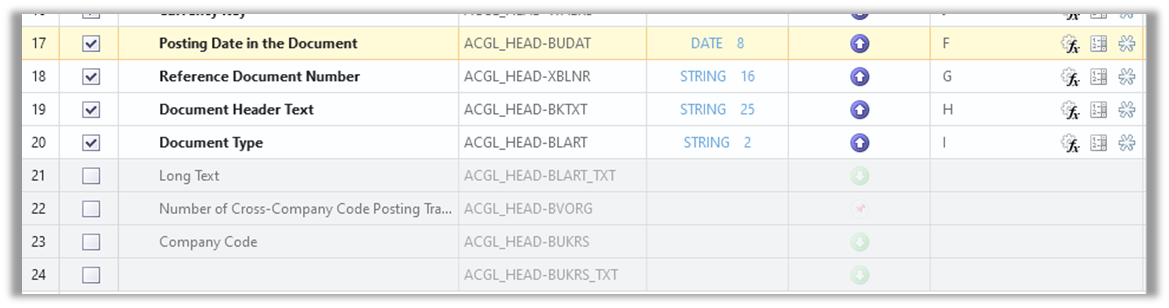
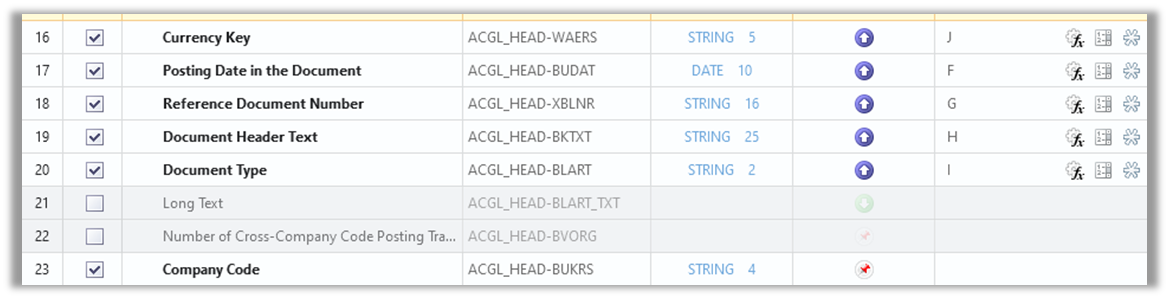
Fields that you captured will show up as enabled (checkbox on the left) and bolded. Fields you skipped are greyed out (disabled), like Company Code below on line 23.
If you want to enable Company Code, simply check the Enable box on the left of line 23, and it will look like this:
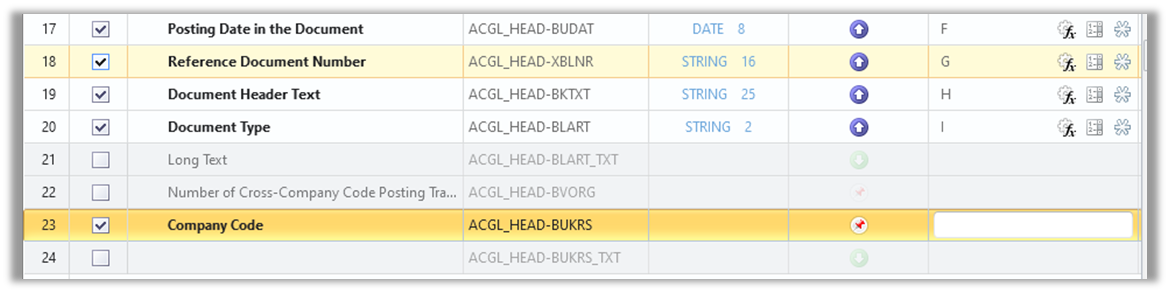
Now you can map it or set a fixed value.
If the field you want to enable is in a table, it will not show all of the fields (aka columns) of that table that are disabled, so you will have to look up the technical field name, then copy one of the fields in the table you already captured, and edit the field name.
It's a good idea to Synchronize once you've enabled new fields and/or copied and pasted fields, which will pull in data type and length and potentially description. Go to the Map tab and click on Synchronize in the Mapping group toward the right:
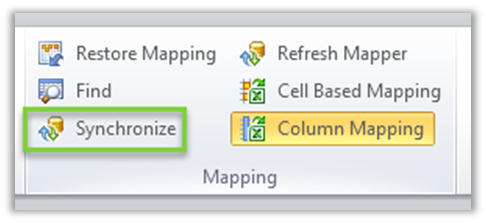
If you haven't logged into your SAP system, you will be prompted to do so.
You will now see descriptions in your SAP language, as well as the data type and length of the newly enabled fields.
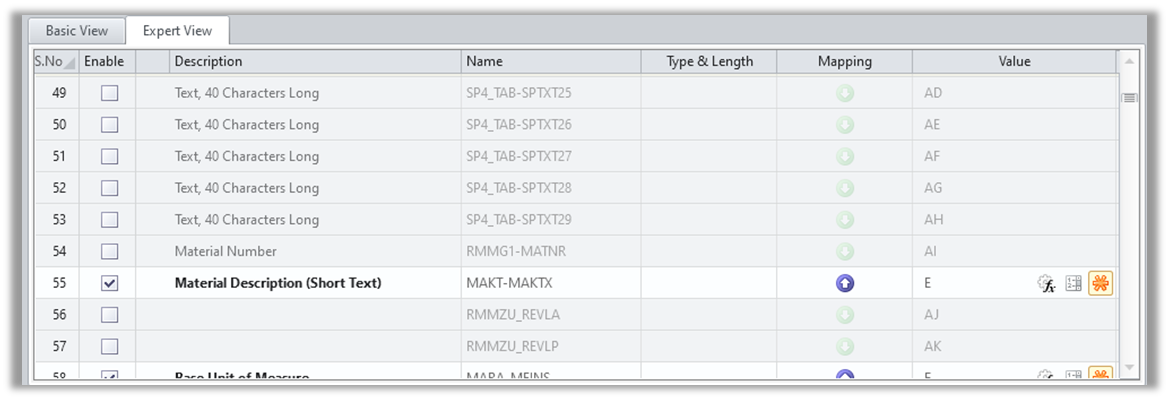
Note in some cases, there are many hidden fields you don't see in the GUI, like in Material Master, for example the Text 40 Characters Long on each view:
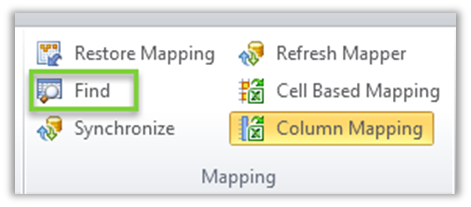
If you have a lot of fields in your script, you may want to leverage the FIND to skip through all of the fields and screens in a larger script to find the field you want to enable on the Map tab. If you know the technical name or a field near the one you want to enable, you can search for it, like:
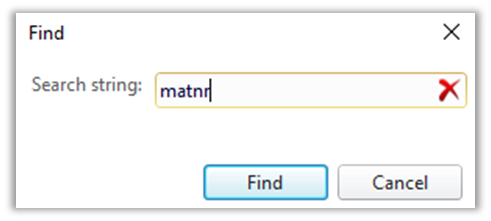
Before looking for fields to enable:
· some people find it easier to map the data and then go into expert view, which will show the fields near the one you want to enable
· some find it easier not to map the fields and thus you will have the values you entered in each field to help guide you to the right part of the script to enable.
A great example for enabling a field is to download the material number in a material creation script. If generated (internal number), it is set early on, and instead of using a formula to extract the generated material number from the log or transforming the log message, you can enable and download it:
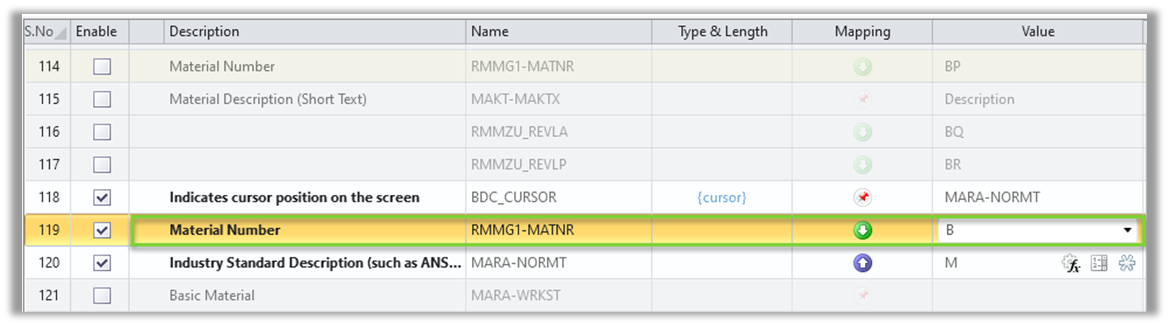
Above, I enabled Material Number on a later screen and downloaded it prior to the Save.
I hope you can see that enabling or disabling fields makes it simple to modify a script instead of re-recording.
Happy scripting!
Sigrid
------------------------------
Sigrid Kok
Precisely Software Inc.
------------------------------