As you extract or before you load data into SAP, you may want to use formulas so that you follow your data governance rules to:
- (1) Format the data the way you wish
- (2) Convert value(s) into a format SAP would accept, i.e. data stored & extracted format not always equal to the format SAP will accept to load it
- (3) Create a new column that will be loaded and/or displayed
- (4) Pad a value with spaces or zeroes to use in a Query or Direct script
- (5) Lookup the right value based on other value(s)
etc.
Examples:
- (1) Change Name or Address to uppercase
- (2) Format the query output of a quantity, which is often decimal to an integer for input
- (3) Format the query output to remove trailing spaces or normalize spaces
- (4) Create new columns for totals, or combine values to create a description or text or a lookup key
- (5) Convert inputs to uppercase, which is sometimes required by BAPIs or Fiori APIs
- (6) Leverage a lookup formula for either end user ease-of-use or for loading into SAP
- (7) Combine values to create a description or smart part number
- (8) Lookup a value in a table in the workbook or an external workbook. You can leverage simple Excel formulas to accomplish all of the above use cases. It can be used to:
a. relate to business rules based on what you want a value to be based on another value
b. "join" output from multiple queries and also for conditional formatting in case a value exists or not, you could grey out an input field
c. converting values you have in an Excel file for migration or M&A activities
d. cleaning up data you have
e. doing mass updates based on business changes
Also note for some language dependent attributes, you can use the Conversion Exit in Query, so that Unit of Measure PC (pieces) is extracted as PC instead of how it's stored as ST (the German version of PC). You can read more about that here: Query Documentation on Conversion Exit This was also covered in another tip here: Tip of the Week Conversion Exit
Formula Examples:
- (1) Trim() to trim spaces at the beginning, in the middle and end of the text. Example: trim the description. (Note that SAP stores text values in tables with trailing spaces.) It will also normalize the spacing so that extra spaces are trimmed out, as well, ex: " my text has extra spaces " to "my text has extra spaces"
- (2) Upper() convert to upper case, ex: "234 topaz st" will be "234 TOPAZ ST"
- (3) Proper() convert to mixed case, ex: "AcMe inc." will be "Acme Inc."
- (4) Sum() to total values that might span multiple columns, ex: b2=50, c2=25 so sum(b2:c2)= 75
- (5) Vlookup() to lookup values in a table in the file or an external workbook, ex: vlookup(c2,tablename,3,false)
a. the "c2" is the "key" value in the table, i.e. the first column
b. the "tablename" is your table name, example: PlantDefaults
c. the "3" means you want the 3rd column in the table to be returned
d. the last value is true or false
i. true means it will try to find a value close to the match
ii. false means you want an exact match – this is the default
e. Please remember to trim spaces in the key value if the table also has trimmed spaces
f. Consider using =IFNA() in case there is no value returned for the lookup. Example: =IFNA(vlookup(c2,tablename,3,false),"not found").
i. If it finds a matching with the vlookup, you will get it.
ii. If it doesn't find a match, you will get the "not found". Note you could a "note found" to grey out an input field based on a value not being found, such as creating a dynamic set of inputs for depreciation area depending on how many a query returned.
g. Vlookups are great when you're migrating data. You have a set of data, and you want to lookup values for the new system, like migrating from ECC to S4, or even from M&A activities.
h. note that "key" could be a set of concatenated values so that you have a unique row to lookup
When are formulas executed?
- (1) For Query, formulas are applied as the data is extracted and written to Excel
- (2) For Transaction or Direct, formulas are applied as data is uploaded to SAP
In order to use formulas, open your script and go to the Map tab and click the formula icon on a field row you wish to apply a formula or in the Properties panel on the right.
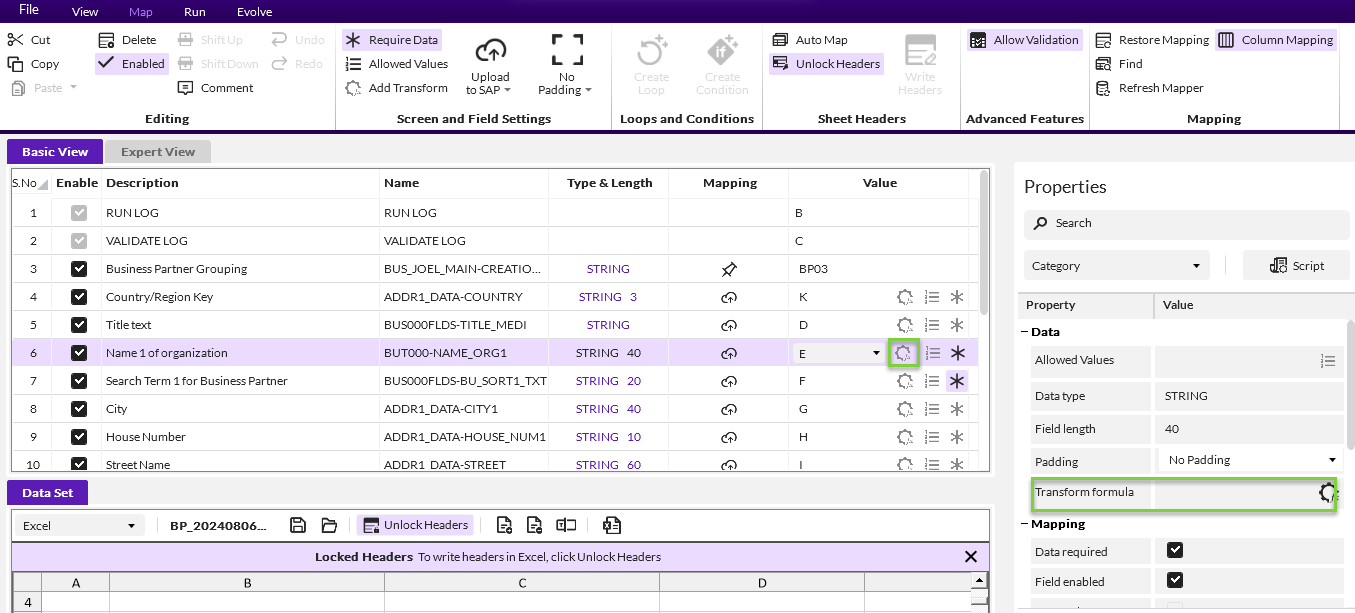
Transaction
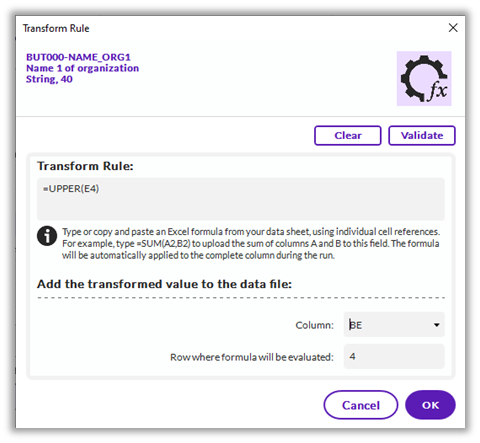
Enter your formula, using the column you want to transform, which is E, and the output row, which is 4.
Choose the column where the formula will be executed and displayed. In the below example, we are "hiding" the value far to the right. But you can also map it such that the end user will see the transformed value.
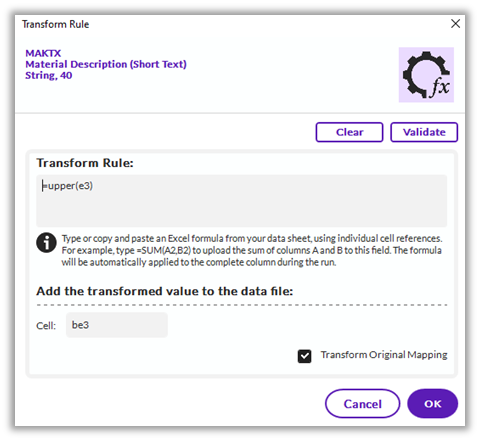
Query
Enter the excel formula, like =upper(e3), which will convert the text in column e starting on row 3 to uppercase.
Cell: is where the formula will be executed, which can be far out to the right.
Optionally check the box to Transform Original Mapping so that column E will have the converted value.
Examples:
- (1) Query: SUM() - Total values stored in periods, such as in Project Systems budgets:
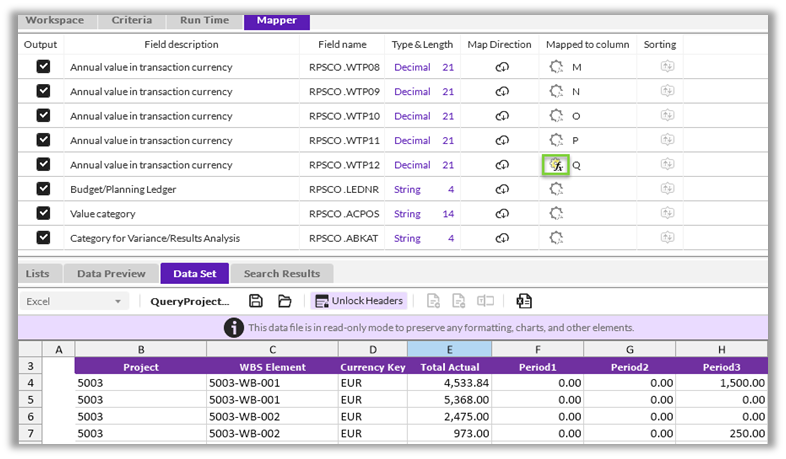
Use the Sum() formula to total a range of columns
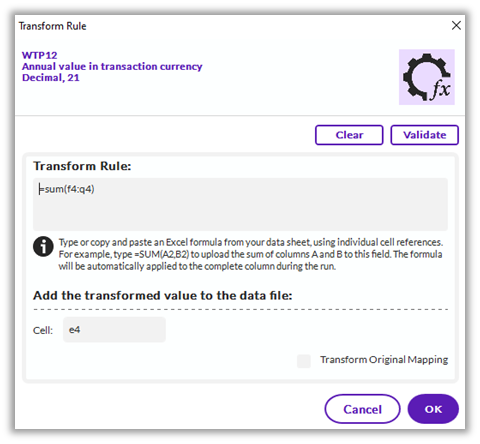
Note in this case put the formula for the total on the last column – in this case on the 12th period value.
Also note my Query output starts on row 4, so enter E4 for the Cell.
- (2) Query: UPPER() - Convert material description to uppercase as it is extracted
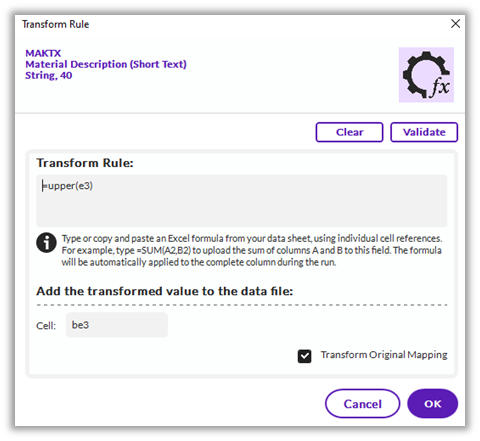
Enter the Excel formula, like =upper(E3)
- (3) Query: VLOOKUP - lookup values from query 1 to pull into the results of query 2, example was for plant maintenance work orders with equipment information and characteristics
Query 1 pulled equipment and workorder information
Query 2 pulled characteristics and concatenated the equipment number and characteristic to provide a lookup key


Example: =IFNA(VLOOKUP(CONCATENATE(TRIM(A3),"-SK-RECTIFIERTYPE"),Characteristics,6,),"")
It took the equipment number in A3 plus the characteristic name for the lookup key, used the table Characteristics, which was populated in Query 2, and pulled the 6th value, which was the characteristic value of the characteristic. It also allowed us to "flatten" the data, because we were pulling characteristics into a certain column of a row, so that everything was displayed in the report in 1 row for a piece of equipment.
- (4) Transaction: Use the UPPER() formula to convert the name of a business partner to upper case prior to loading
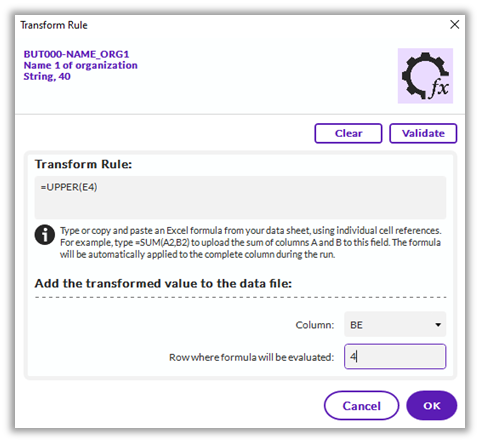
Column E has the BP name and the input values start in row for, so =UPPER(E4)
The Column below is where the output is evaluated and the row is 4. So Acme Inc will be ACME INC in BE4.
This can be done with street address and a lot of other input values
- (5) Transaction: use VLOOKUP() to lookup the reconciliation account for a company code
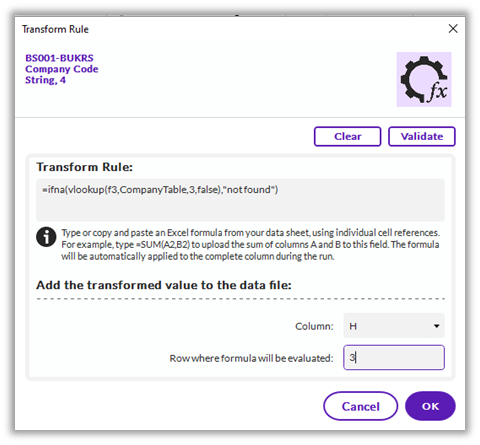
Use the Vlookup formula to find the reconciliation account in the Company table based on the company code and write it to column H. In this case the runner will see the result, but they don't have to remember the account number – it will look it up for them.
Another good example is if you are using Direct for Sales Order Par
- (6) Direct: VLOOKUP() – use the lookup formula to find the proper input partner type for the BAPI
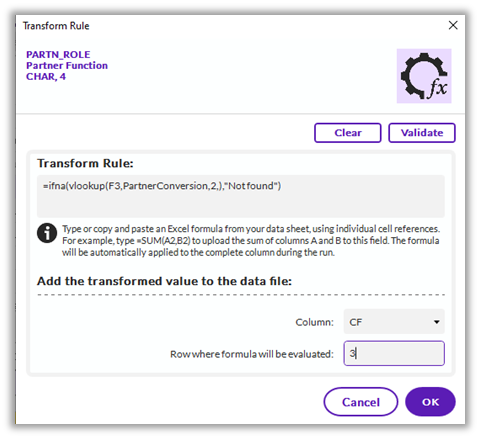
In English, Sales order partners are SP for Sold To and SH for Ship To. But the SAP BAPIs expect AG for Sold To and WE for Ship To. You don't want to have end users remember the conversion. So setup a conversion table and use the VLOOKUP() function to find the BP type the BAPI will upload.
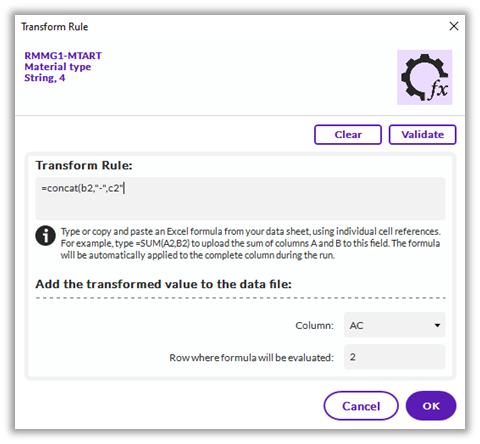
- (7) Query or Transaction – concatenate values to create a lookup key or a smart part number or description
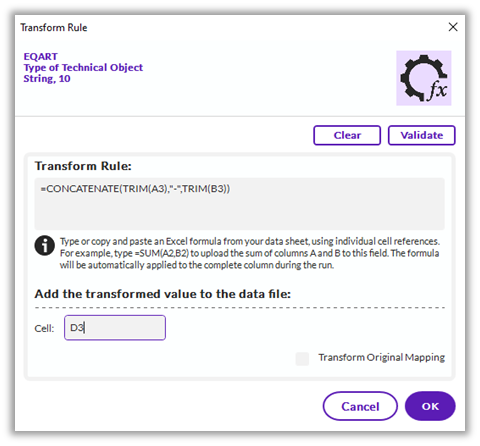
Above is a query example to concatenate values together to create a new column. This can also be done in Transaction to take characteristic values to create a description or leverage other inputs to create a smart part number, like below:
Tips:
· Ensure your formula start row matches the start row of the data, it will handle the subsequent rows. If you change your start row, please ensure you modify your formulas to match.
· Provide a row & column combination that will be used to do the conversion, which you may want the end user to see or hide. This is where the formula will be executed.
o Transaction always requires a new column be used in the conversion
o Query will also use a new column for the conversion, but you can check to Transform the Original Mapping, which will replace the value query extracted with the formatted value, in this case an uppercase Material Description. If you do not check this option, Material Description done in the column you specify.
· Just like in Excel, you can nest the formulas, so you could have =trim(upper(e3)) to trim spaces in the front/middle/end of your text and convert to uppercase.
· Click the validate button, to ensure your Excel formula is valid
· Formulas will only work if you map your script to Excel
Happy transforming with formulas!
Sigrid
------------------------------
Sigrid Kok
Precisely Software Inc.
------------------------------