Tip of the Week — Creating & Configuring Reference Data Lists in Automate Evolve
Reference data is a powerful feature in Automate Evolve platform that lets you create and manage centralized repositories of information used across your solutions. These repositories can power forms, Excel workflows, rules, and participant resolution. Think of it as a lookup system or master data store that your forms, Excel solutions, and other processes can reference.
What reference data can be used for
Reference data serves multiple purposes in your business processes:
- Lists of participants or key entities
- Lookup data for populating dropdown lists
- External data needed to build and support business workflows
- Data need to support business rules
Reference Data types
You can organize reference data in two ways:
- Local reference data — Defined within a specific app's Reference Data library; available only to solutions in that particular app
- Global reference data — Defined in the Reference Data App; available to all solutions across all apps
How to add data to the reference data lists
Reference data integrates with your solutions in several ways:
- Query output to reference data — Save query results directly into reference data
- Form solutions — Use reference data through Web Service controls and data connections
- Excel files — Manage reference data through Excel templates with workflow approval
- Evolve site — Update reference data directly through the web interface
Getting started with reference data
To create and manage reference data, you'll need Solution Developer permission on the Reference Data library. You can create schemas in three ways:
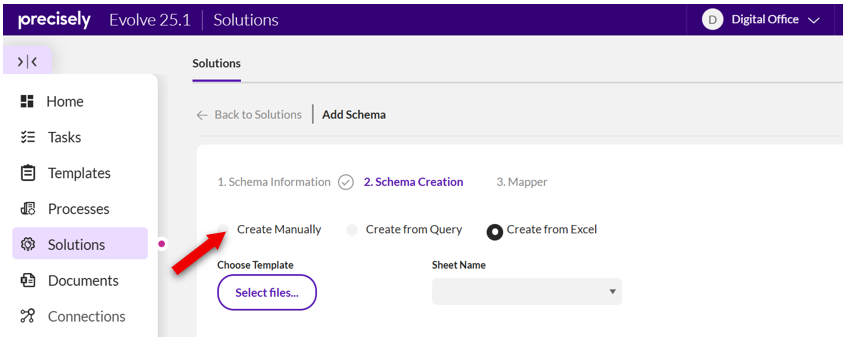
- Create manually — Build columns and fields one at a time with custom names, data types, and constraints
- Create from query — Use output and criteria fields from Studio Query scripts
- Create from Excel — Import an existing Excel file to establish your schema
Once you've created your schema, you'll publish it to make it available for use in other solutions. Publishing also lets you set up workflow approvals and manage permissions.
Downloading and viewing data
You can easily download reference data to Excel for analysis or sharing:
- Open the User App and go to Solutions
- Click on Reference Data List to see available solutions
- Select the solution you need
- Click View Data
- Click Download to Excel to export all data, or filter first to download only specific records
Create a Reference Data List
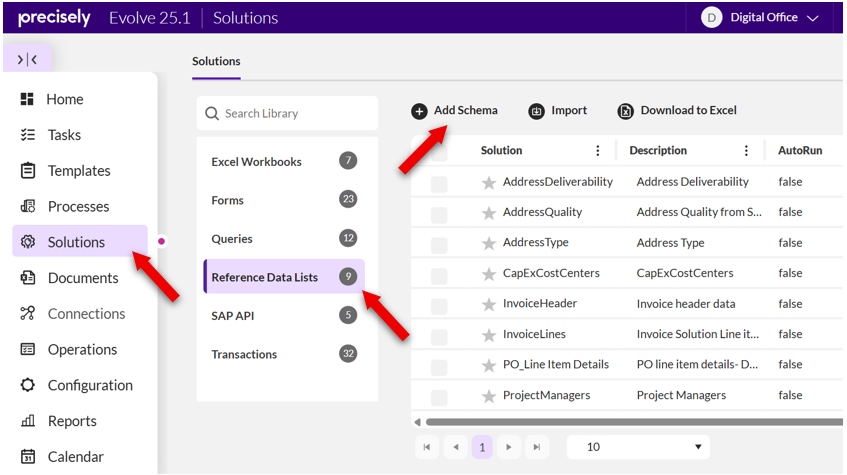
- Open the User App → Solutions → Reference Data Lists and choose Add Schema.
- Define the Reference Data list name, category and description.
- Choose the schema type and define your schema (fields, types). Once created, the Reference data is ready to be published.
- Click the Actions menu (three dots next to the Reference Data list) and choose Publish
- Decide how data will be maintained:
- Excel-managed (mass updates via Excel Add‑in with standard/custom workflows), or
- Evolve-managed (row-wise edits in the web UI).
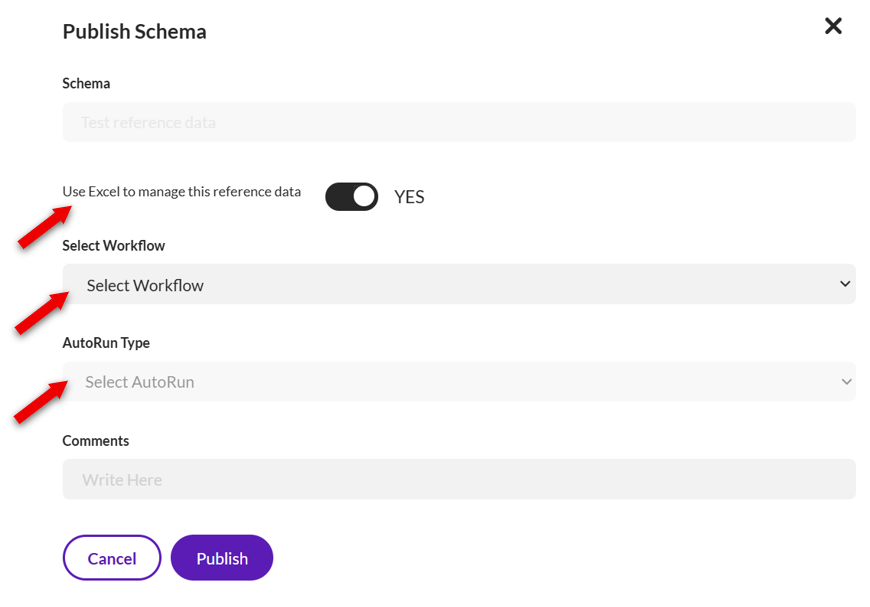
Choose at publish time—this cannot be changed later. Use Excel for bulk maintenance; Evolve UI for lighter, row-by-row changes.
- Set permissions (create/read/update/delete) for the Reference Data library or additional libraries you create for logical separation.
- (Optional) Favorite important lists to pin them to the top of the library.
Populate Data in Reference Data list
- Excel Add‑in: Used when enable Use Excel File to Manage Reference Data option is selected during publish. Open the auto‑generated template from My Templates, add data, and Submit. After approvals, data is saved to the list.
- Evolve UI: Used when enable Use Excel File to Manage Reference Data option is not selected during publish. Select the Reference Data list and click Edit Data.
Reference Data API
Purpose: Access data from Reference Data lists via a REST API using the GET method. Supports limited OData filters for querying.
- Key Parameters:
- AppName – App where the solution resides
- LibraryName – Library containing the solution
- RefSolutionName – Name of the Reference Data list
- Request Format:
{{RoutePrefix}}/api/v1/ReferenceData?AppName=<App>&LibraryName=<Library>&SolutionName=<Solution>&$filter=<condition>
Examples:
- Basic: ...?AppName=Reference Data&LibraryName=Reference Data Lists&SolutionName=refsolution
- With filter: ...?AppName=Reference Data&LibraryName=Reference Data Lists&SolutionName=refsolution&$filter=empid eq 1068 and Bitfield eq true
- Response: Returns JSON with fields like username, CreatedOn (YYYY-MM-DD), empid, decimalfield, Bitfield.
- Error Handling: Invalid parameters return structured error:
{
"ErrorCode": "Invalid_data",
"Message": "LibraryName, SolutionName or AppName does not exist."
}
- Notes:
- Decimal format uses dot as separator (e.g., 23232.56).
- No request body required.
- Ensure exact parameter names for successful execution.
Design & Configuration Tips
- Name columns safely: special characters are treated like _. Avoid names like col-1; prefer col1 or col_1.
- Plan governance up‑front: decide Excel vs Evolve before publishing; it’s a one‑time choice per list.
- Library strategy: keep global lists (e.g., UoM, product hierarchy, approver maps) in a Reference Data library; create additional libraries for regional variants. Permissions mirror standard libraries.
- Favorites & templates: each new list auto‑generates a template; existing templates aren’t reused. Mark frequently used lists as favorites.
Common Use Cases
- Dropdowns & value help for forms (e.g., material groups, vendor types).
- Participant resolution (map plant → approver).
- Process guardrails (rules validate against reference lists before submit).
Troubleshooting & Gotchas
- Can’t switch maintenance mode: once a list is Excel‑managed or Evolve‑managed, the mode is fixed. Create a new list if you need to change.
- Column naming issues: avoid hyphens and special characters to prevent schema read errors.
- Template expectations: a new Excel template is created for each list; don’t expect reuse.
- API parameter validation: pass AppName, LibraryName, and RefSolutionName exactly; invalid values return structured errors.
Where to Click (Docs & Help)
Bonus: Migration note
SharePoint lists from Foundation can be converted to Reference Data Lists during migration to Evolve.