Create a Query from a Transaction Recording
If you are not familiar with the tables you need to use, and you are familiar with transactions in SAP, you can find the tables by recording an SAP transaction.
Fields that are in structures, instead of tables, will not be included in the recording.
After you choose the fields, you narrow the data set that you want to download by specifying criteria.
Choose the creation method and log on to SAP
- Click the File tab, and then click New.
- Click Query.
- Under Choose a Creation Method, click Create from Recording.
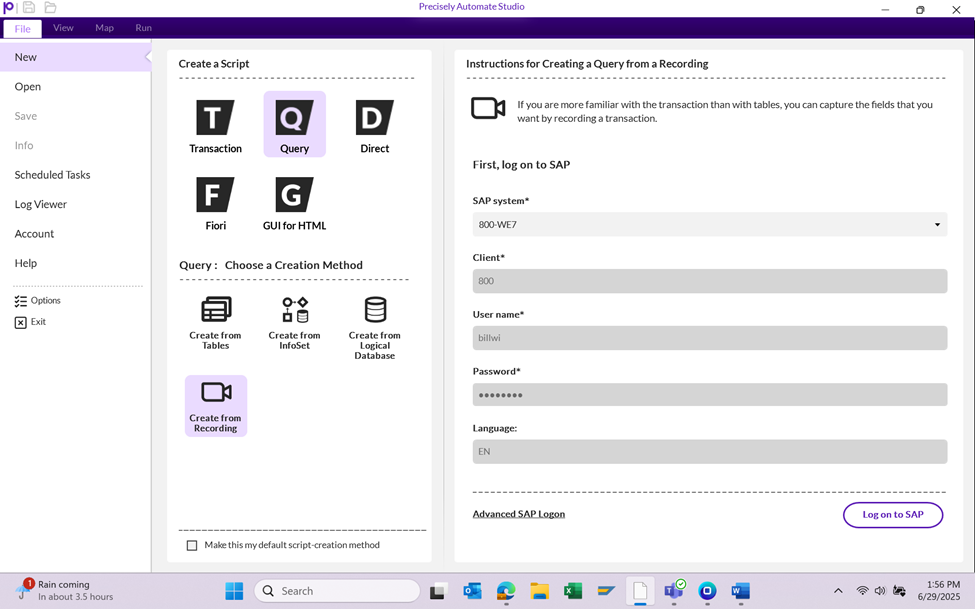
- On the Studio logon screen, do one of the following:
- Click the SAP system box and then click the SAP system you want to log onto.Click Advanced SAP Logon. In the SAP Logon box, choose your SAP system, and then type your client number, user name, and password.
To save your credentials for future sessions, check the Save as auto logon credentials box and type a name for the credentials in the Auto logon name box. The next time you log on to SAP from Studio, you will see your Auto logon name in the SAP system box and your other credentials. All you have to do is click the logon button.
- Click OK.
Select the tables and fields
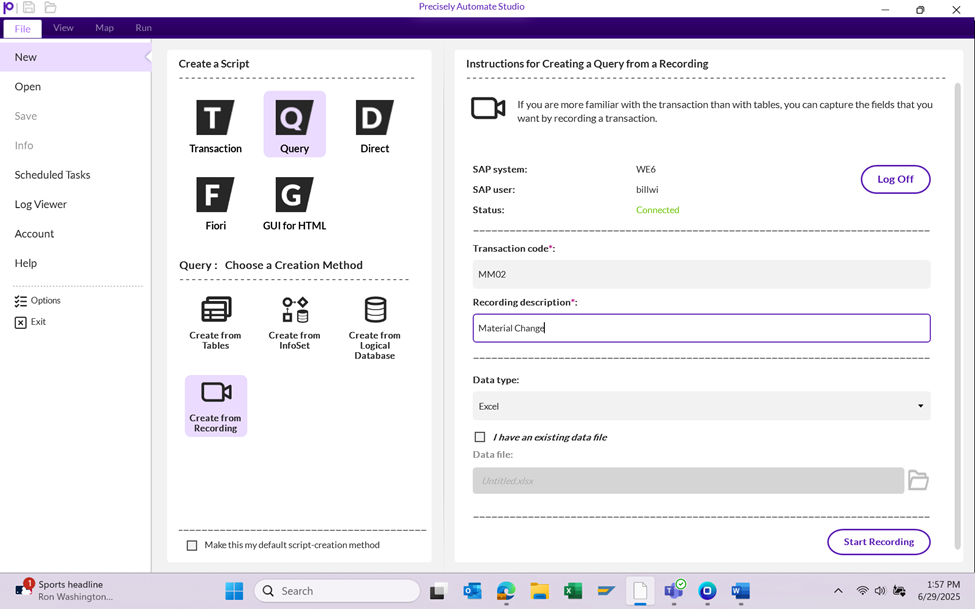
- In the Transaction Code box, type the T-code you want to record.
- In the Recording Description box, type a description for the recording. The description must be unique.
- In the Data type box, choose the type of result file you want to use for the downloaded data:
- Excel worksheet
- Access database file
- Text file
- Click Start Recording
The SAP GUI opens.
- Record the transaction. Be sure to enter data for all the fields that you want to include in your query.
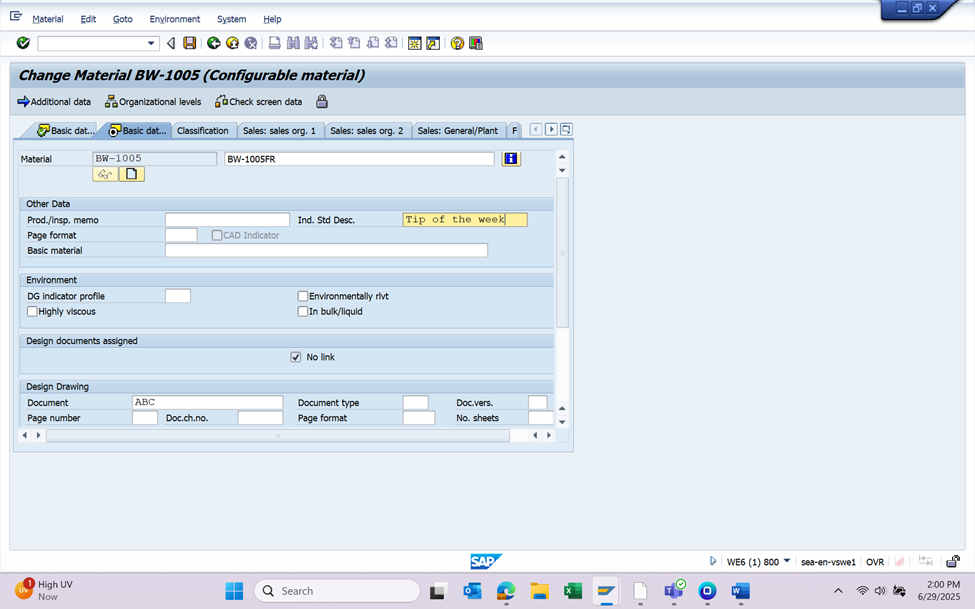 If you do not want to commit the data to SAP, exit out of SAP GUI instead of clicking Save.
After you complete the recording, Query opens on the Workspace tab.
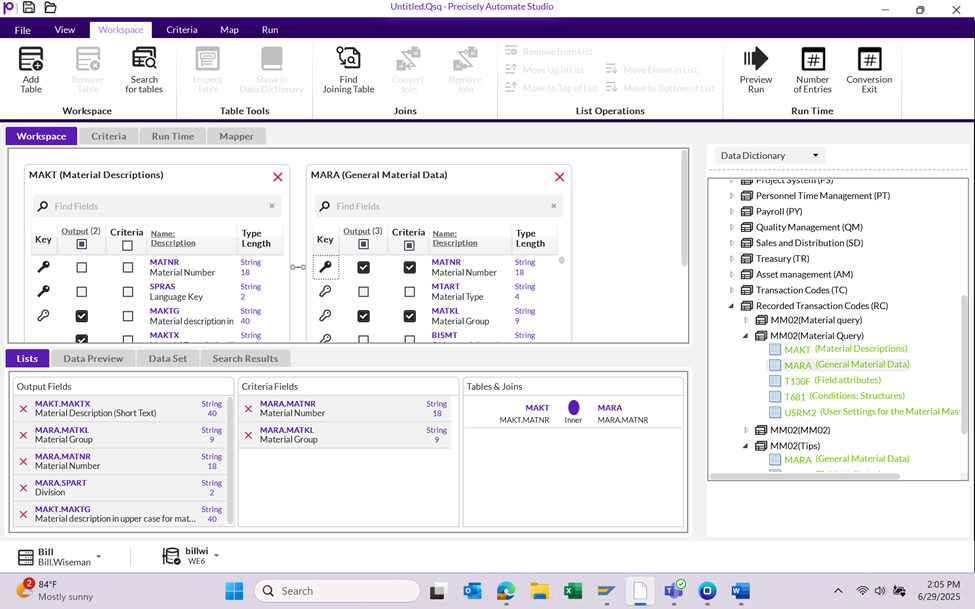
- Under Data Dictionary, click the arrow next to Recorded Transaction Codes (RC), and then click the arrow next to your recording.
- Drag a table to the workspace, or double-click it.
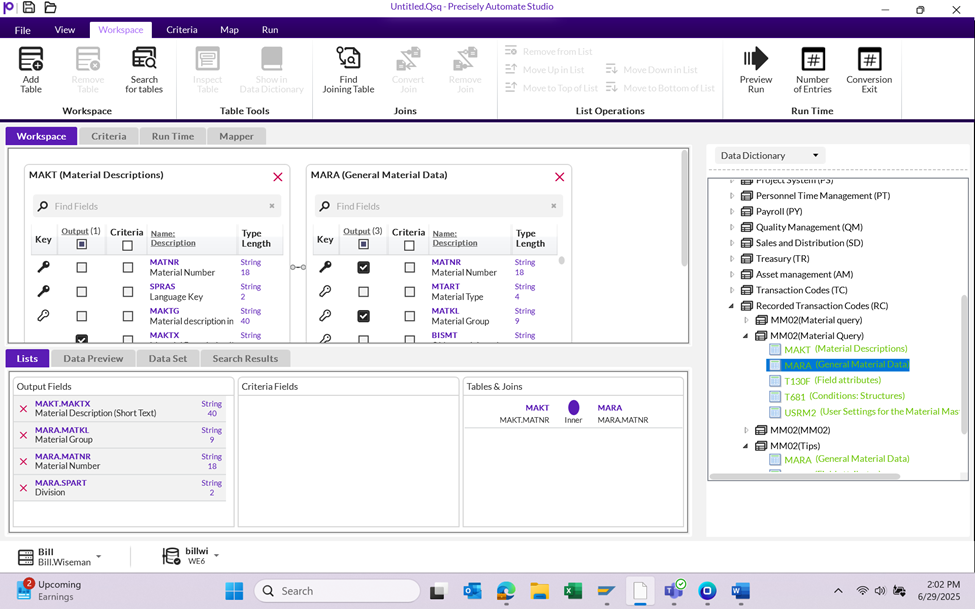
The fields that you changed during the recording are already selected.
Note:
Some of the tables might contain only fields such as check boxes. Click the table, click Inspect Table, and confirm that the table contains fields that you want. If it does not, click the red x in the upper right corner of the table to remove it from the query.
- Check the Output box for each additional field that you want to download data from SAP.
- Check the Criteria box for each field you want to use to define the data set that you are downloading.
Define the operands for the Criteria
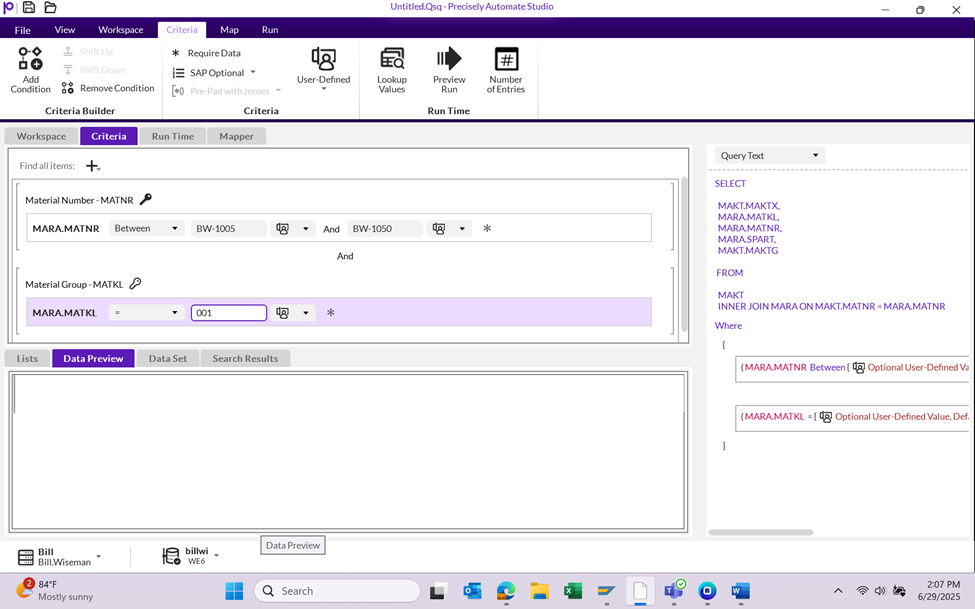
For example, if you want to tell Query to return material data based on a range of material numbers, check the Criteria box for the MARA.MATNR field.
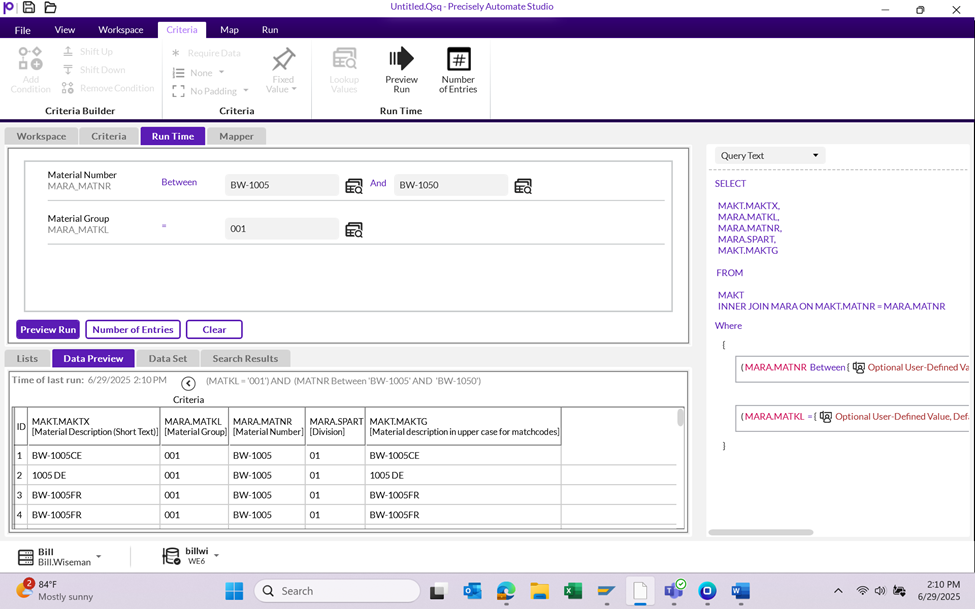
To check your Query for accuracy select Preview Run
Once complete, Map the query, in this instance I used the AutoMap function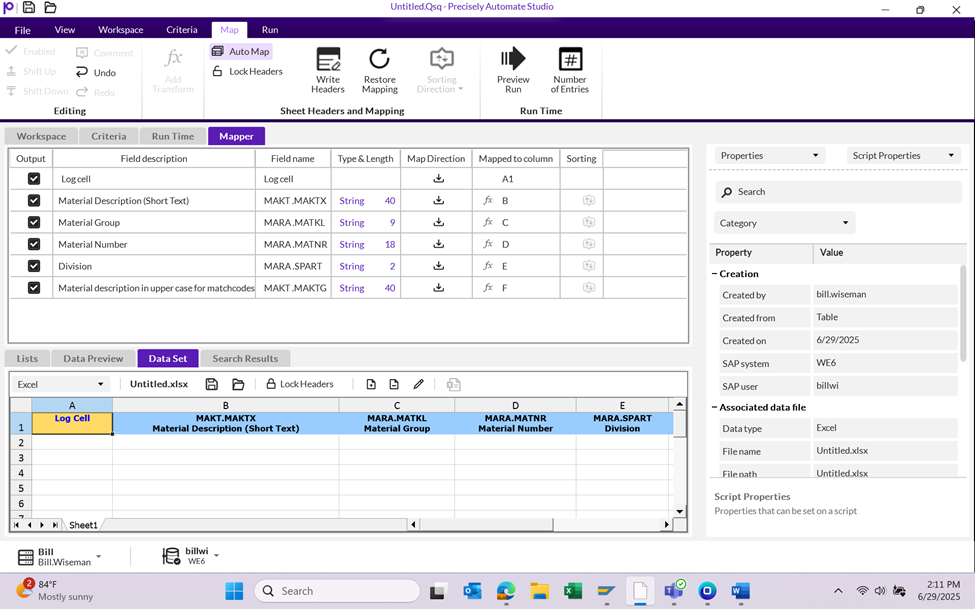
Remember, you can create not only a query, but a roundtrip data change scenario, that you will Query data from SAP and then create a transaction to load changes into SAP.
Once complete, Go to the run tab and finish the run…
------------------------------
Bill Wiseman
Senior Solutions Engineer
*Precisely Software Inc.
Cumming FL
------------------------------