In Evolve, you can customize your organization's visual style by assigning a CSS (Cascading Style Sheet). CSS files dictate the arrangement and design of web pages, influencing aspects like colors, font families, and font sizes. Specifically for Evolve, a CSS provides a way to define and apply styles consistently across multiple web forms.
Evolve comes with a default style. However, you can overwrite the default style using your organization's unique style a custom CSS file.
In this tip of the week, we'll walk through how to add a CSS file to an Evolve File Library (you only have to do this once per CSS file), how to add a CSS to a web form solution, and we'll end with a few helpful hints for developers who are new to CSS.
Add a CSS file to an Evolve file library
Before you can use a CSS file in Evolve, you need to add it to a file library.
Steps:
- Open any web form solution in Evolve
- Go to Solutions
- Forms
- Click on the check box before a web form solution
- Click Edit Solution
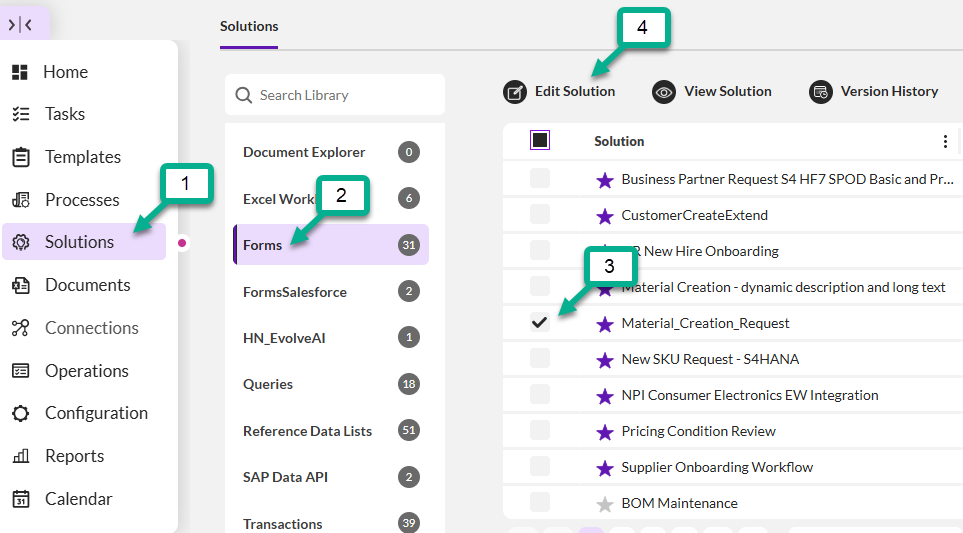
- In the Libraries section on the Solutions tab, click File

Import a CSS file to a library
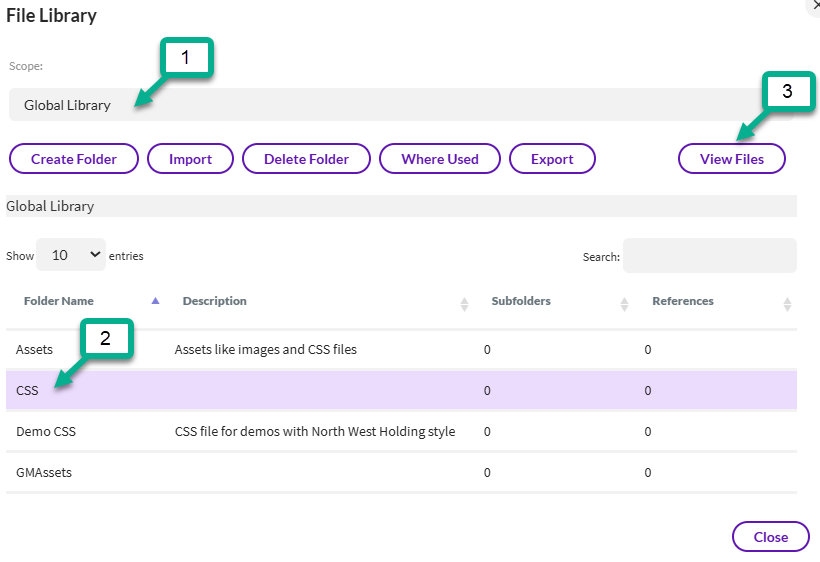
- Choose a library from the Scope drop down list.
- Note: The global library will make your CSS available across apps.
- Click a folder name
- Click View Files
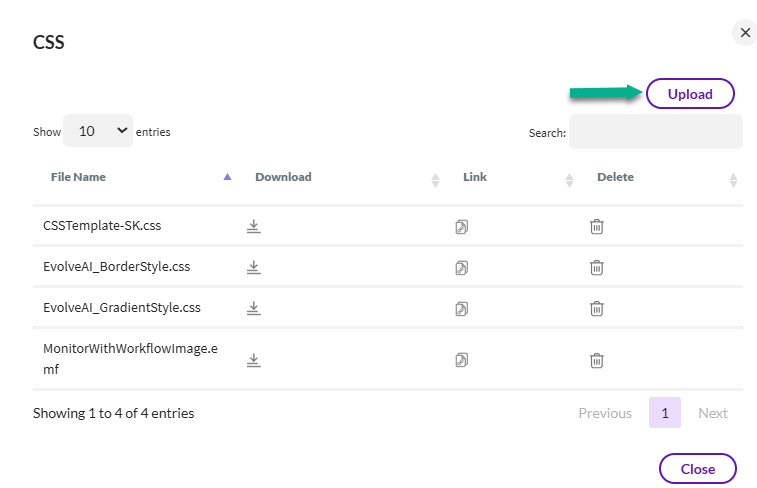
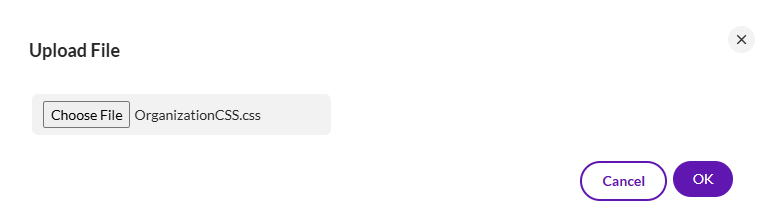
- Select the CSS file you would like to upload and then click OK
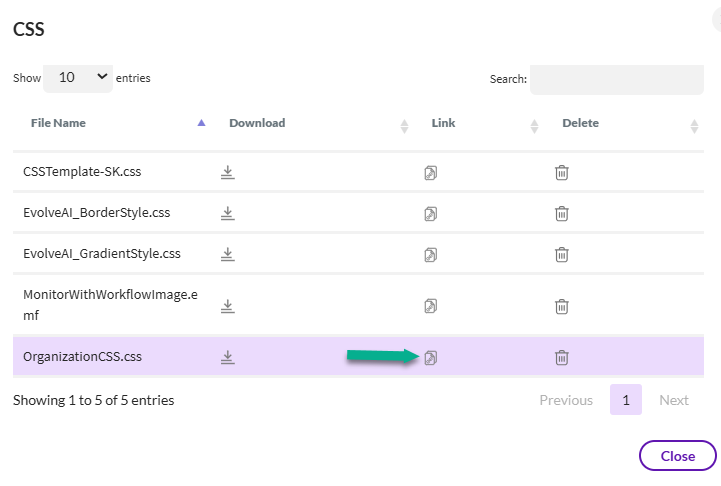
- If you want to add the CSS to an Evolve form click the link button next to the CSS.
- Copy the CSS URL to the clipboard.
- Click Close when finished.
Add a CSS to an Evolve web form
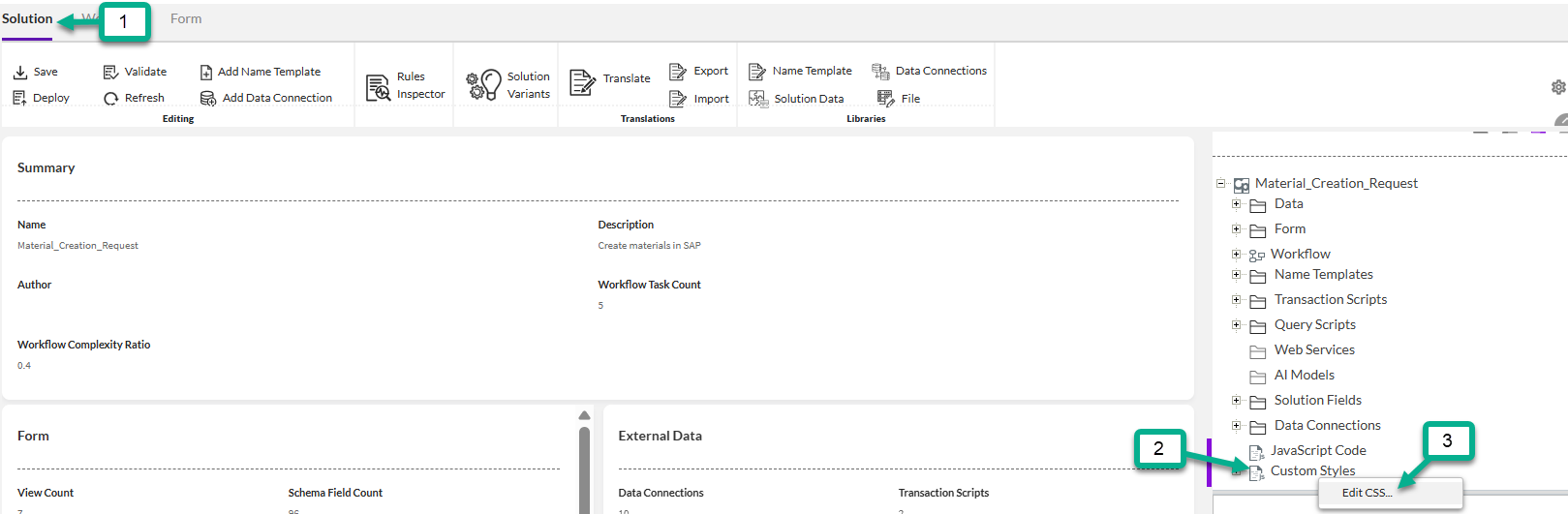
- In the properties window of the Solution tab in a web form solution
- Right click on Custom Styles
- Click on Edit CSS…
- In the Edit CSS window, click on Add…

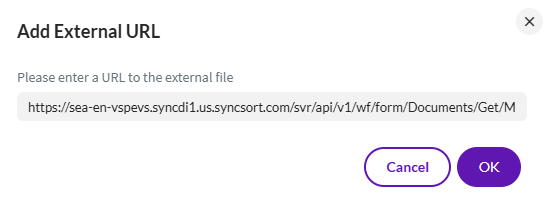
- Paste the link to your CSS file (or type in the URL) and then click OK
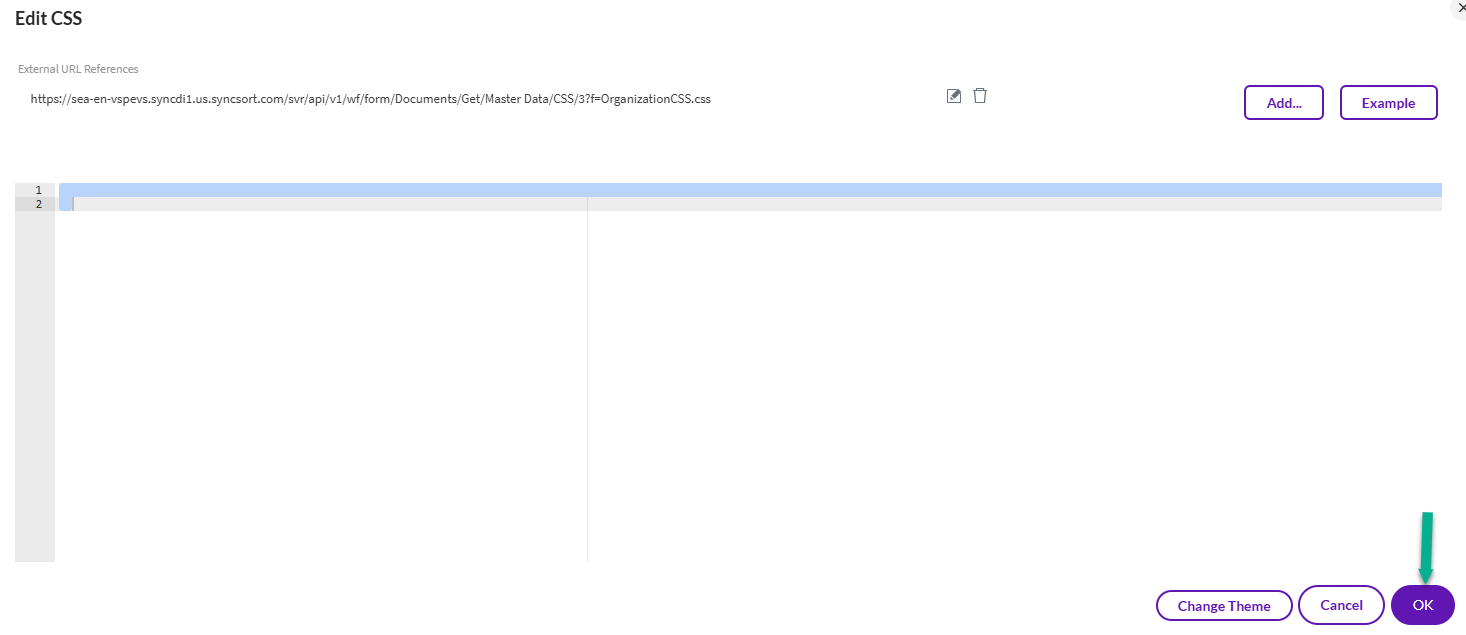
- Deploy your solution
- You should see the formatting changes in your web form.
Helpful hints
- If you are new to CSS, there are several helpful training sites on the Internet. You can search for things like "how to create a CSS file" to find options.
- A sample CSS file is attached to help you get started. This CSS file was designed as an example and is offered as is and may not work out-of-the-box in your environment.
- You may want to consider setting up a "starter" web form template that includes a CSS and other objects your organization wants included as part every web form solution (header, footer, logo, etc.).
- In your CSS file
- If you would like to enter comments in your CSS file enter "/*" before the comment and "*/" after the comment. Comments can provide helpful tips about information in the CSS file.
- Entering "!important" at the end of a line will override default format settings in Evolve.
Enjoy creating CSS files!
------------------------------
Tammy Lake
Sales Engineer
*Precisely Software Inc.
------------------------------