Often when you create a MapBasic application, you need to process for example all the records in a table. Typically, you would do this via a loop that runs thru all the records of the table.
If it is a large table, you want to give the user some kind of information about how far the processing is. Is it at 10%, 50% or almost done? That is very helpful for the user to know.
The easy way to do this is by printing a bit of information to the Message window via the Print statement:
Print "Record " & nRowID & " of " & TableInfo(__TABLE__TO__PROCESS, TAB_INFO_NROWS)
The example above will print the current record number and the total number of records in the table __TABLE__TO__PROCESS for each record. A nice and easy way to inform the user but it is getting close to information overflow – too much information. Moreover, it might even slow down your application
You can limit it to only print for every 500 records:
If nRowID Mod 500 = 0 Then
Print "Record " & nRowID & " of " & TableInfo(__TABLE__TO__PROCESS, TAB_INFO_NROWS)
End If
Still not the best approach.
The ProgressBar statement
Time to look at the ProgressBar that really is the solution to this problem. In addition, it comes with a bonus: The user can stop the processing via the Cancel button on the ProgressBar dialog.
The syntax of the ProgressBar statement:
ProgressBar status_message
Calling handler
[ Range n ]
status_message is a string value displayed as a message in the dialog box. Notice that this string cannot be updated while the process is running.
handler is the name of a Sub procedure. MapBasic will call this procedure multiple times. MapBasic will call it until you tell the ProgressBar that the processing has finished. You do this by assigning the ProgressBar the value of -1. Every time the handler returns to the ProgressBar, MapBasic will check if the user clicked on the Cancel button. If so, the processing will stop.
n is a number at which the job is finished. This would typically be the number of elements that you need to process, for example the number of records in your table.
The ProgressBar looks like this when running inside MapInfo Pro
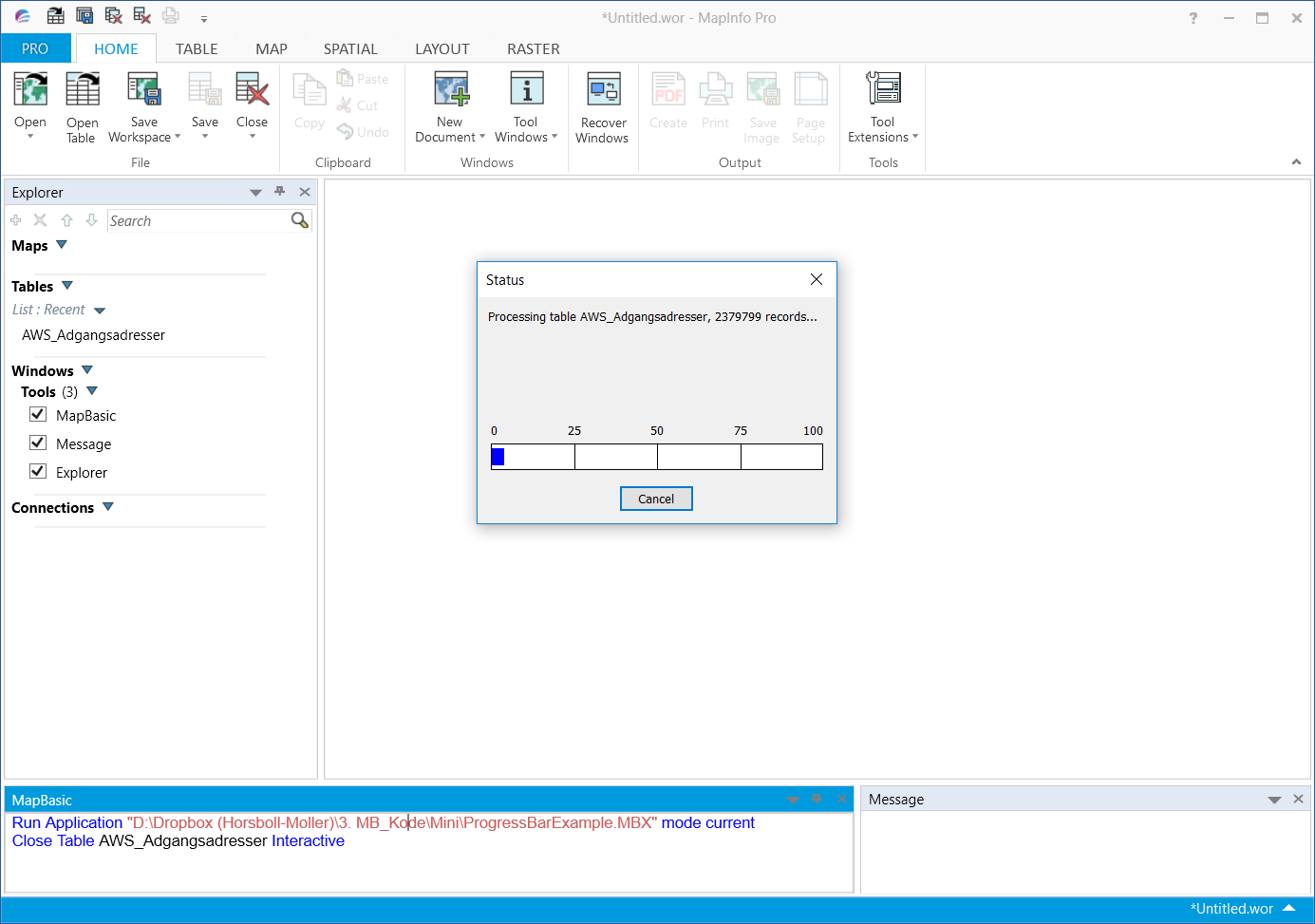
A simple ProgressBar example
Below you can see a basic example where the ProgressBar is used to loop thru a table of records. This example updates the ProgressBar for each record.
In the Main procedure, the user is asked to select the table to process. In order to get the name of this table shared between the Main procedure and the handler procedure, I select the records to process into a named query. In this way, the name of the table to process is always fixed and therefor known to the handler procedure.
Just before starting the ProgressBar, I use the Fetch First statement to position the cursor at the first record in the named query.
In the handler procedure, I read the RowID of the current record and then I’m ready to process the data in whatever way I want to.
When the processing of this record is done, I use the Fetch Next statement to position the cursor at the next record in the table. Then it is time to check if the cursor is put at EOT (End Of Table) which means that there is no more records to process. If that is the case, I set the ProgressBar to -1. If not I set the ProgressBar to the RowID of the record, I just processed.
MapBasic now returns to the ProgressBar to see if the user has pushed the Cancel button and to update the ProgressBar with the current value.
'*****************************************************
Include "MapBasic.def"
Declare Sub Main
Declare Sub ProcessElement
'*****************************************************
Sub Main
Dim sFile, sTab As String
'**Ask the user to select a table
sFile = FileOpenDlg("", "", "TAB", "Select table to process...")
If sFile = "" Then
Exit Sub
End If
Open Table sFile Interactive
sTab = PathToTableName$(sFile)
'**Select the records to process into a named query
Select *
From sTab
Into __PROCESS NoSelect Hide
'**Fetch the first record from the query
Fetch First From __PROCESS
'**Start the progressbar
ProgressBar
"Processing table " & sTab & ", " & TableInfo(__PROCESS, TAB_INFO_NROWS) & " records..."
Calling ProcessElement 'ProcessElementTime
Range TableInfo(__PROCESS, TAB_INFO_NROWS)
'**Check if the processing was halted by the user
If CommandInfo(CMD_INFO_STATUS) Then
'**Process was stopped, let's rollback changes to the table
Rollback Table sTab
Else
'**Process was completed, let's commit changes to the table
Commit Table sTab
End If
Close Table __PROCESS
End Sub 'Main
'*****************************************************
Sub ProcessElement
Dim nRowID As Integer
'**Get the RowID of the current record
nRowID = __PROCESS.ROWID
'**This is where you would be doing the processing of the records
Fetch Next From __PROCESS
If EOT(__PROCESS) Then
'**We have looped thru all records
ProgressBar = -1
Else
ProgressBar = nRowID
End If
End Sub 'ProcessElement
A bit more advanced ProgressBar example
If you have many records in your table and the processing of each records does not take a lot of time, you should consider adding small loop inside the handler procedure to avoid refreshing the ProgressBar for each records.
Returning to the ProgressBar adds a small overhead to the time it takes. When looping thru many records, this might add up to a substantial amount of time. We are not talking hours, but the processing might get slowed down adding an additional minute to the processing time. I have seen this when loop thru 2 million records. With fewer records, the overhead will be smaller.
Here is a slightly modified version of the handler procedure that only returns to the ProgressBar every two seconds. The only difference is the Do-Loop structure around the processing of the records. This structure makes sure that a certain amount of time is spent on processing before MapBasic returns to the ProgressBar. In this example the time is set to 2 seconds.
'*****************************************************
Sub ProcessElementTime
Dim nRowID, nTime As Integer
nTime = Timer()
Do Until EOT(__PROCESS) Or (Timer() - nTime > 2)
'**Get the RowID of the current record
nRowID = __PROCESS.ROWID
'**This is where you would be doing the processing of the records
Fetch Next From __PROCESS
Loop
If EOT(__PROCESS) Then
'**We have looped thru all records
ProgressBar = -1
Else
ProgressBar = nRowID
End If
End Sub 'ProcessElementTime
Sample code
You can get the sample source code for the example above in a zip file here:
ProgressBar Sample