Many users who build Excel workflows ultimately need to upload or maintain data in SAP by executing one or more Automate Studio scripts. Common examples include creating or updating materials, equipment records, cost centers, pricing data, vendor or customer information, and uploading journal entry transactions. These and many other SAP automation scenarios can be executed directly from within an Excel workflow using the Automate Autorun Plugin, allowing users to streamline data entry and automate repetitive SAP processes. This week's Tip of the Week provides step-by-step instructions for configuring and running Studio scripts from an Excel workflow using the Automate Autorun Plugin.
Step-by-Step instructions
1. Map the script to the workflow workbook. In Automate Studio, open the script and map its input, output, and log fields to the Excel template that will be used by the Evolve solution. Confirm that the mapped columns and sheet names match the final template.
2. Validate the script. Test the mapped script with representative data and verify that the SAP results and log messages are written to the expected Excel columns.
3. Save the Excel-mapped script. Save the Studio script with its input, output, and log fields mapped to the same Excel template used by the workflow. Note: An XML mapping is not required for an Excel workflow.
4. Submit the solution files to Evolve. Submit the Studio script and Excel data template to the appropriate Evolve app. Complete the generated approval task so that the files are available when the Excel workflow is designed and deployed.
Configure the Automate AutoRun Plug-in 
In Solution Designer, open the Excel workflow and add a Plug-in Action node at the point where the SAP operation should run. Select Automate Autorun as the plug-in and keep the process active until the plug-in finishes.
Important: Set Continue without waiting to False. This prevents the workflow from completing before Automate Autorun has posted the data to SAP.
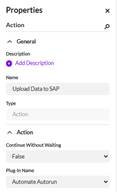
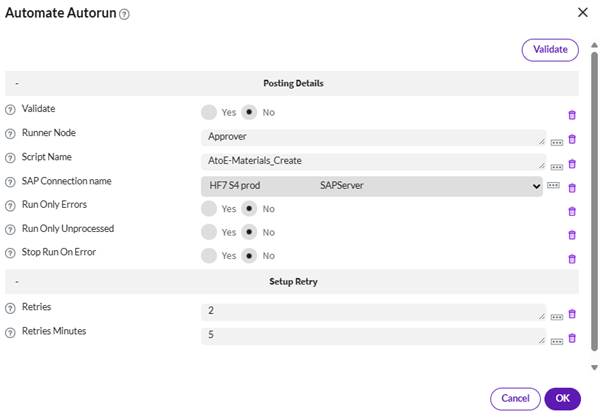
Configure the settings that apply to your process:
- Validate: Choose whether the script should be run in Validate mode or not. Yes = Validate, No = Run
- Runner Node: Identify the workflow activity whose assigned user supplies the run context or leave it blank to use the nearest eligible activity in the swim lane.
- Script Name: Select or enter the approved Studio script. Include the file extension when scripts with the same base name could otherwise be ambiguous.
- Important: The name of the script entered must exactly match the name of the Studio script – including the Txr extension, for example.
- SAP Connection name: Select the SAP connection that the workflow should use.
- Run Only Errors: Use this option to retry only rows whose log field contains an error.
- Run Only Unprocessed: Use this option to process only rows whose log field is empty.
- Stop Run On Error: Choose whether processing should stop after an error or continue through the remaining rows.
- Retries and Retry Minutes: Optionally define retry behavior for temporary failures.
Test and Deploy the Excel Workflow
- Save and validate the workflow definition.
- Run a controlled test using a non-production SAP connection and a small, representative data set.
- Confirm that the workflow reaches the Automate Autorun node, the correct script and connection are used, and results are written to the Excel log column.
- Test the success path, validation failures, SAP errors, and any retry or approval path included in the workflow.
- Deploy the solution only after the script, workbook, workflow routing, permissions, and SAP connection have been verified.
Customer Checklist
- The Studio script is mapped to the deployed Excel template.
- The script and workbook are submitted and approved in Evolve.
- The Automate Autorun node appears before the workflow completion path.
- The script name and SAP connection are correct.
- The workflow waits for Automate Autorun to finish.
- The log column is mapped and visible to users who need to review results.
- The Evolve Worker and run user have the required SAP access and authorizations.
Troubleshooting
- If no rows run, check the log column and the Run Only Unprocessed or Run Only Errors settings.
- If the wrong script runs, specify the complete script name, including its extension.
- If the process completes without posting, verify that Continue without waiting is set to False.
- If SAP authentication fails, confirm the selected connection, worker configuration, run user, and SAP authorizations.
- If results appear in unexpected columns, reopen the script in Studio and verify its Excel mappings against the deployed template.
------------------------------
Tammy Lake
*Precisely Software Inc.
------------------------------